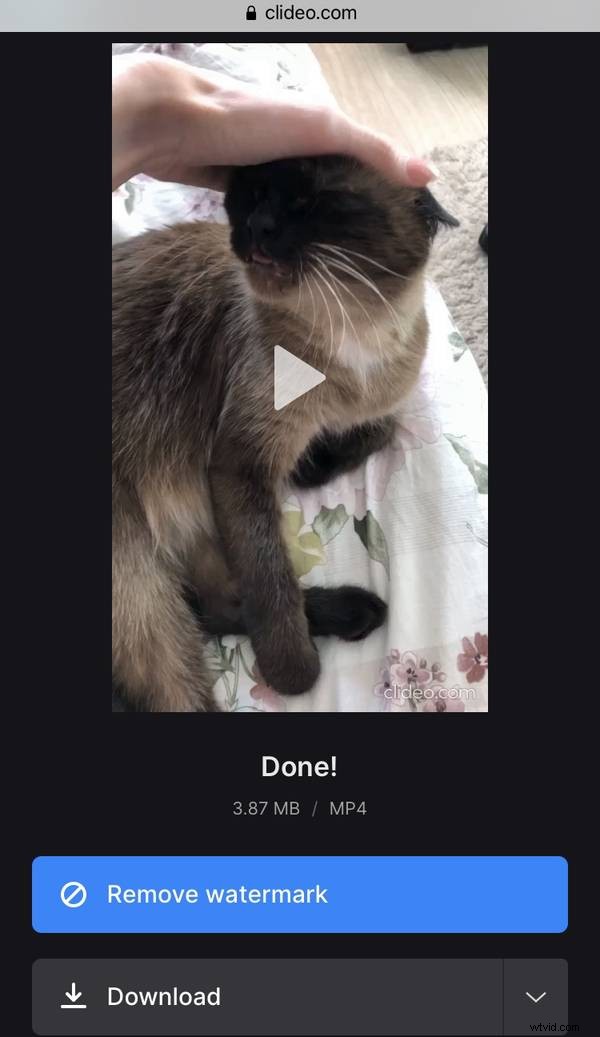
Slow down your video on iPhone after recording
If you frequently watch videos on YouTube, Instagram, or Facebook, you’ve probably seen a lot of videos that use the slow down or speed up effects. No wonder, these are some of the easiest ways to make a video more engaging. Slow motion helps focus people’s attention on a particular moment. On the other hand, speeding up is commonly used for comical effects.
If you often record videos on your iPhone, you may be wondering how to apply these effects to the video. While filming, you can use the speed up or slow down time lapse feature on iPhone. However, Camera Roll has no such option when you open an already saved video.
In that case, we have a tool just for you! There’s no need to download any app to your mobile device. You only have to have Internet access to use it. The rest is pretty simple; just take a look at the steps below.
Upload a video
Open Clideo’s Video Speed Changer.
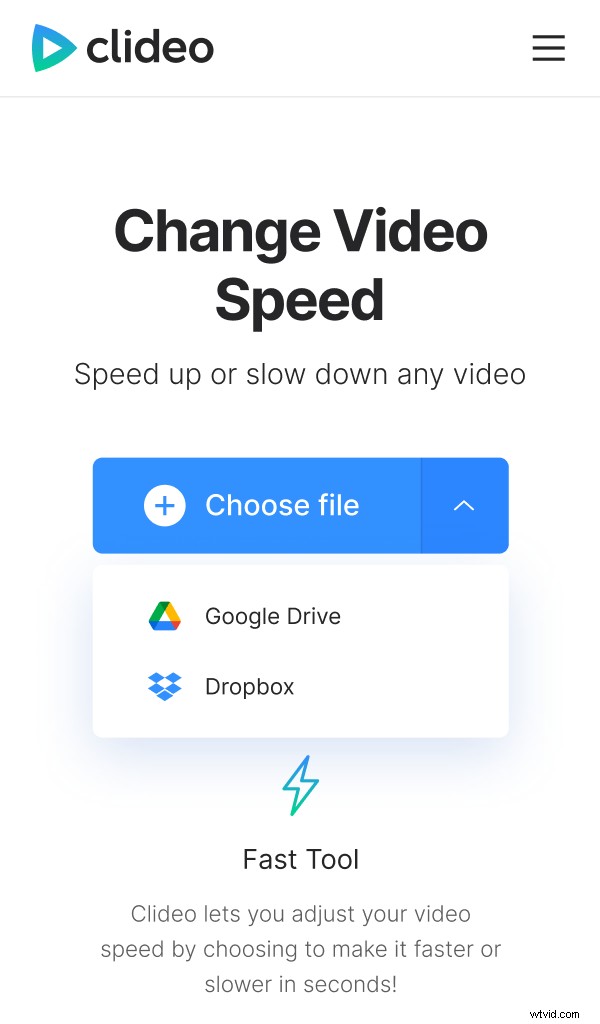
Tap the "Choose file" button and pick the video from your device. Alternatively, you can upload files from Google Drive or Dropbox – to do that, simply tap the arrow on the same button and choose the option you need.
Change the video speed
Select one of the speed presets or set the specific speed by manually dragging the slider above them.
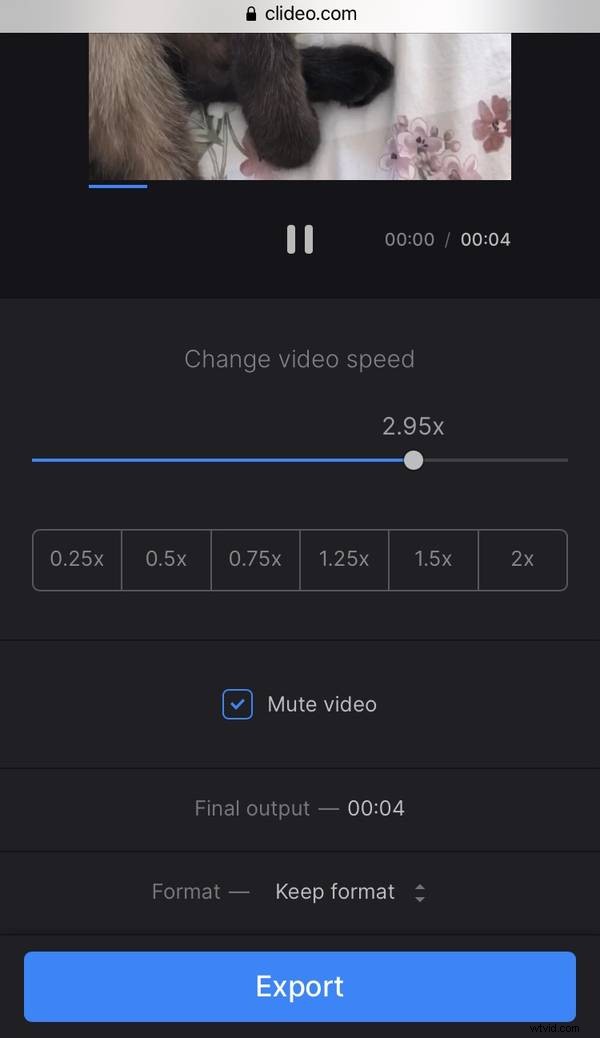
Check the "Mute video" option to turn off the sound if needed. You can also change the video’s format using the option with the same name below.
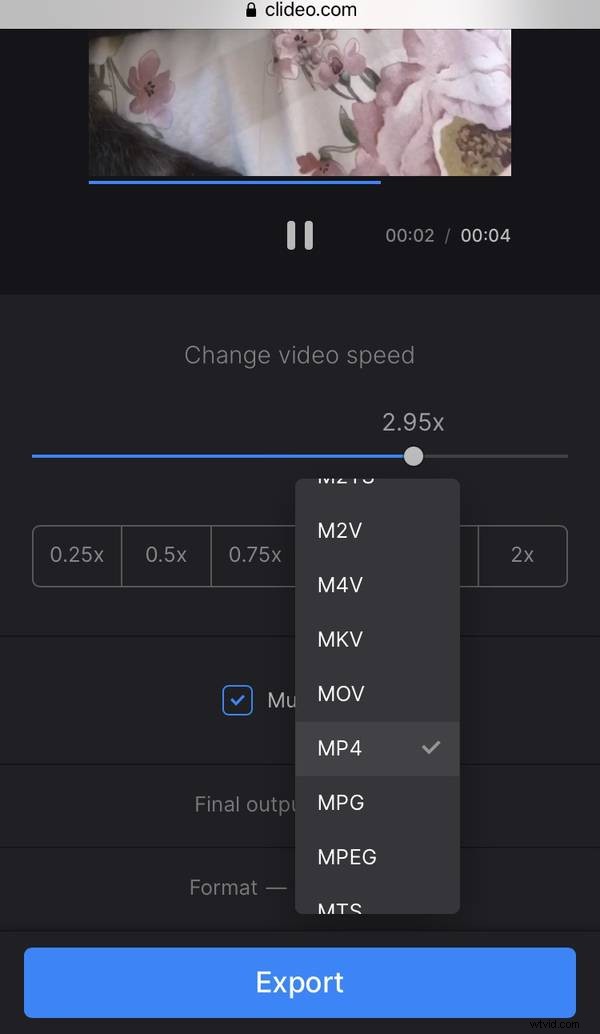
When everything is ready, tap "Export".
Download the end result
On the next screen, watch the preview to check if everything looks right. If you need to make changes, tap the "Edit" button. Otherwise, tap "Download" to save the video to your device or cloud storage account.