
This post covers 2 methods to speed up videos on iPhone. You can easily get the steps to speed up a slow-motion video and regular speed video.
You have just recorded a video on your iPhone, and it has captured exactly what you wanted. The scene, elements, lighting, and the narrative everything look in tip-top shape. And yet, something feels amiss. The speed may seem slow, and you don’t want to bore your friends and family who will watch the video. Take advantage of iMovie and the Photos app on your phone for speeding up the video in a matter of seconds.
Before moving forward, make sure you make a copy of the video if it is of importance and cannot be recreated. Better be safe than sorry later.
How to Speed Up a Slo-Mo Video with Photos App
You are scrolling through the Photos app and come across a video that has been recorded using the slow-mo app. In hindsight, it occurs to you that a normal video could do better. That’s not a problem, and you do not need to use iMovie either. The Photos app is capable of doing basic editing, including speeding up a video.
Let’s see how you can normalize or speed up your slo-mo video shot on your iPhone. Remember, this method might not work on the videos that you took from other devices.
Step 1. Open Photos App and Click “Edit”
Head to the Photos app and find your video. Tap on the Edit button at the top.
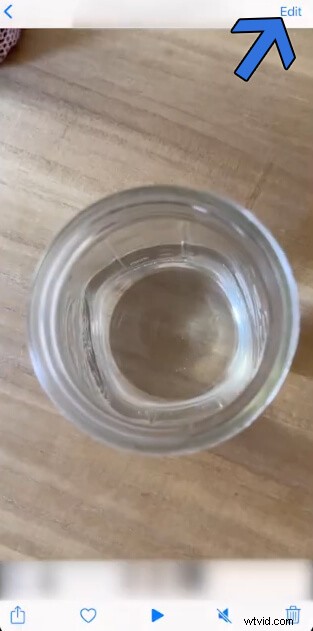
Tap the Edit Button
Step 2. Locate the Slo-Mo Effect Progress Bar
Look down at the two white vertical bars that look apart from each other. That’s the Slo-Mo Effect manifested in the progress bar.

Remove Slo-Mo Effect
Step 3. Drag and Join the Progress Bar
Drag and join them in the middle to altogether remove the slo-mo effect from your video. The bars should be equally distributed after joining them. Move them towards each other in equal proportion for the desired result.
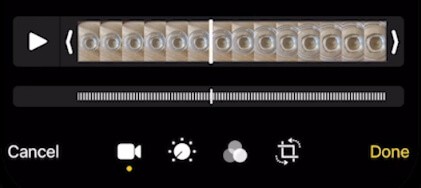
Move the Bars
Finally, once everything looks tidied up, we save the video by tapping on the Done button located at the bottom right corner.
Also, it’s not difficult to speed up a normal-speed video on iPhone. You should have iMovie by your side.
How to Speed Up Video on iPhone with iMovie
iMovie is one of the best video editors on Mac. It supports free but powerful editing features to make video editing much easier. No matter you are going to speed up a video on iPhone or just cut, trim, add effects to the video, iMovie would be your best choice. Now let’s take a look at how to speed up a video on iPhone with iMovie.
Step 1. Launch iMovie and Create a Project
Launch iMovie from the home screen. Let’s go landscape and take advantage of the vast screen. It is installed by default on the iPhone. In any other case, you can always head to the app store and install it. Create a project by tapping on the Create Project button.
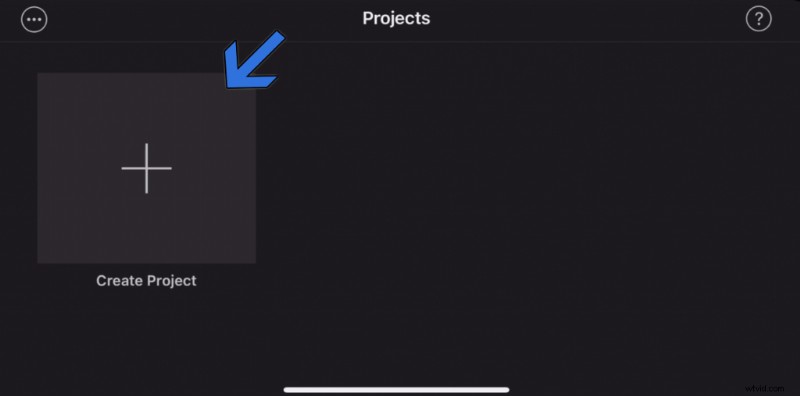
Create Project
Step 2. Select the Movie Option
A screen with two options will pop up. Since it’s a video, we will go with the classic movie option.
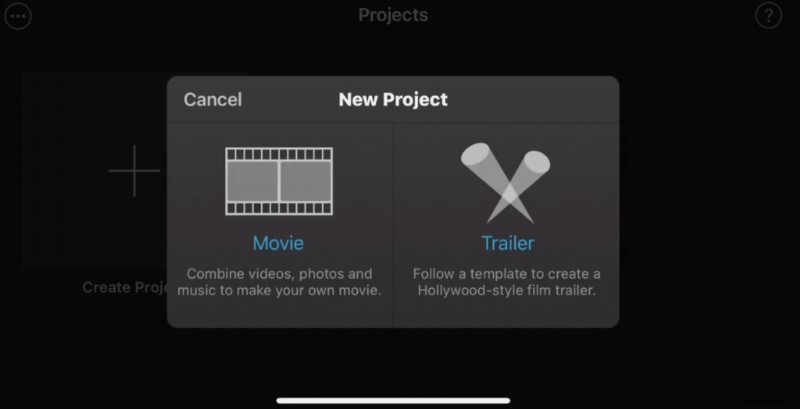
Select Movie Option
Step 3. Import the Video From the Gallery
Now we will import the video from the gallery. Select it from videos. After that, tap on the Create Movie button, and we will land up in the editor menu.
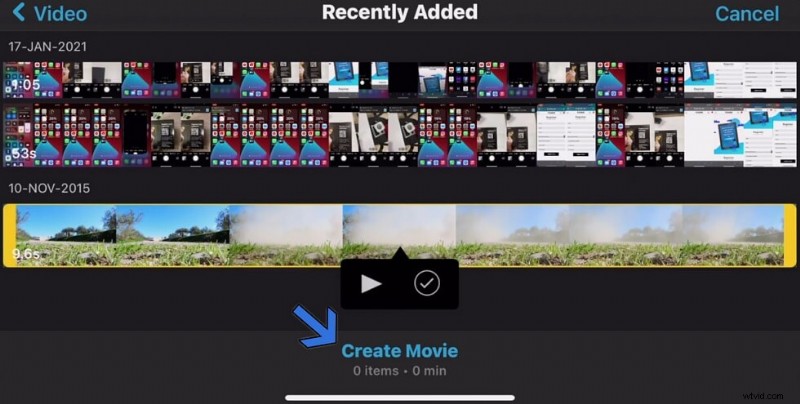
Import Video
Step 4. Speed Up / Slow Down the Video
Tap on the video from the timeline, and then select the speed icon. A speed menu with a turtle and a rabbit on either end will appear. Point B represents the default 1x speed. And when you move it to the right, the video’s speed will increase exponentially.
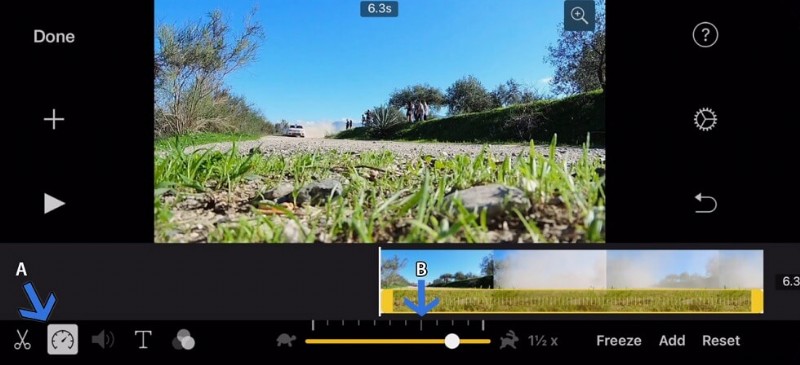
Speed Up/ Slow Down the Video
Step 5. Save and Export the Video
Tap on the Done button located in the top-left corner of the screen. Then select the export option, and this menu will appear. Choose the option which suits your needs.
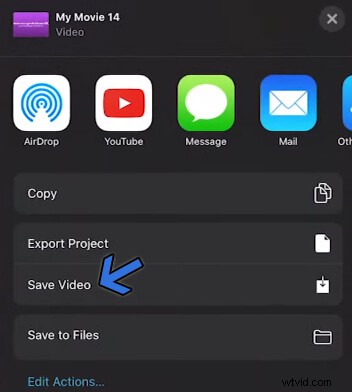
Save Video
Conclusion
iMovie is a versatile mobile video editor that gets the work done in no time. Apart from calibrating the video’s speed, there are a plethora of tools at your disposal. On a different path, the Photo app helps you with quick editing. Anything extraordinary and iMovie is your pal to rely upon.