
The latest iPhone cameras are able to record ultra high resolution video at 4K resolution, though the high definition movie capturing ability is not enabled by default. Thus, in order to capture 4K high definition video with the iPhone you’ll need to enable the super HD recording feature first, which is done through the devices camera settings.
If you were wondering, the reason the iPhone 4K video recording feature is turned off by default is likely because of the significant storage requirements that are necessary to capture and record 4K video. Thus, the iPhone video capture default is set to 1080p at 30 FPS. More on the storage requirements in a moment, but first let’s show how to enable the 4K video recording for those who want to capture truly HD video with their devices camera.
How to Enable 4K Video Recording on iPhone
You’ll need a new iPhone with 4K video support to have this feature available, which is the 6S or better:
- Open the Settings app and go to “Photos & Camera”
- Scroll down to “Camera” and tap on “Record Video”
- Select “4K at 30 fps” to enable 4K video recording with the iPhone camera
- Exit out of Settings
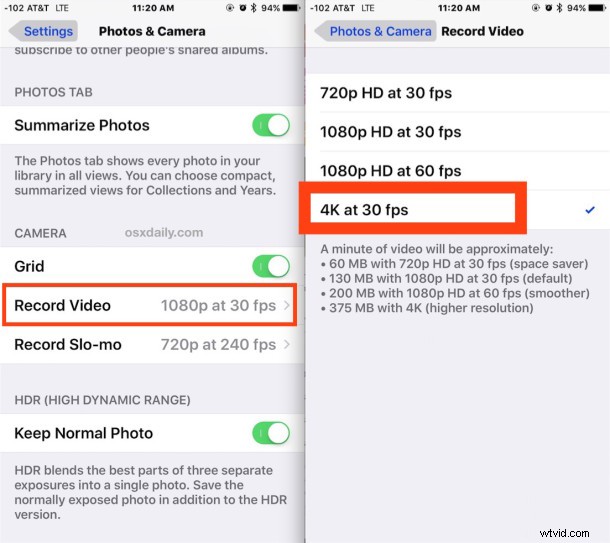
Now that 4K video recording is enabled, you’re ready to go.
While you’re in these settings you may want to go about changing the slow motion recording speed as well.
Recording 4K Video with the iPhone Camera
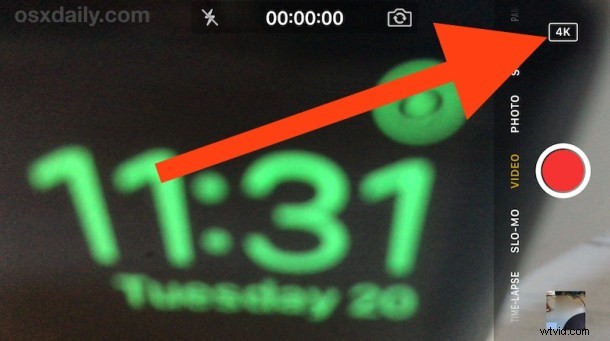
Once 4K video capturing is enabled, any video recorded with the default iPhone Camera app will capture at the ultra high resolution 4K. This is indicated clearly when in the Camera app Video mode by the “4K” badge” in the corner of the screen both before recording and while capturing video.
Video captured in 4K is incredibly smooth and arrives at such a high resolution that most TV sets can’t even display the full quality.

As with other capture modes, you can continue to snap a still photos with the normal camera while recording 4K video.
So why not always use 4K video all the time? The settings app hints at this while you’re making the adjustment from SD to HD to 4K video.
- 60 MB with 720p video
- 130MB with 1080p HD video at 30 FPS (this is the default setting)
- 200MB with 1080p HD at 60 FPS
- 375 MB at 4K resolution
As you can see, the 4K video capture takes up nearly 3x the storage space as the default recording option, and a whopping six times the storage of the lower resolution 720p. This is important to keep in mind, recording 4K video resolution takes up a huge amount of storage space, so you’ll likely want to transfer the ultra high resolution videos onto a computer rather quickly instead of letting them linger on the iPhone and take up precious storage.
You’ll also want to be sure plenty of free space is available while recording the 4K video, otherwise you’ll quickly run out, which stops the video capture whether you’re ready to stop recording or not.
For those without the latest iPhone models (6S and 6S Plus), you can still make adjustments to the quality of video recorded on the device, primarily by setting the video to record at 60FPS while in 1080p, which is very smooth and looks great too. Given that most televisions and monitors are 1080p or less resolution, the video still looks phenomenal, but clearly the near future of video is at the 4k resolution.