
 Generally speaking, using a websites intended mobile version is recommended when the site is accessed from an iPhone or iPod touch, since mobile websites tend to be optimized for smaller screens. Nonetheless, sometimes a user visiting a mobile site may wish to access a desktop version of the same website from their iPhone, iPod touch, or iPad, without having to use Handoff to pass the page off to a Mac.
You can request the desktop version of a webpage easily in Safari with new versions of iOS, though if you’re familiar with the older approach then you’ll notice the feature is accessed differently than prior versions of Safari on iPhone and iPad.
Requesting a Desktop Site in Safari for iOS on iPhone or iPad
This trick works the same to request the desktop version of a site in Safari for iOS 13, iOS 12, iOS 11, iOS 10, iOS 9, and on both iPhone and iPad.
- Open the web page in Safari for iOS that you wish to request the desktop site version of
- Tap on the URL bar at the very top of the screen, this a tap reveals the navigation buttons in Safari for iOS and sharing button
- Tap the sharing button, it looks like a box with an arrow coming out of it
- Swipe over on the various action icons until you see “Request Desktop Site” and tap on that button
- If successful, the webpage will reload but with the desktop version, otherwise the mobile version will be served again
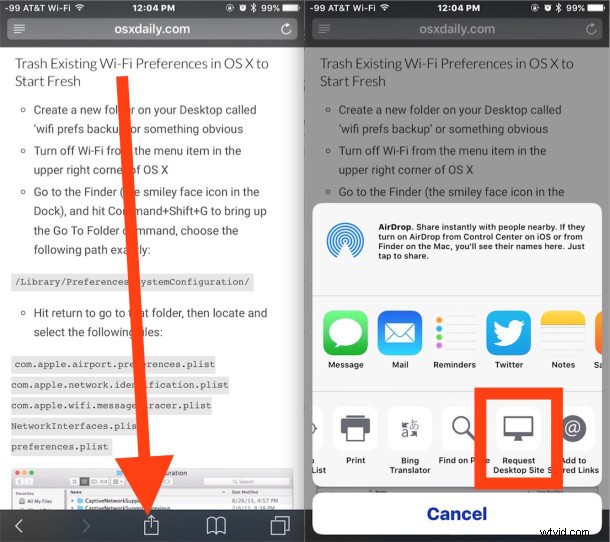
Almost all websites will allow users to request the desktop version instead of the mobile site, but some don’t, which is why the button is called Request not Demand Desktop Site.
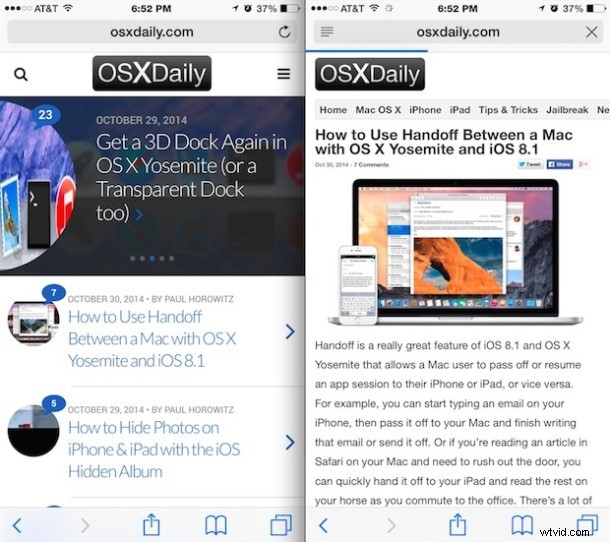
You can also go the other way and request a mobile site if you’re served a desktop version erroneously. Generally speaking, if you’re on a mobile device, you should use the mobile version of a site, as they’re almost always optimized for the device screen and allows for improved usability.
This is directed at Safari in modern versions of iOS, whether it’s iOS 13, iOS 12, iOS 11, iOS 10, iOS 9 or later, but prior versions of iOS users have been able to request the desktop version of a webpage in prior versions of iOS Safari too, but through a less intuitive approach that involved pulling down from the top of the URL bar. Now the feature has simply moved to an easier and more accessible location.