
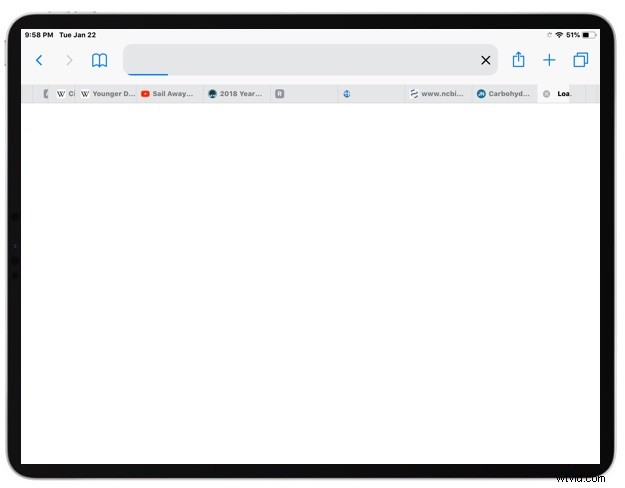
Website favorite icons can help to visually distinguish one website tab from another when looking at a crowd of Safari tabs, and in the latest versions of iOS you can now enable website favicons in Safari tabs for both iPhone and iPad.
This tutorial will show you how to quickly enable the display of website favorite icons (favicon) in the iOS Safari web browser for iPhone or iPad.
How to Show Favicons in Safari for iOS
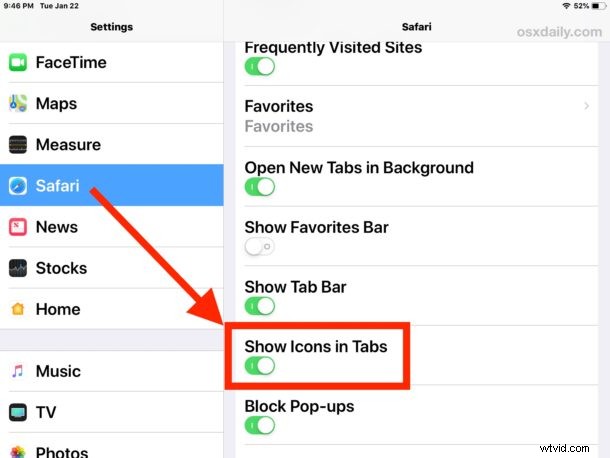
- Open the “Settings” app on the iPhone or iPad and then go to “Safari”
- Locate ‘Show Icons in Tabs’ and toggle that switch to the ON position
- Return to Safari on the iPhone or iPad, if you have multiple tabs open you will now see the website icons appear along the tab name or site name
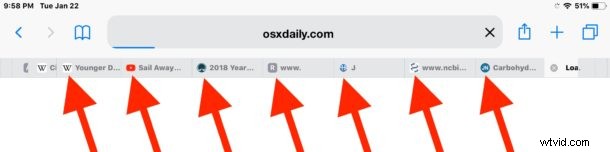
Enabling the display of website favicon in Safari for iPhone and iPad can make browsing through many tabs a bit quicker, since you may have learned to visually identify a particular favicon with a particular website. You also might appreciate the feature when searching through Safari tabs on iPad or iPhone, or when swiping through a large number of tabs at the top of the Safari browser window on iPad, or when viewing iCloud Safari Tabs.
Beyond that there isn’t much necessary, as the favorite icons will load automatically with all future websites, assuming they’re supported by that web page or web site. Favicons are included with most websites by default appearing as a little ‘favicon.ico’ file on the web server, and those favicon files exist on the site whether they are shown in Safari or not.
If you don’t have this setting available in your iOS Settings for Safari, it means you’re running an older version of iOS. Thus you can either update to a newer version of iOS (12.0 or later) or just do away with the feature. Many of the alternate web browsers for iOS also show favicon by default, including Chrome. This feature has been standard on many other web browsers for a long time but was not available in Safari for iOS or Mac until recently.
While the favicon visibility is desirable to some users, others may not like the feature since it can clutter up a tab bar with a lot of colors and icons, rather than simple text.
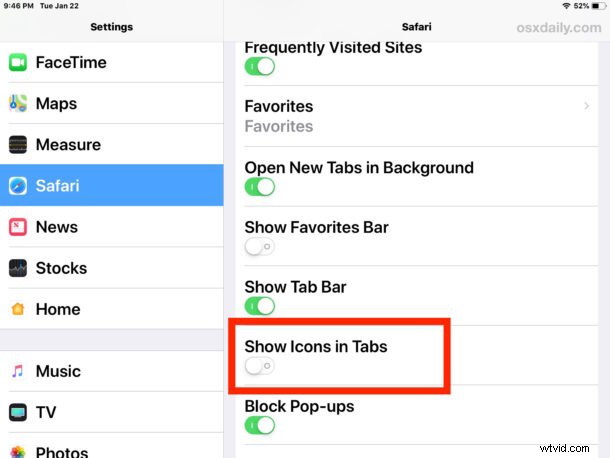
Of course you can hide the website favicons from Safari tabs in iOS again by returning to that Safari Setting and turning the feature back off.
This is obviously for the iPhone and iPad, but you can also show website favicons in Safari on Mac if you’re running a modern version of MacOS too (10.14 or later).