

If you use Google Chrome for iPhone or iPad, you might occasionally want to clear cookies for websites, or other website data. And perhaps you want to specifically clear website cookies without affecting all your browsing history, search history, and saved passwords in Chrome? That can be done in iOS and iPadOS easily and within a matter of seconds.
Chrome is a very popular web browser, and although most iPhone/iPad users stick to Safari that’s pre-installed on iOS and iPadOS devices, a lot of people still use and prefer Google Chrome instead, whether for it’s particular features, or syncing across platforms capabilities, performance, or just general preference. Google Chrome gives you plenty of customized options for clearing your browsing data, so if you want to clear cookies or website data on an iPhone or iPad, read along.
How to Clear Cookies & Website Data on Chrome for iPhone & iPad
As mentioned earlier, website cookies can be removed within the app itself and the setting is tucked under Privacy settings.
- Launch the Chrome app on your iOS/iPadOS device.

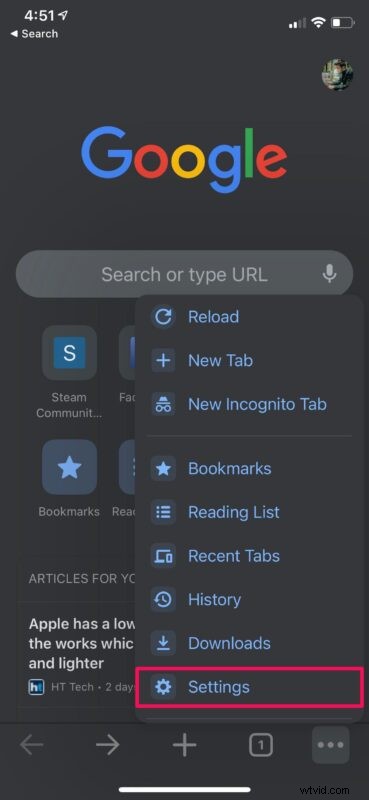
- Tap on the triple-dot icon which is located right next to the Tabs option.

- This will give you access to more options. Tap on “Settings” to access your Chrome settings.
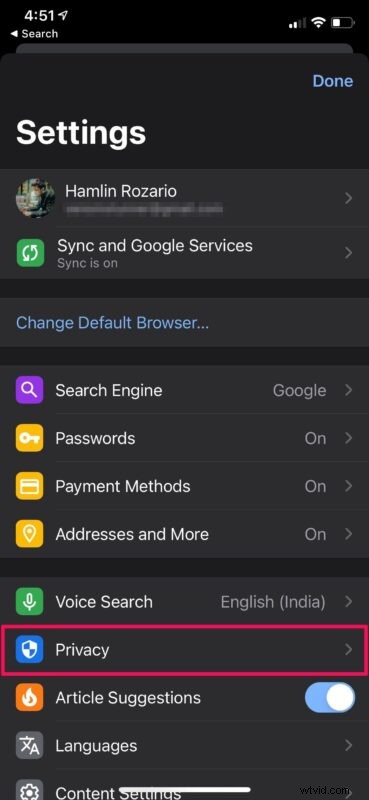
- Here, head over to the “Privacy” setting located below Voice Search as shown in the screenshot below.
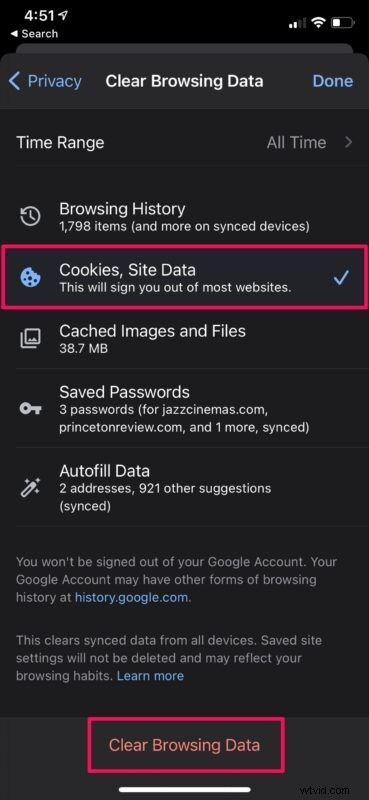
- Next, tap on “Clear Browsing Data” to access all the data that has been stored by Chrome.

- Select “Cookies, Site Data” and uncheck anything else that’s already selected and then tap on “Clear Browsing Data”. Confirm when you’re prompted and you’re done.
That’s all you need to do to get your website cookies removed from Chrome on your iPhone and iPad.
Although clearing cookies and website data can free up some storage space on your device or even iCloud storage space for that matter, it comes at the cost of a slightly degraded browsing experience until new cookies are created. Typically this means you’ll be logging into websites again, saving login details and passwords again, and things like that. This is due to the fact that saved login information and website preferences have been deleted, but once you set them all up again, it’ll be back to normal.
In the same Chrome settings menu, you can remove cached images, files, saved passwords, autofill data, and of course your browsing history if necessary. You can even set a time range and only remove data that got stored during that period.
If you use Google Chrome on other devices too, and are signed in with your Google account, and data will clear from them too.
Although Safari makes it slightly inconvenient to remove cookies specifically, you have the option to remove cookies on a per-website basis, which is missing on Chrome. This allows you to remove cookies for the websites you don’t regularly use. If you use Safari instead of Chrome on your iPhone or iPad, you can learn about how to clear cookies only without affecting your Safari browsing history right here.
If you have any particularly helpful insight or interesting tricks relating to this topic, do share in the comments.