

If you’re a Safari user on iPhone or iPad and you’ve ever tried clearing website cookies or browsing data, you may have noticed that it’s not possible to remove them without deleting your browsing history as well. However, there’s a hidden setting in iOS and iPadOS that allows you to do clear only the cookies from Safari on iPhone and iPad.
For those who aren’t aware, cookies include user data such as saved login information, website preferences, and other data that are used for tracking browsing activity. This saved information is website-specific and essentially makes your overall browsing experience better when you revisit websites. Unfortunately, Safari doesn’t give users the option to remove cookies within the browser app unless you’re willing to lose your browsing history.
How to Clear Only Cookies on iPhone & iPad with Safari
To clear cookies specifically, you’ll need to head over to Safari settings rather than looking for an option within the browser. Just follow the steps below carefully to learn how it’s done.
- Head over to “Settings” from the home screen of your iPhone or iPad.

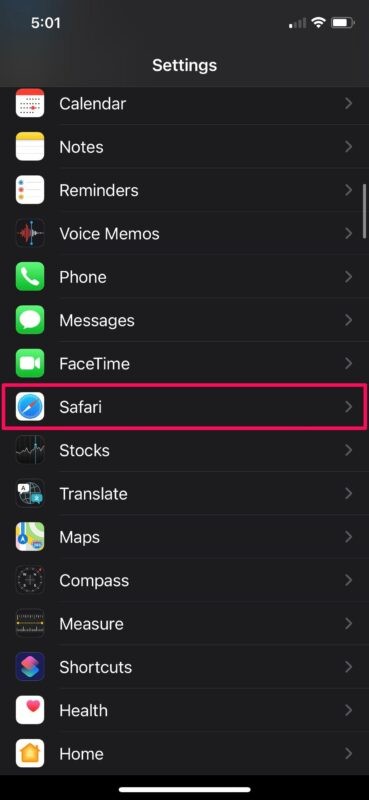
- In the settings menu, scroll down and tap on “Safari” to access your browser settings.
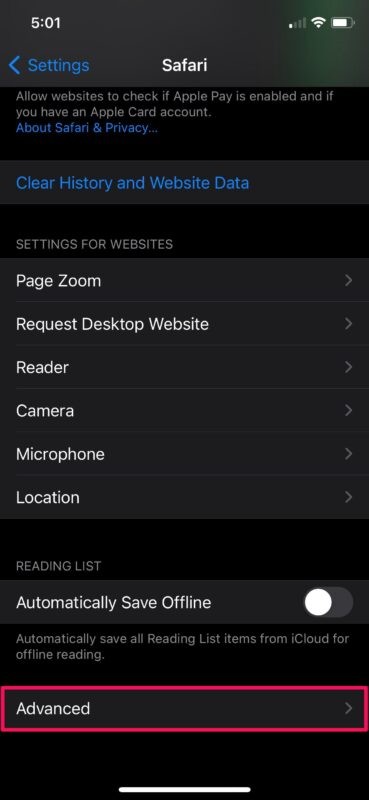
- Here, you’ll find the option to clear history and website data, but leave that setting alone and scroll down to the bottom. Tap on “Advanced”.
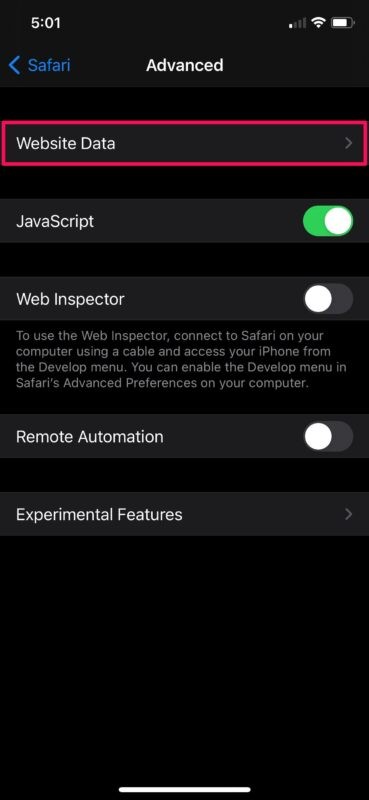
- Now, tap on “Website Data” which is the first option in the menu.
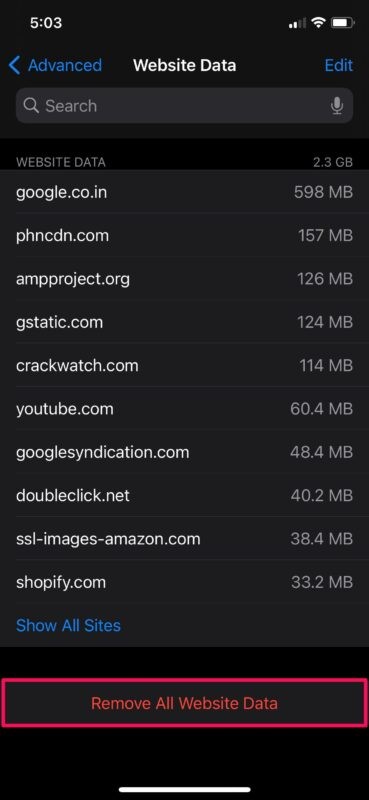
- Here, you’ll be able to see all the website data which includes cookies for the respective sites as well. To clear all cookies, simply tap on “Remove All Website Data” at the bottom.
- When you’re prompted to confirm your action, tap on “Remove Now” and you’re all set.
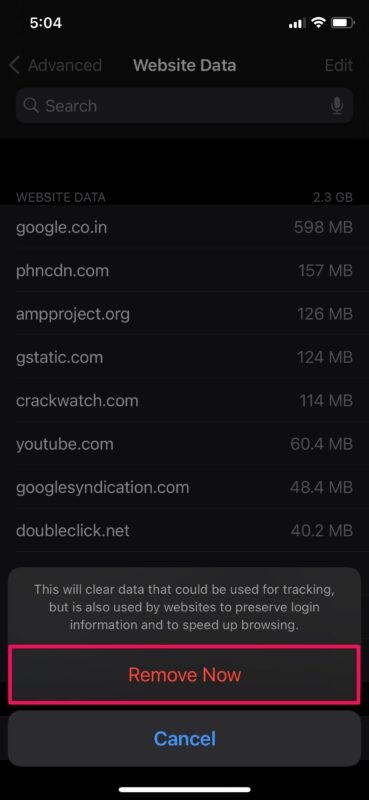
There you go. You’ve successfully cleared the Safari cookies on your iPhone and iPad.
This method to clear cookies specifically isn’t exactly complicated, but it’s not particularly convenient to say the least. Most web browsers offer this functionality within the app, so we’re not quite sure why Apple has this limited to the Safari Settings.
In the same Safari Settings menu, you can also remove cookies for a specific website if you don’t want to clear it altogether. For websites that you don’t regularly use, you can simply swipe left on the URL to access the “Delete” option.
Clearing cookies can be useful as a troubleshooting step for many websites, and it may even free up a bit of storage too.
Do note that clearing cookies may affect your web browsing experience for a while, especially as you visit the sites again, since saved login information and website preferences have been removed. Thus, you’ll need to manually input them until it gets saved again.
Do you use Chrome instead of Safari on your iOS/iPadOS device? If so, you’ll be pleased to know that you can clear website cookies on Chrome by going to Settings -> Privacy -> Clear Browsing Data -> Cookies, Site Data within the app. We’ll cover that process in more detail in a separate article.
Do you often remove cookies from Safari on iPhone or iPad? Are you glad you can do this without affecting your browsing history and other website data? If you have any interesting insight or thoughts on the matter, share with us in the comments.