
 iOS Safari keeps track of frequently visited webpages, offering quick links to those pages and sites on the initial startup and new tabs in the browser. For the less familiar, the Frequently Visited section is underneath Safari Favorites in iOS, and it updates itself as you browse the web and access particular pages on an iPhone, iPad, and iPod touch.
While many users may like the Frequently Visited section and find it helpful, you may discover a web page or link under this list that you’d rather not be there, and in such a case, you’d probably want to delete the frequently visited page from this list in Safari.
How to Delete Web Pages from Safari Frequently Visited List in iOS and iPadOS
This is the same whether it’s Safari on iPhone, iPad, or iPod touch:
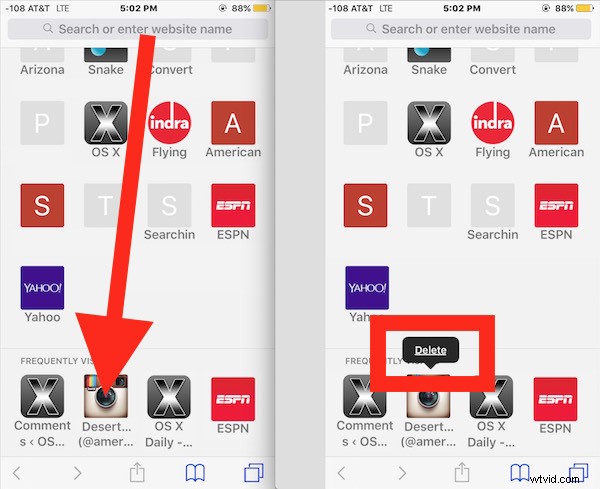
- Open Safari in iOS if you haven’t done so already and open a new tab so that the Favorites section is visible, then scroll down to find Frequently Visited
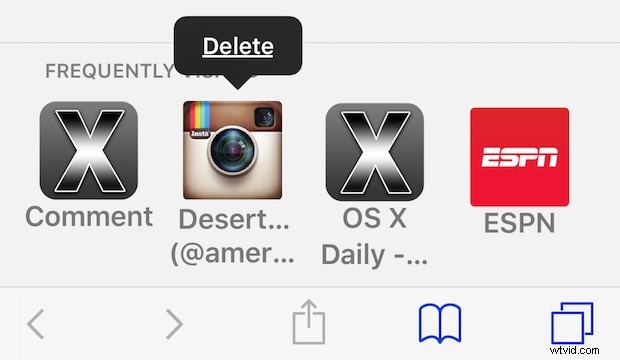
- Tap and hold on the Frequently Visited site / page icon that you want to remove, then let go and tap on the “Delete” button when it appears above the icon to remove it from the Safari Frequently Visited list
- Repeat with other pages and links you’d like to remove from the section
Note that removed pages will appear again if you visit them again frequently, so even if you delete a page but continue to go visit that site again after the fact, it will show up again. You can then either remove it again, disable the feature, or use Private Browsing mode in Safari in the future to prevent the sites from appearing in the Frequently Visited lists again in the future.
Remember you can also clear recent browsing history in Safari on iOS, or go all out and delete all cookies, history, caches, and web data from the iOS browser.