

The latest versions of iOS replaced the longstanding “Videos” app with a new app called “TV” that includes an all new interface to manage movies and videos downloaded to an iPhone or iPad. While the old Videos app made it simple to delete and remove movies from the iPhone or iPad, the new TV app offers a less obvious method of removing video from an iOS device that is unique to deleting things inside the TV app.
We’ll show you two different ways how to delete a downloaded movie from the TV app within iOS.
If you don’t have the “TV” app on your iPhone or iPad it’s likely because you have not updated to a recent version of iOS, or maybe you deleted it. To be clear, the iOS TV app is not to be confused with the Apple TV hardware device.
How to Delete a Video from TV App in iOS
This is the easiest way to erase a downloaded video from the TV app in iOS:
- Open the “TV” app on iPhone, iPad
- Tap on any video or movie you want to delete from the TV app
- Tap on the “Downloaded” button
- Tap on “Remove Download” to delete the downloaded video from the iPhone
- Repeat with other videos you want to delete from the TV app
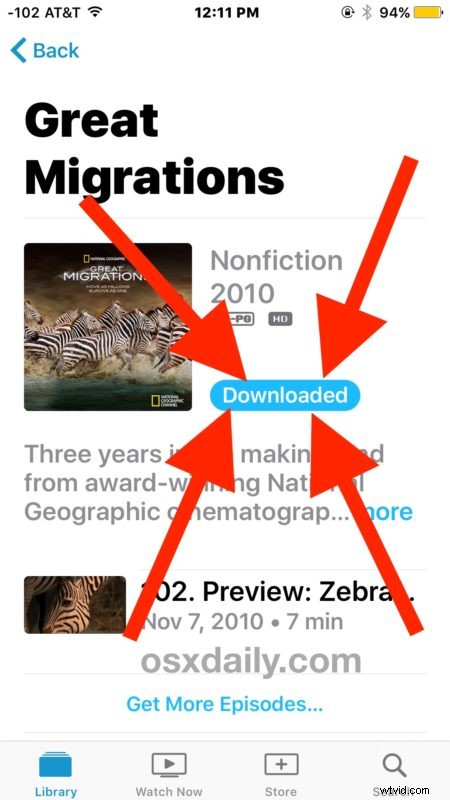
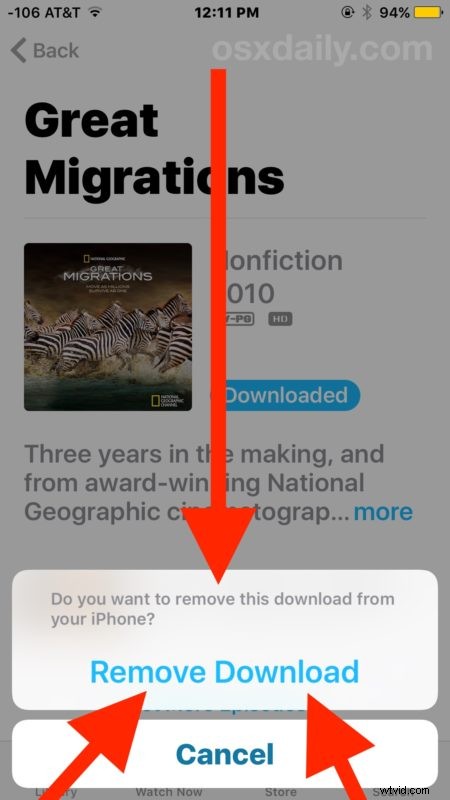
Obscuring the remove option inside the downloaded text button may seem a little counterintuitive to what many users are accustomed to in iOS, but perhaps that functionality will carry over through other delete abilities in future releases as well.
Deleting Videos from TV app via Settings in iOS
There’s actually another way to delete videos from inside the TV app as well, using the broader riOS Settings app:
- Open the “Settings” app and go to “General” and then to “Storage & Usage”
- Find the “TV” app and tap on it
- Tap on “Edit” and delete movies from the TV app, or swipe left on the movies to delete them directly
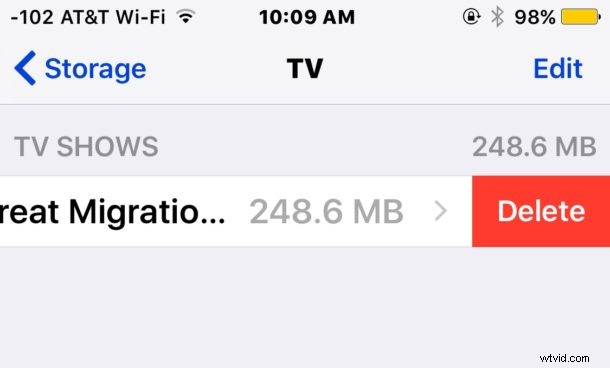
You can use whichever method works best for you, both will delete a movie or video from the iOS TV app. This works the same on any iPhone or iPad with the TV app installed, which used to be called the Video app. Of course if you deleted the default TV app from iOS then you won’t have it installed on the device and would not have this ability in general, let alone any videos stored within the TV app.