
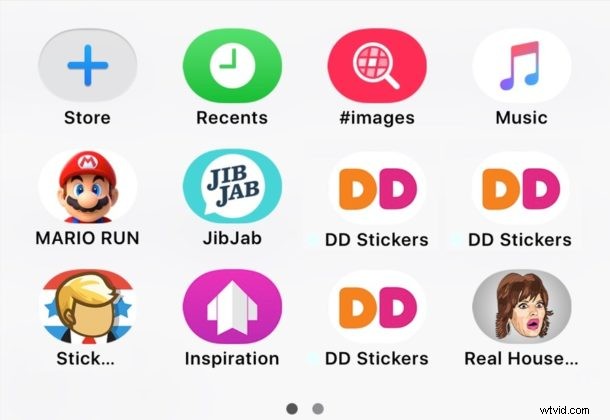
Now that Messages in iOS supports stickers and apps, it can be easy to go overboard adding Stickers and Apps and end up with an overcrowded app and sticker panel. Not to worry, you can clean house and easily delete and remove any stickers and apps from the Messages app on iPhone and iPad.
The process of deleting a sticker or app from iMessage is similar to uninstalling an app in general from iOS, except that it’s contained within the Messages app.
How to Delete Stickers and Apps from Messages in iOS
- Open the Messages app and go to any message conversation thread
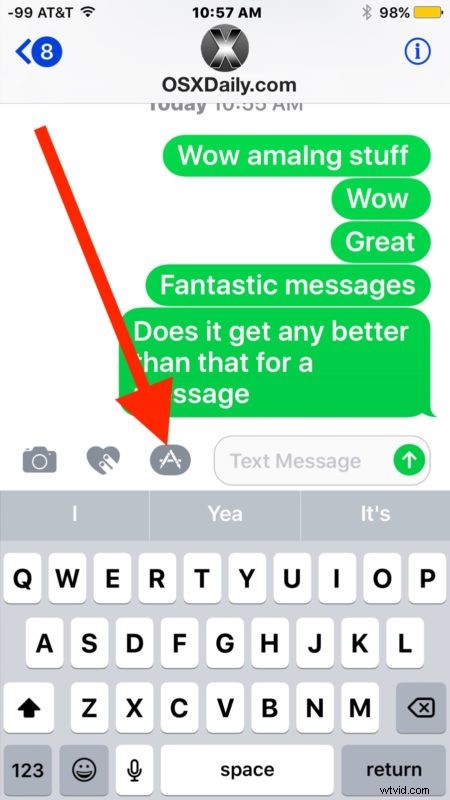
- Tap on the “A” icon next to the text entry box (if the “A” is not visible, tap the “>” arrow icon to reveal the additional options)
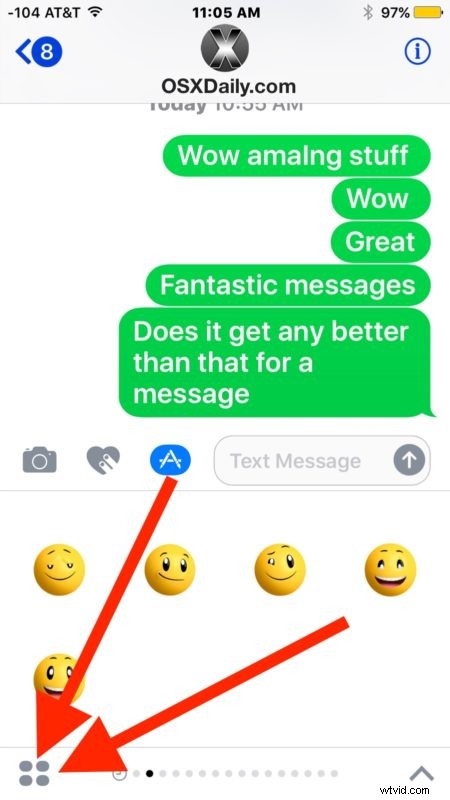
- Now tap on the four square button in the corner to display messages apps and stickers
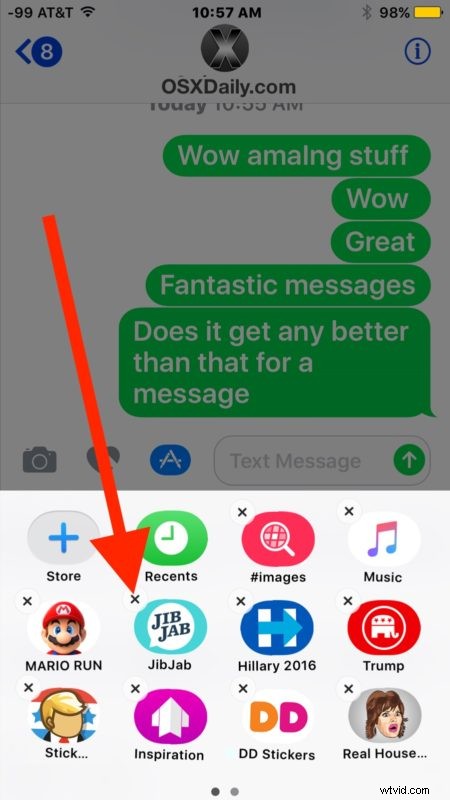
- Tap and hold on the Messages app or sticker app that you wish to delete from messages until the icons start to jiggle, then tap the (X) button hovering over the sticker or app to delete it from Messages
- Repeat with other Messages apps and stickers as necessary
Keep in mind you can delete any third party messages app or sticker pack, as well as some of the default packs included with iOS, including the gif search app feature.
If you later decide you’d like to have a particular sticker pack or Messages app back again, you can simply add Stickers and Apps back to Messages through the Messages App Store as described here.
Stickers were added to iPhone and iPad with iOS 10 and persist in iOS 11, iOS 12, iOS 13, iPadOS 13, and later. Deleting and removing stickers is also possible throughout all of these versions.