
Have you ever gone to update apps and then realized you don’t even want some of these apps installed on your iPhone or iPad any longer? Now you can easily delete those apps right from the Updates section of the App Store.
As you likely know by now, updating apps on iPhone and iPad with iOS 13, iPadOS 13, and newer is a bit different from before. And while the change of location for updating apps has frustrated some users, the app updates functionality also gained a new ability to delete and remove apps directly from the Updates section. This makes it easier than ever before to quickly delete apps that you don’t intend on updating, since you don’t even have to leave the Updates section of the App Store or even go to the Home Screen to delete apps.
How to Delete Apps from iPhone & iPad from the Updates Screen of App Store
We’ll assume you already know how to find the Updates section of the App Store, if not learn more here.
- Open the “App Store” on the iPhone or iPad
- Tap on your account profile picture in the corner and then scroll down to find the ‘Updates’ section
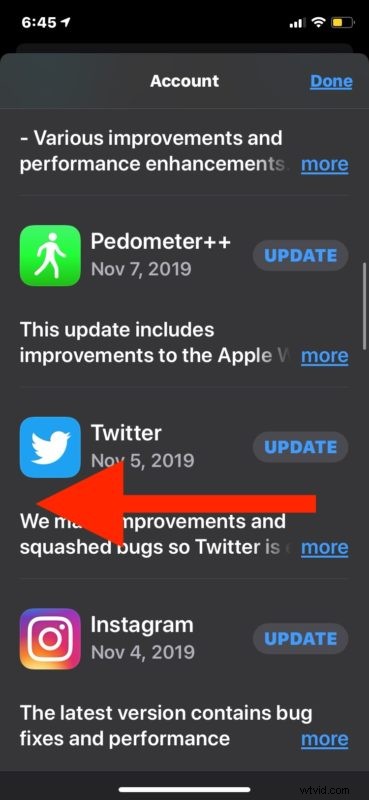
- Find the app you want to delete from the iPhone or iPad and swipe left on the app update
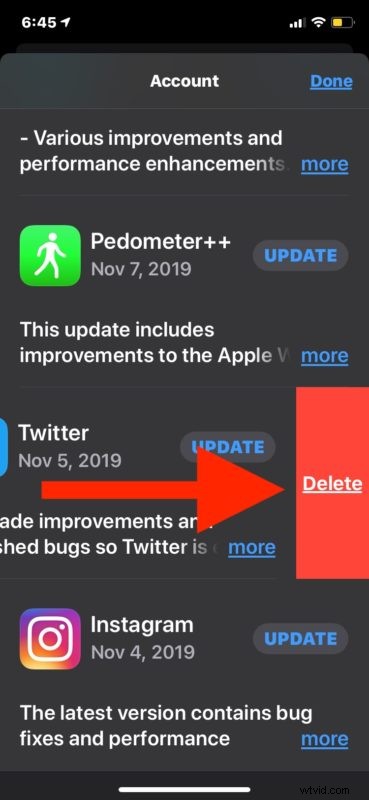
- Tap on the red “Delete” button for that app to remove
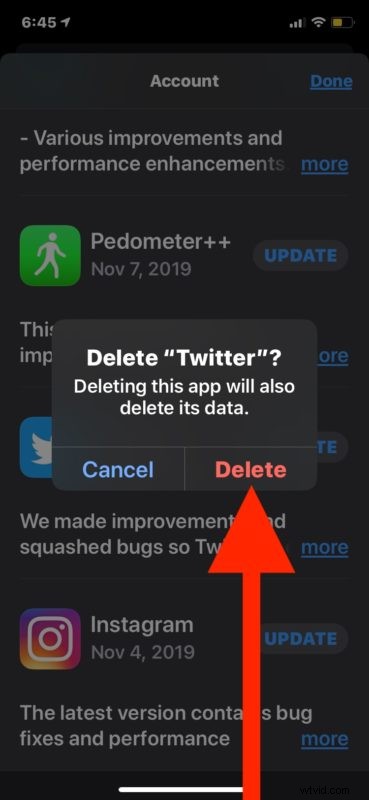
- Tap to confirm you want to delete the app from the iPhone or iPad
- Repeat to quickly delete other apps from iPhone or iPad directly via the Updates section of the App Store
This ability can be particularly helpful if you have a ton of apps installed on your iPhone or iPad but you can’t even recall where some of them are, maybe you moved the app icons onto other Home Screens, into folders, or they’re just a big mess of hundreds of apps that are scattered all over on the device.
You might have even forgotten that some of these apps were installed until you ventured into the Updates section where you could delete them, which makes this a nice handy feature for tidying up and cleaning house on iPhone and iPad too.
Obviously this capability is a bit hidden and there’s nothing to indicate that you can swipe over to delete an app from the App Store Updates section, but that’s just part of the modern iOS and iPadOS experience, where many interesting and useful features are not easily discoverable let alone obvious. But once you learn these type of hidden tricks, you’ll often find yourself using them frequently because they’re that useful.
Do you delete apps from the iPhone or iPad by way of the Updates section of the App Store? Do you delete apps from the Home Screen and using the fast tap-hold-delete method? Or do you never delete apps at all? Let us know your experiences and thoughts in the comments below.