
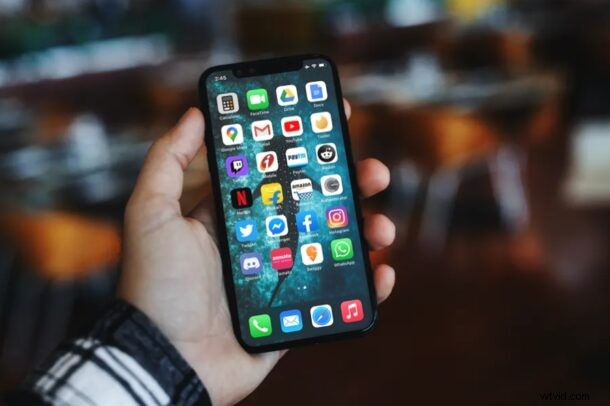
Did you know that you can stop new apps from appearing on your home screen? Thanks to the App Library feature that Apple introduced in iOS and iPadOS, your apps no longer have to be shown on the home screen of your device.
For the longest time, iOS users had only one place to store their installed apps and that was the home screen itself. However, with the addition of App Library, you now have multiple options. App Library can be considered as Apple’s answer to Android’s app drawer and it’s located past the last page on your home screen. Therefore, if you no longer want apps to be shown on the home screen, you can set your iPhone to automatically move downloaded apps to the App Library. This offers a way to hide apps from the Home Screen as well.
How to Make Apps Appear in App Library Only on iPhone (Hiding from Home Screen)
By default, all your newly downloaded apps are stored and accessible from both the App Library and your home screen. To change this, simply follow the steps below.
- Head over to “Settings” from the home screen of your iPhone.

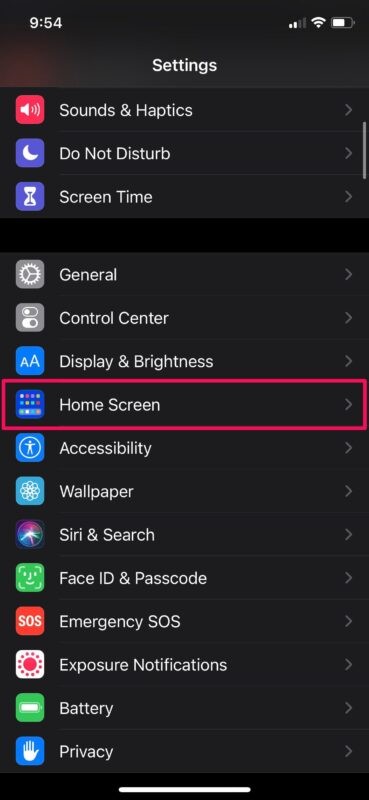
- In the settings menu, scroll down and tap on “Home Screen” located just above the accessibility settings.
- Now, select “App Library Only” for newly downloaded apps, as shown in the screenshot below.
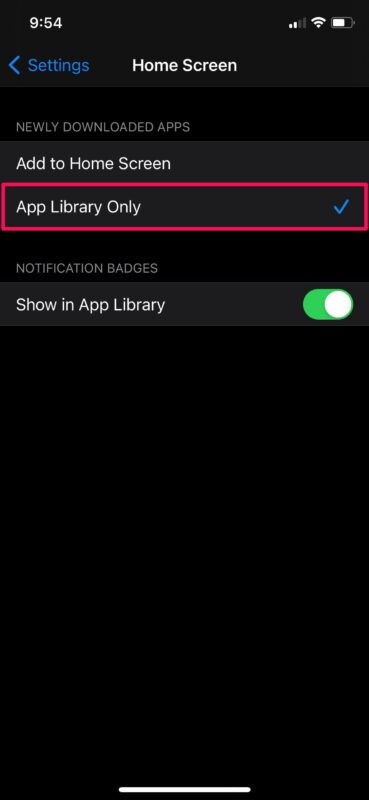
That’s how you can stop apps from appearing on your home screen.
From now on, all the apps that you install on your iPhone will be automatically moved to the App Library without affecting your current home screen setup. For those who aren’t exactly aware, you can launch these new apps from the “Recently Added” folder in your App Library.
If you want to move some of the apps that are present on the home screen, you can simply long-press to enter jiggle mode and tap on the “-” icon next to an app. In addition to the usual “Delete App” option, you’ll also find a new “Move to App Library” option.
This obviously focuses on iPhone but you can do the same with iPad too if you’re interested in doing so. App Library on iPad is also visible from the Dock.
How do you feel about App Library? Do you like the idea of hiding apps from the Home Screen and only showing them in App Library? Do share your valuable thoughts and opinions in the comments section down below.