
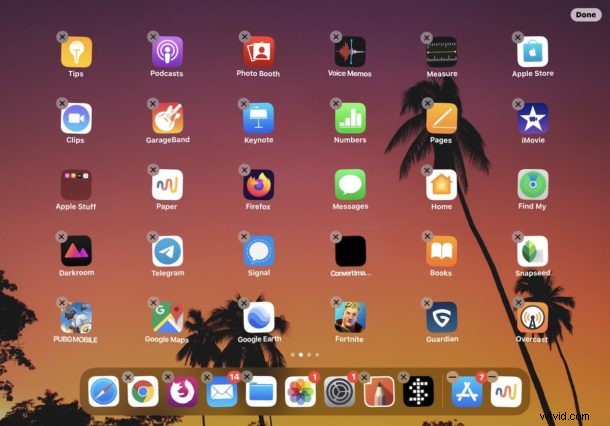
If you’d like to change the layout of app icons on the Home Screen of iPhone or iPad, you can do so easily. This allows you to place apps where you use them most, to tidy up the devices home screen, or to customize how you want your Home Screens to look on an iPhone or iPad.
Moving apps and organizing them and arranging them on the iPhone or iPad Home Screen is easy, but like many other features it has changed slightly over time. If you’re wondering how to move apps around on the Home Screen, then this article will detail how to move app icons around in the latest versions of iOS and iPadOS for iPhone, iPod touch, and iPad.
How to Move & Arrange Home Screen Icons on iPad & iPhone
The process of moving, changing, organizing, and arranging app icons is the same on iPhone and iPad. The process is demonstrated here on iPad, but it’s the same on iPhone too.
- Get to the Home Screen of the iPhone or iPad
- Tap and hold on any app icon
- Choose “Edit Home Screen” from the pop-up menu that appears
- Tap and drag on the app icon(s) to their new location to rearrange where they appear on the Home Screen
- Repeat by tapping, holding, and dragging on other apps to move them as well
- When finished arranging the app icons on the Home Screen, tap the “Done” button
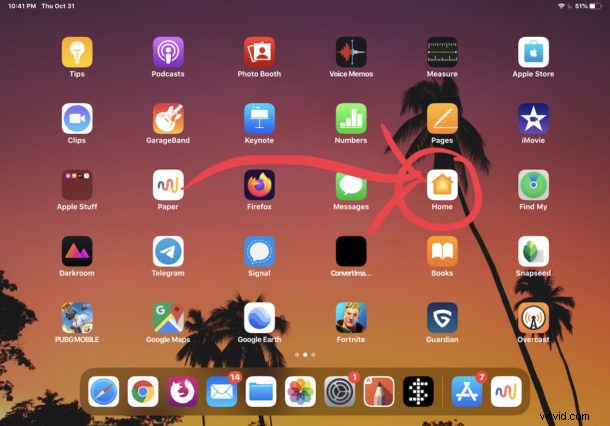
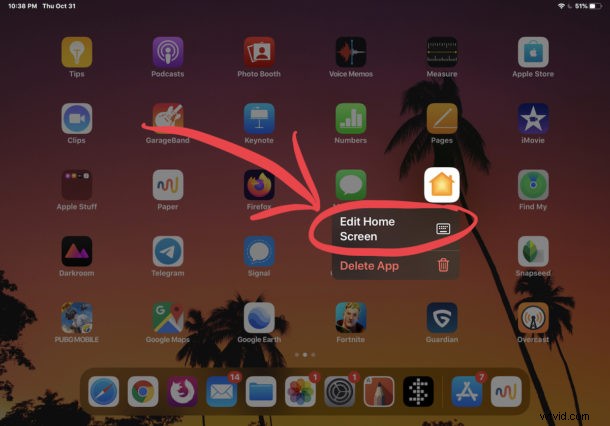
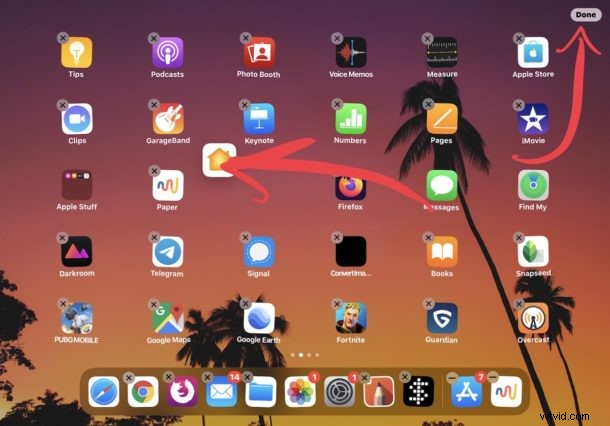
If you have multiple Home Screens full of apps then you can drag any of the app icons to other the other screens just by dragging the app to the edge fo the screen.
Remember, you can also delete apps from iPhone and iPad, which is slightly different in iOS 13 and iPadOS 13 and later too. So if you’re arranging apps and find some you don’t use at all, feel free to remove them if you’re up for it.
A neat trick to help move apps to other home screens is this; continue to drag and hold the app and then swipe with another finger to change the Home Screen and then drop the app icon onto that different home screen.
Just as it has always been, you can also drag app icons onto one another to create a folder on the home screen of iPhone or iPad. You can put a bunch of apps into the folder if you want to, and they can offer a way to tidy up the Home Screen of any device.
You can also drag apps into the Dock to add them there. On the iPhone the Dock is limited to four app icons, but iPad can have more apps in the Dock, carrying up to 15 in the latest versions of iPad system software.
You can also just start over completely if you’d like to by resetting the Home Screen layout on iPhone or iPad to the default which basically puts all the default Apple apps on the primary screen, removes all apps from any folders, and then places third party apps onto the other home screens.
While this covers iPhone, iPad, and iPod touch, you can also move icons around on a Mac with drag and drop, and rearrange Apple TV screen icons too.
Note the method discussed here is relevant to the latest iOS and iPadOS releases. You can still use the traditional long tap and long hold approach too, just like on older iOS versions, but only modern versions of system software for iPhone and iPad have the ability to choose the “Edit Home Screen” option from a pop-up menu as described here. Thus if you’re not running iOS 13 or iPadOS 13.1 or later, you won’t have that menu option.
Do you customize and arrange your app icons on iPhone or iPad in any particular way? Let us know your thoughts and experiences in the comments below.