
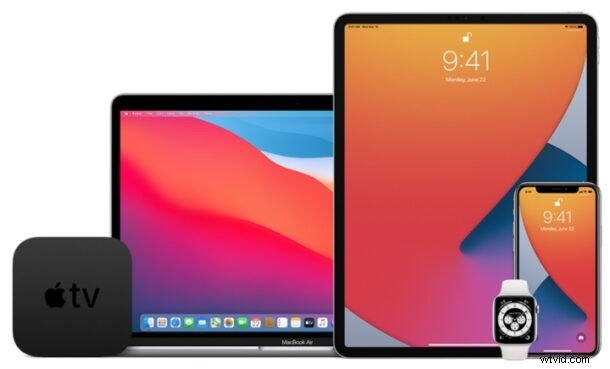
The Public Beta of iOS 14 and iPadOS 14 are now available to any user who wishes to participate in the beta system software testing programs for upcoming iPhone and iPad software.
The Public Beta program is freely available, unlike the Developer Beta that costs $99 annually to be a registered Apple developer. Thus, anyone can run the software if they want to, as long as they have an iOS 14 compatible iPhone or iPadOS 14 compatible iPad.
If you’re interested in enrolling in the iOS 14 and iPadOS 14 public beta programs, read on to learn how you can enroll your eligible device.
How to Enroll in iOS 14 & iPadOS 14 Public Beta on iPhone & iPad
Even if you’ve participated in an iOS public beta before, you’ll still need to re-enroll your device when the iOS 14 beta configuration profile is available. Simply follow the steps below to get started with the enrollment.
- Open “Safari” on your iPhone or iPad and head over to beta.apple.com. Tap on “Sign Up” to proceed further. You can also choose to “Sign in” if you’ve participated in the Apple Beta Software Program before.
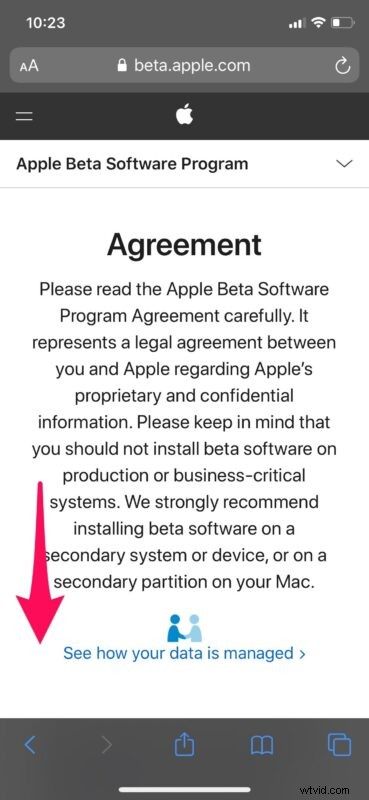
- Next, sign in to Feedback Assistant with your Apple ID login details. Tap on the “arrow” icon to proceed to the next step.
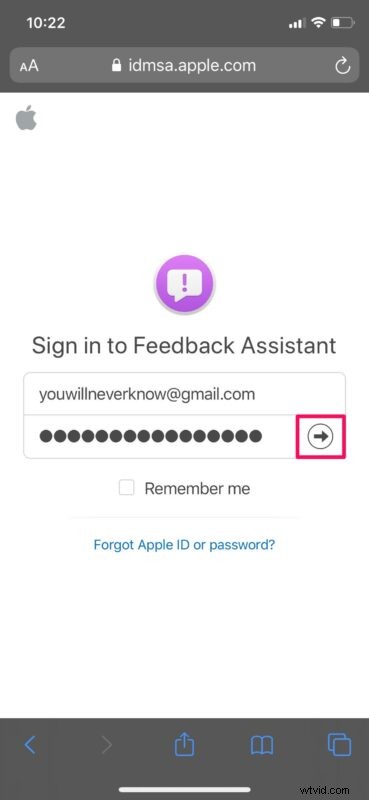
- You’ll be shown the agreement for the Apple Beta Software Program. Scroll down to the bottom. You won’t see this screen if you’ve previously participated in an iOS/iPadOS beta, so you can skip this step.
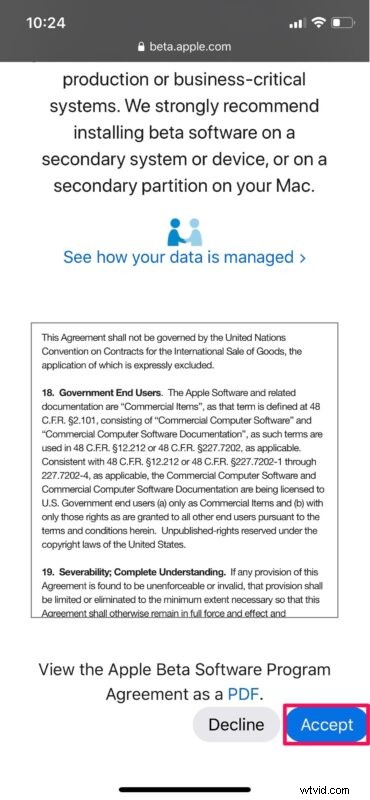
- Tap on “Accept” to accept the agreement be a part of the Apple Beta Software Program.
- You’re now eligible to access beta software from Apple. Now that the iOS 14 public beta is available, you can head over to beta.apple.com/profile and install the beta configuration profile on to your device.
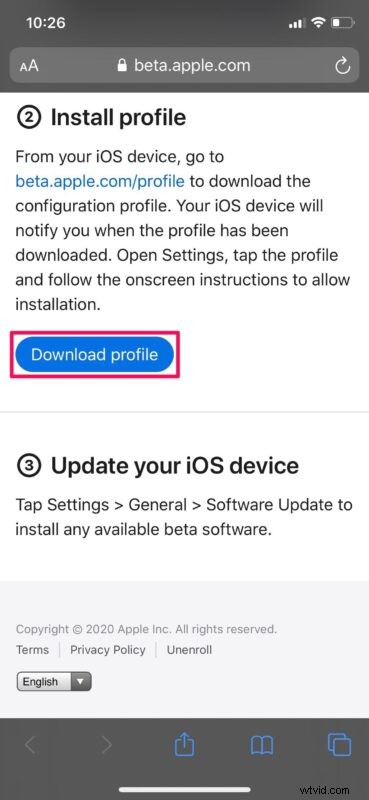
You’ve now successfully managed to enroll in the iOS 14 and iPadOS 14 public beta right from your iPhone or iPad.
After installing the beta profile onto your device, restart your device and head over to Settings -> General -> Software Update and you’ll have the iOS 14 Public Beta ready to be downloaded and installed just like any regular over-the-air software update.
Be sure to backup your device before installing any beta software, however.
Although we were focusing solely on how you can enroll in the iOS 14 and iPadOS 14 public beta, being a participant in the Apple Beta Software Program also gives you access to public beta versions of macOS and tvOS once they’re available.
The Public Beta and Developer Beta builds tend to be the same, but sometimes have a slightly staggered release schedule, where the Developer Beta version comes out a day or so prior. Technically speaking, anyone can anyone can install the dev beta profile from a third-party source and then gain access to the iOS 14 Developer Beta from Apple, but now that the public beta is out there is little reason to do so.
Remember that beta builds are usually far less stable than the final version, so we don’t recommend you to install this on your primary device. Make sure to back up all your data before you update just so you don’t lose them in case the update fails.
We hope you were able to enroll in the Apple Beta Software Program to be eligible for iOS 14 & iPadOS 14 public beta updates on your device. What are your overall thoughts on the new betas or the features that iOS 14 and ipadOS 14 brings? Let us know your thoughts, opinions, and experience in the comments section down below.