
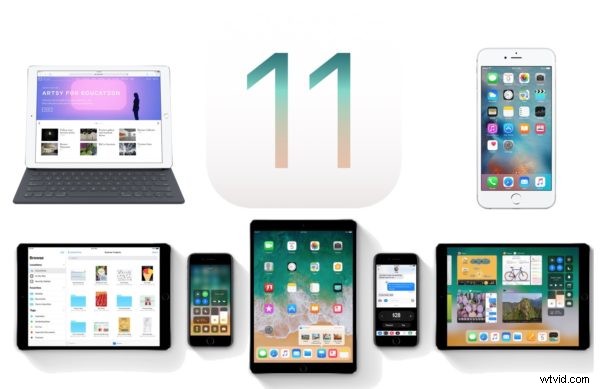
iOS 11 is now out in the wild, but if you’re not particularly experienced with installing software updates to your iPhone or iPad, you may be interested to know there are several ways to update a device to iOS 11.
This tutorial will show you how to install iOS 11 and update an iPhone, iPad, or iPod touch to the latest operating system available. You will be able to update directly on the device itself, or through a computer using iTunes.
This guide assumes you have a compatible iPhone, iPad, or iPod touch. The complete iOS 11 compatible devices list is here, but essentially if you have an iPhone 5S or newer, or an iPad Air or newer, or an iPod touch 6th generation or newer, your device will be compatible with iOS 11.
Keep in mind that 32-bit apps will not work in iOS 11, so if you have a critical app that is 32-bit and not yet updated to be 64-bit then you may want to hold off on installing iOS 11 as the app will no longer work. You can check which apps are 32-bit with these instructions.
Step 1: Backing Up the iPhone or iPad
You can backup to iCloud or iTunes, or both. Never skip a backup before installing a software update, failure to backup may result in permanent data loss if something goes wrong during the system software update and installation. Fortunately, backing up is simple, and you can backup to iCloud or to a computer via iTunes.
Backing up to iCloud
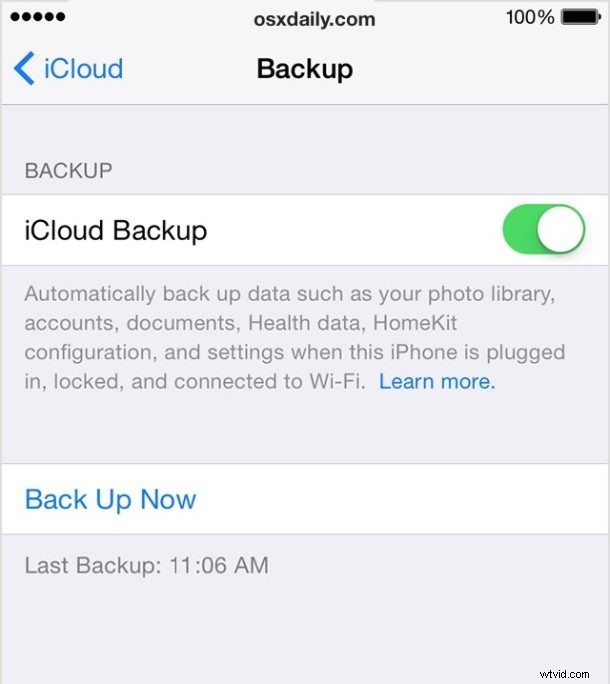
- Open the “Settings” app and tap on your name to access iCloud Settings (older iOS versions have a direct ‘iCloud’ settings option)
- Now tap on “iCloud” and then go to “iCloud Backup”
- Choose “Back Up Now” and let the iCloud backup complete
Backing up to iTunes
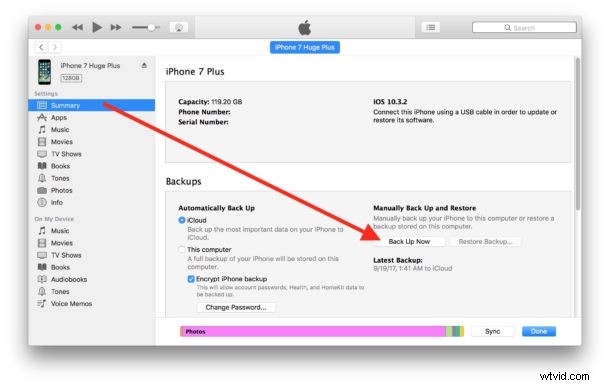
- Connect the iPhone or iPad to the computer via a USB cable
- Launch iTunes and select the connected iOS device by clicking the little device logo in the upper left corner of the iTunes screen
- At the Summary screen of iTunes, choose “Back Up Now” (be sure the Encrypted Backups feature is toggled on so that the backup will save passwords and Health app data)
Step 2: Updating to iOS 11 on iPhone or iPad
You can update system software directly on the iOS device with what’s known as the Over-The-Air update mechanism within the Settings app, or you can update iOS with iTunes and a computer. You can use whichever method works for you, but generally speaking using the iOS Software Update mechanism is simplest and most direct since it does not require connecting to a Mac or PC.
How to Update iPhone or iPad to iOS 11 Directly on the Device via Settings
You can update to iOS 11
- Back up the iPhone or iPad to iCloud or iTunes before beginning
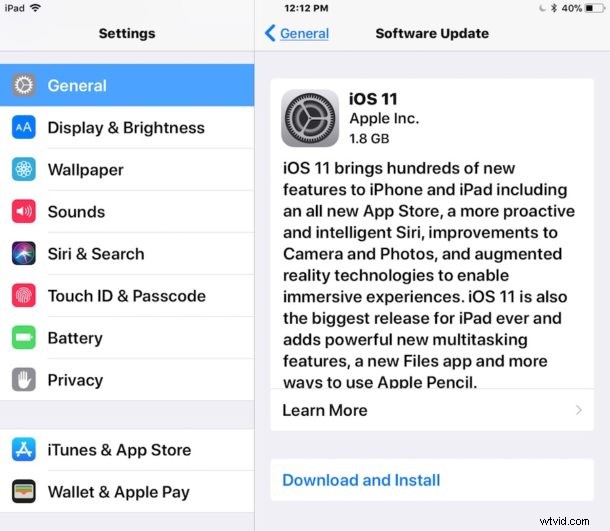
- Open the “Settings” app in iOS
- Go to “General” and then to “Software Update”
- Wait for “iOS 11” to appear and choose “Download & Install”
- Agree to the various terms and conditions
- The iPhone or iPad will reboot when installation is complete and boot into iOS 11
You’ll complete the setup and then you’re onto iOS 11. Check out some of the best features of iOS 11 if you want to get a head start, otherwise explore and have fun with the new operating system.
Updating to iOS 11 on iPhone or iPad with iTunes
- Back up the iPhone or iPad if you have not done so already, do not skip making a backup
- Connect the iPhone or iPad to the computer with iTunes, then launch iTunes
- Select the device in iTunes by clicking on the device icon in the upper left corner, this goes to the device summary screen
- Choose the “Update” button in iTunes when iOS 11 update is shown
- Agree to the various terms and services and proceed with the installation
When the iPhone or iPad has finished installing iOS 11 the device will boot into iOS 11, where you will be presented with a few simple setup options to get started. Once complete, you’re back to the Home screen and ready to use the latest version of system software!
Side note for updating with iTunes: Advanced users may be interested in using firmware files with iTunes to update instead, you can obtain the necessary iOS 11 IPSW file downloads here for that purpose. While using IPSW is not particularly complex, it is still considered only appropriate for technically savvy device owners.
Done! You’ve updated to iOS 11, now what?
Now that you’re updated, you can see some of the best new features in iOS 11 available on iPhone and iPad. Some of the changes to the operating system are fairly subtle so it can be helpful to have a few of the best pointed out, but like always it’s worthwhile to explore the software yourself and get a feel for what’s new.
Some users have reported battery draining issues with iOS 11, but typically those type of battery problems resolve themselves within a day or two as the operating system performs house keeping function when plugged in to charge. If not you can check out some tips to fix battery problems with iOS 11 by adjusting various features and settings in the operating system.
And if decide you don’t like the new system software at all, you can downgrade iOS 11 back to iOS 10.3.3 on iPhone and iPad if you move quickly, but keep in mind there is a limited window where downgrading is allowed. Downgrading is really only recommended in extreme scenarios, since you will lose access to security updates, new features, and compatibility.
Enjoy iOS 11! We’ll be covering many iOS 11 tips and interesting features here as usual, so stay tuned to keep on top of them.