
Wondering how to install iOS 16 onto your iPhone? Fortunately it’s super easy, as you’ll see in this walkthrough.
If you’ve been sitting on the sidelines since the iOS 16 update was released, perhaps you’re just wondering how to go about upgrading to the latest system software version on your iPhone.
Go ahead and take the time to prepare your iPhone by installing App Updates and cleaning house a bit, and then you’re ready to install the update.
Backup the iPhone
The biggest thing you need to do is to backup your device. This allows you to preserve your stuff in the odd event something goes wrong. Yes it’s rare, but it can happen.
Whether you backup iPhone to iCloud, or a Mac with Finder, or iTunes on a Windows PC, you’ll want to do this before starting a software update.
Given how important stuff on an iPhone is, from photos to notes to other personal data, take the time to back it all up before beginning a software update.
How to Install the iOS 16 Update on iPhone
Now that your device is backed up, you’re ready to install iOS 16 onto your iPhone.
- Open the “Settings” app on your iPhone
- Go to “General”
- Now go to “Software Update”
- Tap on “Download and Install” when you see iOS 16 *
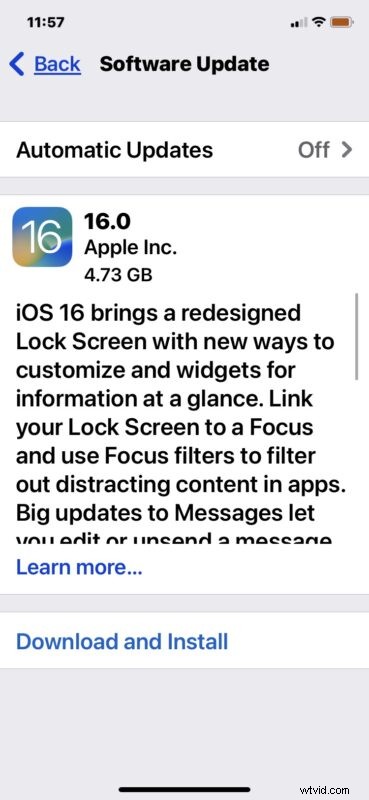
Your iPhone will download the software update, verify it with Apple, and then proceed with the installation.
Because iOS 16 is about 5GB in size, it may take a little while to download and to install, so if you need to use your iPhone within the next hour or two, you may want to simply wait and install the iOS 16 update at a later time when you don’t need to use the device.
Once the iPhone has finished installing iOS 16, the iPhone will restart and you’ll be presented with a “Hello” screen, and you’re off to the races with the new operating system.
iOS 16 has a variety of new features and improvements, but by far the most notable change is the ability to customize the devices lock screen and add a few widgets to it for doing things like seeing the weather and activity levels. Check out one of our articles on iOS 16 tips or check out some of the best features of iOS 16 here.
* Note if you see iOS 15.7 as available here, scroll down to choose iOS 16 instead. You can also choose to update to iOS 16 from iOS 15.7 at any time by going to the Software Update section of your device.