
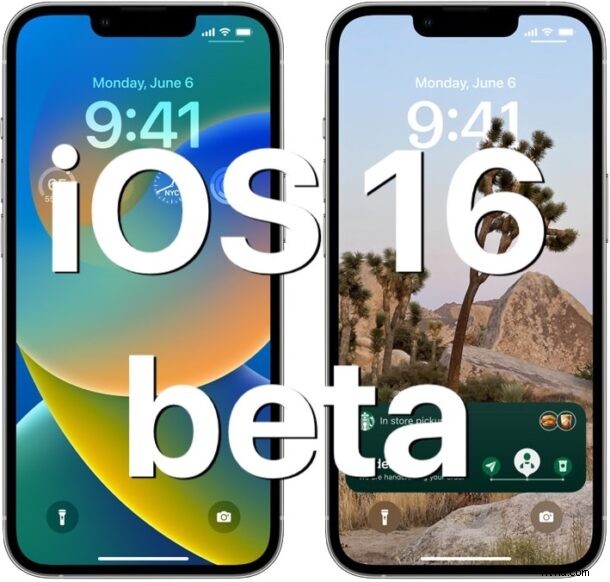
If you’re excited about iOS 16 for iPhone and don’t want to wait until the public beta next month, or the final version in the fall, you can install the iOS 16 developer beta right now.
The first beta of iOS 16 is available to download for those registered in the developer program, so if you have a device you don’t mind running buggier beta system software on, you may be interested in using the beta release on your device. Let’s take a look at the necessary requirements, and the general process of installing the beta of iOS 16 onto an iPhone.
iOS 16 Beta Requirements
You will need an Apple Developer Account to gain access to the iOS 16 beta profile (yes you can also find the beta profiles on the web and on social media, but don’t do that).
You will also need a compatible iPhone, which is basically anything newer than an iPhone 8 or better, including all iPhone X, iPhone XR, and iPhone XS models, all iPhone 11 models, all iPhone 12 models, all iPhone 13 models, and iPhone SE 2nd gen or later.
Other than that, you basically need a tolerance for running buggy system software on your device, since beta builds are not nearly as reliable or consistent as final versions of system software.
How to Install iOS 16 Beta on iPhone
Be sure to backup your iPhone before proceeding with installing any beta system software. Failure to do so could result in permanent data loss.
- From your iPhone, go to https://developer.apple.com/downloads/ and login with your Apple ID developer account
- Choose to download the iOS 16 beta profile to your device
- Open the Settings app and tap on “Profile Downloaded”
- Tap on Install to install the beta profile on your device
- Agree and you’ll have to restart your iPhone for the profile to install
- After the iPhone reboots, go to Settings > General > Software Update
- Tap to Download & Install iOS 16 Beta when it shows as available
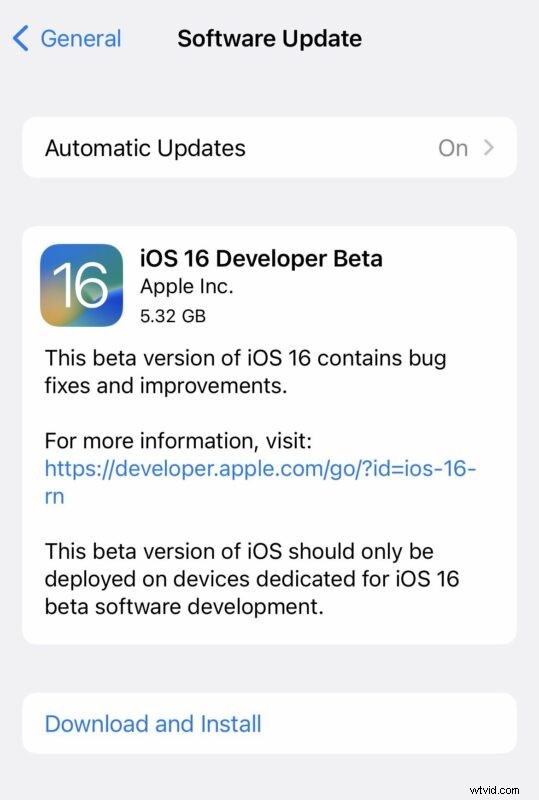
At this point the iOS 16 beta will download and install onto the iPhone like any other system software update, rebooting when complete.
Remember, beta system software is very buggy compared to final builds, so don’t expect everything to work as expected, and features will change and evolve as the beta builds continue to be released. You should also expect apps to crash, some things to not work at all, and the battery life to be worse than usual as well. All of that is just the nature of using beta system software on any device, whether iPhone or otherwise.
What do you think of the iOS 16 beta so far? Are you using the developer beta, or are you waiting for the public beta? Or perhaps waiting for the final version in the fall? Let us know your thoughts and experiences in the comments.
iPad users can also install iPadOS 16 beta onto their iPad if interested.