
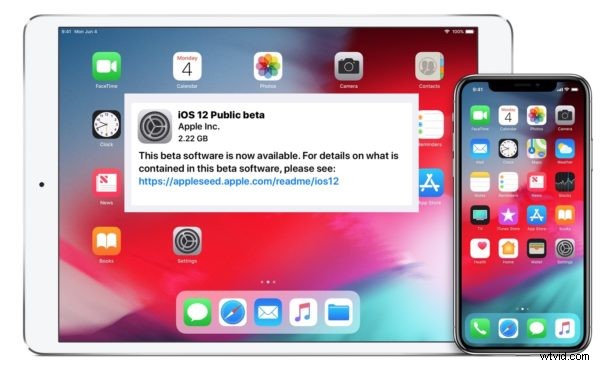
Apple has released the iOS 12 public beta for any iPhone and iPad user who is curious enough to run and beta test the upcoming system software.
This tutorial will detail how to install the iOS 12 Public Beta onto an iPhone or iPad.
Remember, running iOS 12 public beta is certainly not for everyone, and is generally reserved for more advanced users with secondary devices they can beta test the system software on. iOS Beta system software is buggy and tends to be more problematic than most users are accustomed to, and things may not work as well as expected, some apps may not work, and other issues could occur. Nonetheless, running beta system software can be a fun way to explore upcoming features, test your own stuff with the new iOS 12 beta releases, and participate in the beta testing of an operating system while offering feedback to Apple along the way. If this sounds appealing to you, read on to install the iOS 12 public beta.
How to Install iOS 12 Public Beta
You will need to be sure to have an iOS 12 compatible iPhone or iPad before beginning:
- Backup your iPhone or iPad, ideally to both iCloud and iTunes, then archive the iTunes backup *:
- Open iTunes and backup the iOS device as usual, then go to iTunes Preferences and the “Devices” section
- Right-click on the iOS device backup and choose “Archive”
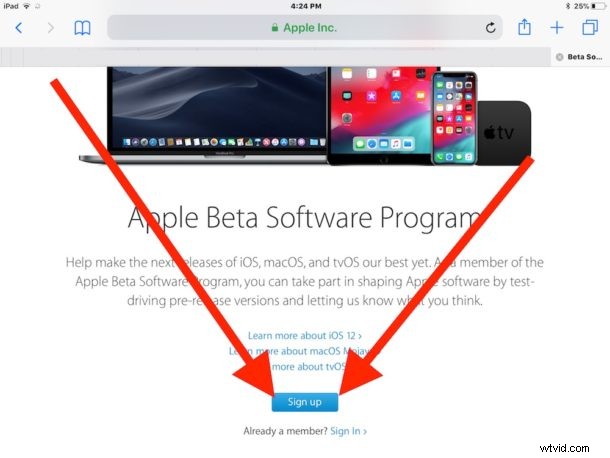
- From the iPhone or iPad, open Safari and navigate to beta.apple.com and choose to “Sign Up” and enroll the device in the iOS public beta program
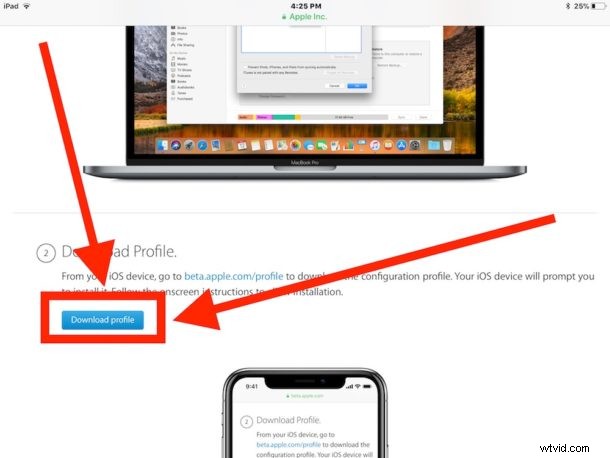
- Download the iOS 12 beta profile from the iOS public beta page
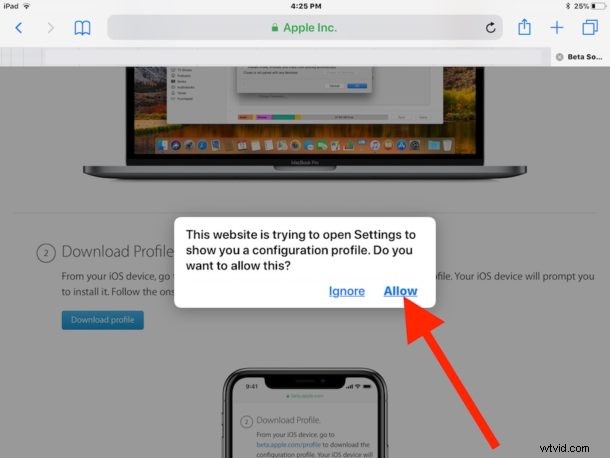
- Choose to “Allow” the iOS beta configuration profile
- The beta profile will open the Settings app, choose to “Install” the iOS 12 public beta profile
- Read and study the terms and conditions, then choose to “Install”
- Again choose to “Install” the beta profile
- Choose to “Restart” the iPhone or iPad when requested
- When the iPhone or iPad boots back up again, return to the “Settings” app and go to “General” then to “Software Update”
- With iOS 12 Public Beta visible to download, choose “Download & Install” to start the process of downloading and installing the iOS 12 public beta
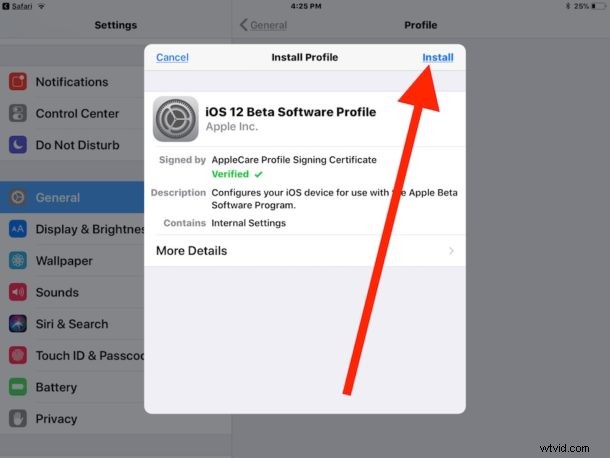
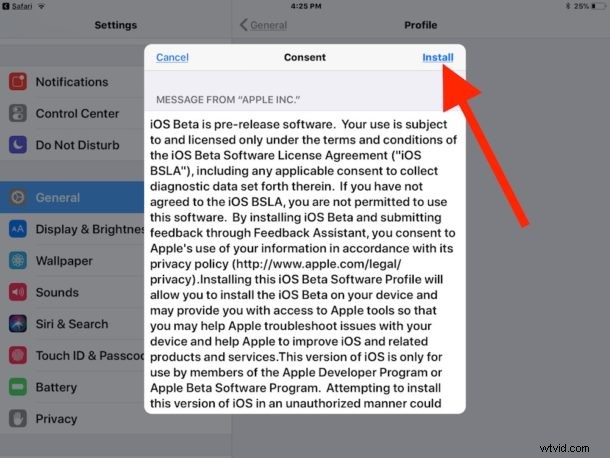
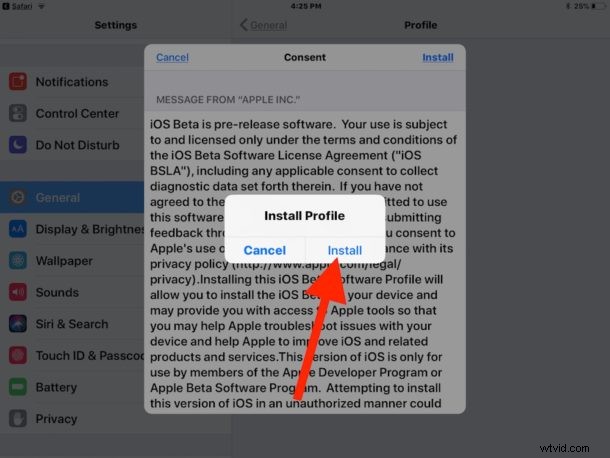
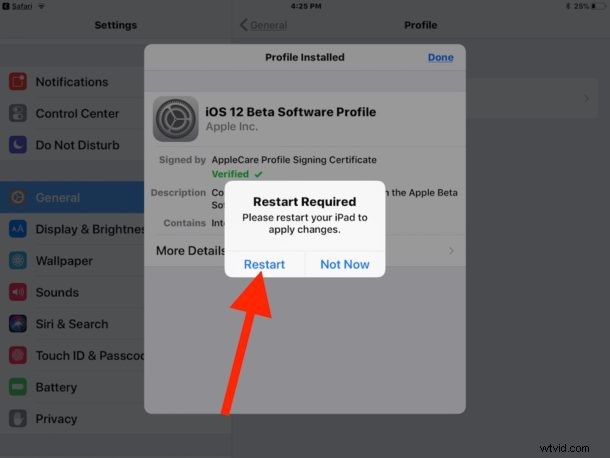
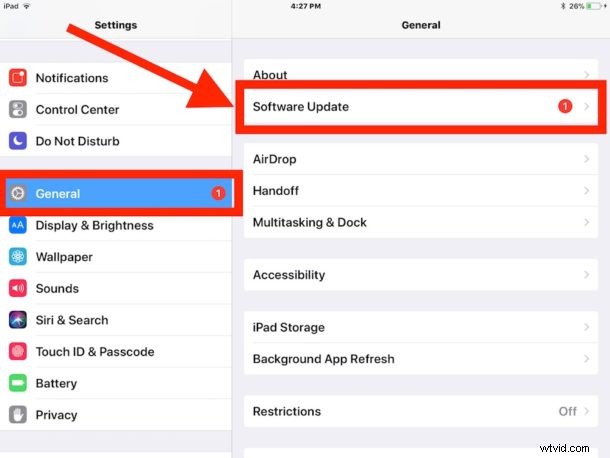
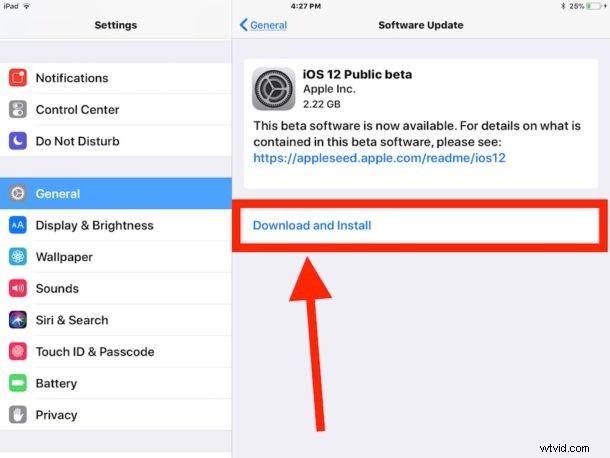
Installing iOS 12 public beta requires about 4 GB of free storage space on the iPhone or iPad, though the download itself is around 2.2 GB. How long it takes to download will depend on your internet connection. Installation itself is fairly quick, and once downloaded it should complete in not too long.
The iPhone or iPad will reboot itself when finished, starting up with iOS 12. There will be a minimal setup process on the first iOS 12 boot.
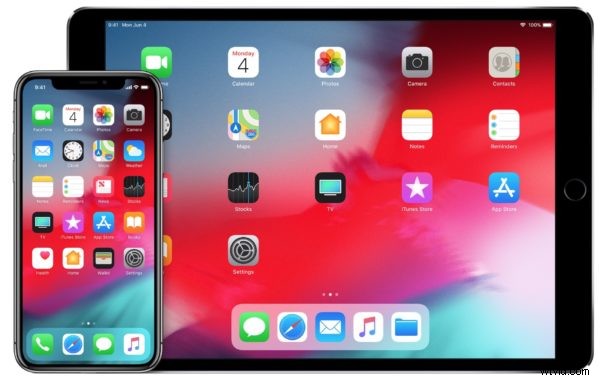
That’s it, you’re now running iOS 12 public beta! Future software updates to the iOS 12 public beta, including the final version of iOS 12 (due in the fall), will arrive through the “Settings” app Software Update section, just as all other iOS updates do.
Remember to use the “Feedback Assistant” app to provide Apple with feedback, bug reports, feature requests, and other relevant information. You can help to shape the future of iOS by doing this!
* Apple recommends performing an iTunes backup and then using “Archive Backup” to preserve that backup so it is not overwritten, this allows for easy downgrading and restoring of your data. Archiving backups is reasonable on smaller storage devices or if you have a bunch of free disk space. If you don’t have a large amount of disk space available but you still want to preserve a backup, you can make a copy of the iOS backup files to an external disk as an alternative approach. Regardless of the approach you take, do not skip backing up the iPhone or iPad.
If you decide the iOS 12 public beta is not right for you, then the backup you made at the beginning of this process will allow you to return to iOS 11. You will want to remove the iOS beta profile and then downgrade from iOS 12 beta reverting back to an iOS 11 stable build with these instructions.