
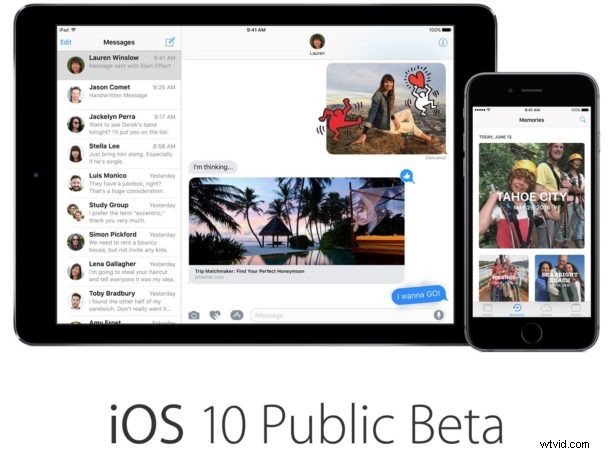
iOS 10 Public Beta is now available for any iPhone, iPad, or iPod touch user to try out and install onto their devices right away. Keeping in mind this is beta system software, the experience is buggy and much less reliable than a typical final release of iOS would be, making the beta testing participation best reserved for advanced users or at least by installing it onto a non-primary device.
We’ll show you how to enroll in the iOS 10 public beta program, and how to download and install iOS 10 public beta right now.
Before beginning, be sure you have an iOS 10 compatible device from this list, an Apple ID, and make a fresh backup of your iPhone or iPad before proceeding any further.
How to Install iOS 10 Public Beta on iPhone or iPad Right Now
Enrolling, downloading and installing iOS 10 public beta is quite simple:
- Back up your device to iTunes and iCloud before beginning, without a backup made beforehand you may lose all of your stuff, don’t skip making a backup
- Visit the official Apple Beta Program website for iOS here and log in to your Apple ID
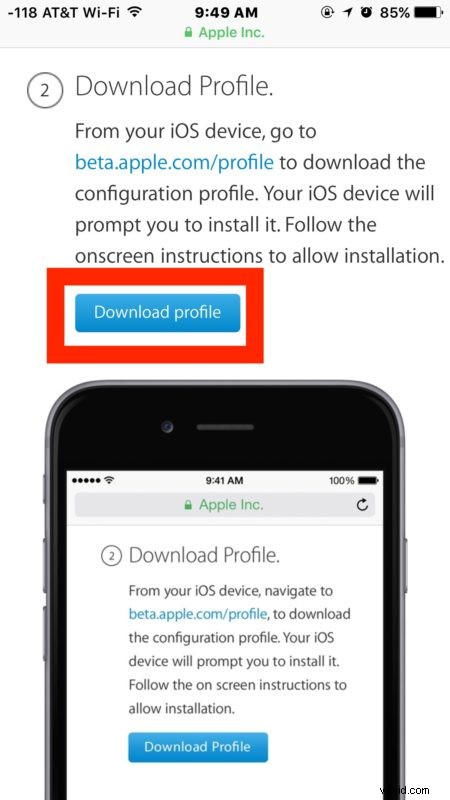
- Scroll down to the “Download Profile” section and click on the blue “Download Profile” button
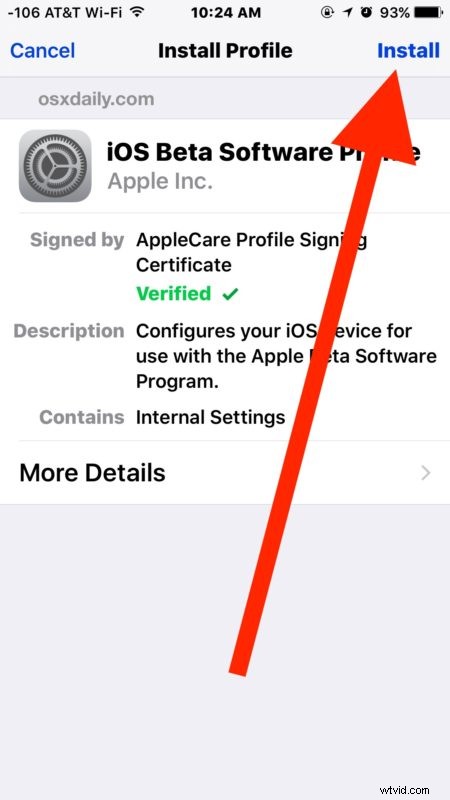
- At the iOS Beta Software profile screen, choose “Install”
- The iOS device will reboot and install the beta certificate, at which point you can install iOS 10 public beta like any other iOS software update
- Open the “Settings” app and go to “Software Update” and choose to download and install iOS 10 public beta
- Agree to the terms and conditions and proceed with the installation of iOS 10 on the device
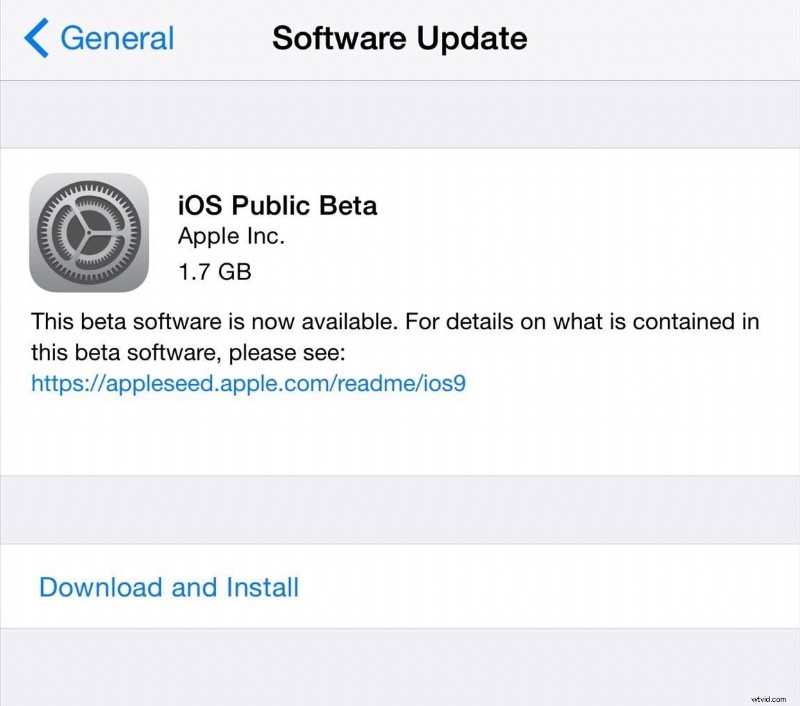
The iPhone, iPad, or iPod touch will eventually reboot to complete the install and boot into the iOS 10 public beta build.
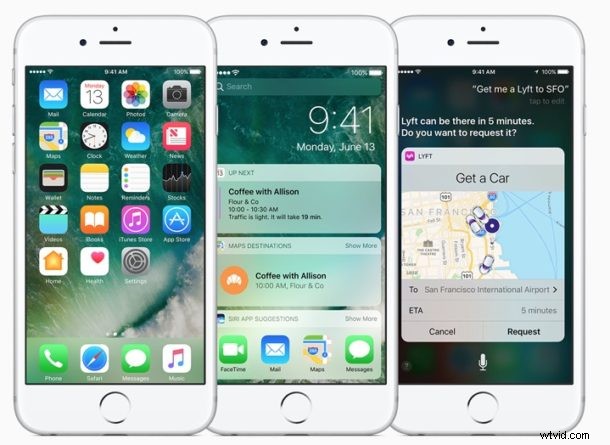
All future public beta releases will be available through the Settings > Software Update function on the iOS device, making it easy to keep up to date when a new release is available.
Using beta system software is not for everyone, and if you decide you no longer want to run the public beta release, you can downgrade iOS 10 beta and revert back to a stable iOS release. You’ll want to be sure you remove the iOS beta profile from the device as well so that future iOS beta builds are not made available in Software Update.
The final public version of iOS 10 is due out this fall.
If you’re interested in beta system software, you may also be interested in installing macOS Sierra public beta onto a Mac as well.