
Having email in your pocket is one of the many great features of an iPhone, and so properly responding to emails is rather important. This may seem obvious and straight forward, but many newcomers to the iPhone platform have difficulty with email replies, often choosing to reply to the wrong sender, to reply to an email instead of forward it, or some variation thereof.
This is obviously aimed at more beginner level iPhone users, so if you’re advanced user or an iOS Mail expert, you can go ahead and skip this walkthrough.
First things first: remember that replying to an email is not the same as forwarding an email. Forwarding an email takes an existing mail message and forwards it to a new different email address, whereas replying to an email responds to the original sender of the mail message. If you want to pass along an email to someone else, you use forward, whereas if you want to respond to a mail message, you use reply.
Replying to Email on iPhone with Mail App
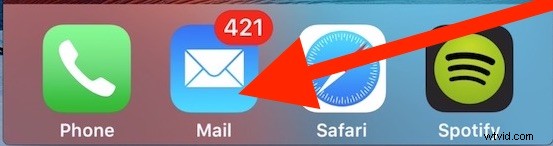
- Open the Mail app on the iPhone if you have not done so already, it’s usually in the Dock at the bottom of the home screen
- Tap on the email message that you want to reply to, be sure you select the proper email message otherwise you could respond to the wrong person or send the wrong recipient a reply – this is important and a common mistake is selecting the wrong email to respond to
- Tap on the Reply button, it looks like an arrow pointing to the left *
- At the option screen, choose “Reply”
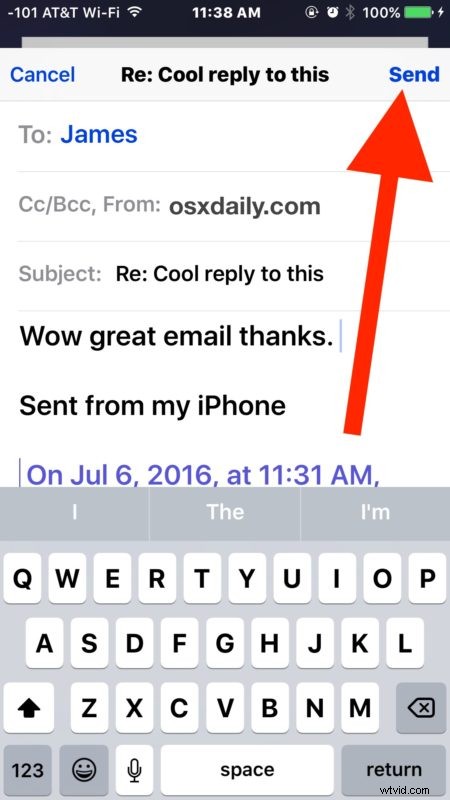
- Type your email message reply as usual, add a picture or include an attachment if desired, then tap on the “Send” button in the corner
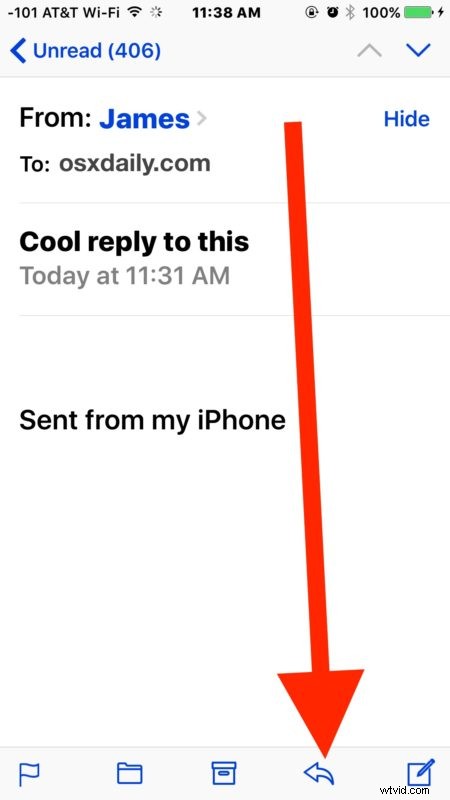
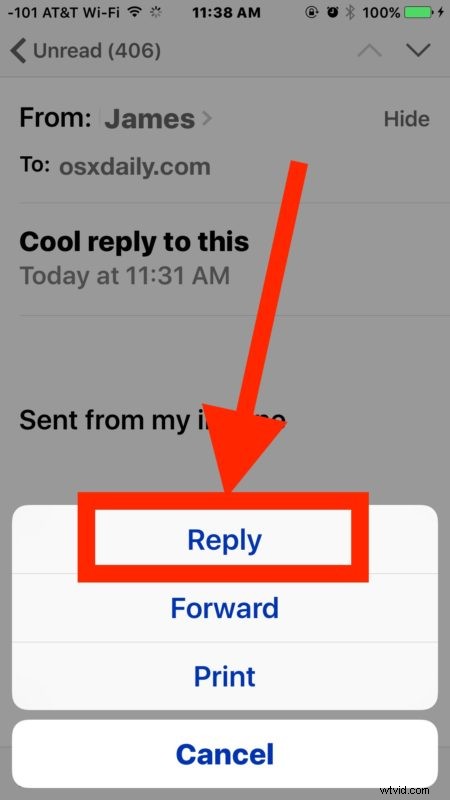
* As you’ll see, the Reply button in Mail for iPhone is also the Forward button and Print button, this is somewhat confusing and a likely contributor to some of the accidental forwards or accidental replies that impact many users. Thus, it’s important to select the proper option, choose “Reply” to respond to an email message, and “Forward” to pass the email message along to someone else.
A more advanced trick that is worth visiting replies to specific selected text block from the iOS Mail app, which is particularly handy for responding to long emails or a specific portion of a message.
Replying to emails on iPhone may seem obvious or basic, but there are a very large number of users who inadvertently send email messages to the wrong recipients, so a refresher can be helpful to understand how the feature works, and what Reply and Forward do. In fact, I regularly get emails that are directed to other people on a topic I know nothing of, but are sent to me anyway, which is clearly accidental but it happens often enough that it’s an indication that a relatively simple task is perhaps overly complicated or confusing.
And yes, replying to email messages on an iPhone is the exact same as on an iPod touch, and largely the same on an iPad too. The Mail app interface on the iPad is slightly different however, in that you’ll have side-by-side panels of email messages and a separate body panel to work with, but otherwise the replying features are exactly the same.