
For iPhone and iPad users with multiple email accounts in iOS Mail, you may want to change the “From” address when sending a specific email. This does exactly what it sounds like; it changes the email address you are sending an email from, but rather than changing the setting universally to set a new default, you can adjust the sent from address on an individual email basis.
It’s quite easy to switch the sent ‘From’ email address in particular emails on iOS, but it’s not entirely obvious until you’re shown how it works.
You will need at least two email accounts setup in Mail app to have this ability in Mail composition screens, you can add a new email account to iOS at anytime using third party services like gmail, hotmail, outlook, yahoo, aol, or create a new iCloud.com email address if you want.
Changing the Sent From Email Address on iPhone, iPad
This will change the sent from address on a per-email basis, it does not change the setting universally. The process is the same on iPhone, iPad, and iPod touch:
- Open the Mail app in iOS and compose a new email as usual
- Tap the “From: emailaddress@email.com” text in the New Message window
- Navigate the sliding menu up or down to choose the email address you want to send the email from, then tap on that email address
- Confirm the “From:” field shows the email address you’d like to send the email from and proceed as usual
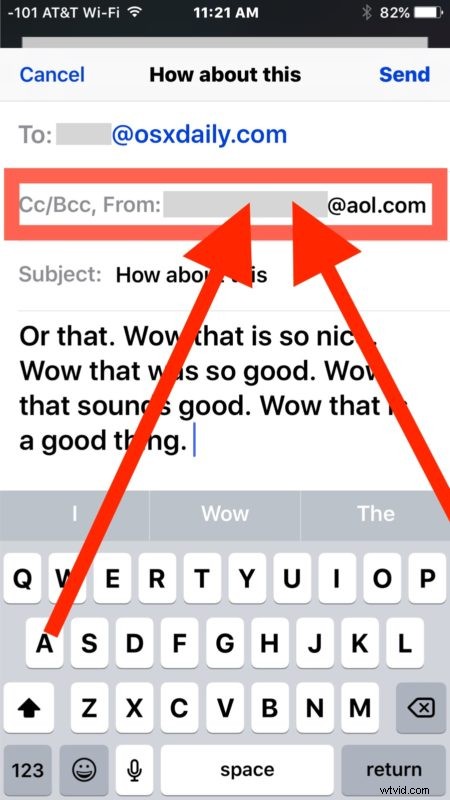
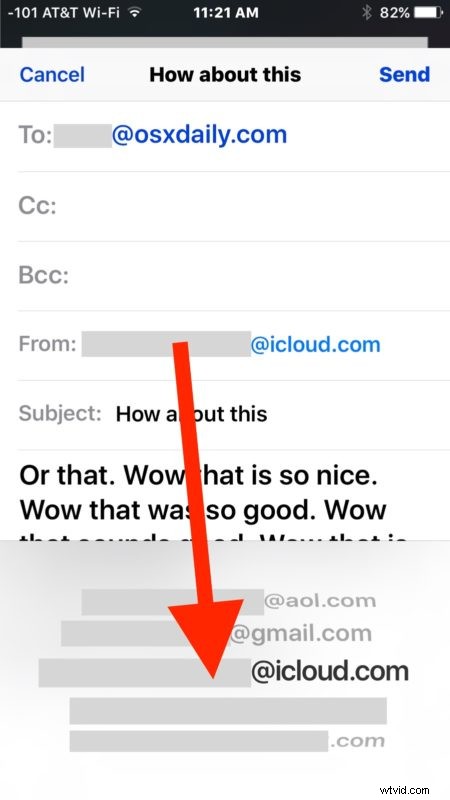
Compose and send the email as usual and it will be sent to the recipient using the email address chosen.
You can send any kind of email from any email address account setup in Mail app, all you’re doing here is changing what email account you are sending the message from.
This is something worth paying attention to if you recently added a new email account to iOS or generally juggle multiple email accounts on an iPhone and have them setup in the Mail app, since you probably don’t want to accidentally send an email from the wrong address (which happens fairly easily).
For those who do use multiple email accounts in Mail app, it’s a good idea to set the default email address on iPhone and iPad to the one you wish to use as your default, which is usually whatever you use most often on that device. So for example if it’s a personal device, have your personal email be the default. Then you can always use the above tip to adjust the “From” email address at any time if you do want to send a quick email from your work account or another personal account.