

Live Photos are the fun animated images captured by modern iPhone and iPad cameras. Essentially each Live Photo is a still image attached to a short movie clip, and much like movie clips there is a key image that can be set to represent the picture as a thumbnail. Changing that key photo can be desirable if the Live Photo thumbnail preview doesn’t really capture the image well, and you can instead scrub around in the Live Photo for a thumbnail that better represents the image.
This tutorial will show you how to change and set a Live Photo key frame photo in iOS, which will change both the thumbnail of the Live Photo as well as the picture you see when you browse to the Live Photo in the Photos app on iPhone and iPad.
You will need a device that supports Live Photo and an actual Live Photo to do this, you can take a Live Photo with the iPhone or iPad camera if you haven’t done so before, and then use that for testing this out yourself if desired. Of course you’d need to enable Live Photos first before such an image is captured.
How to Set Key Frame Photo in Live Photos for iOS
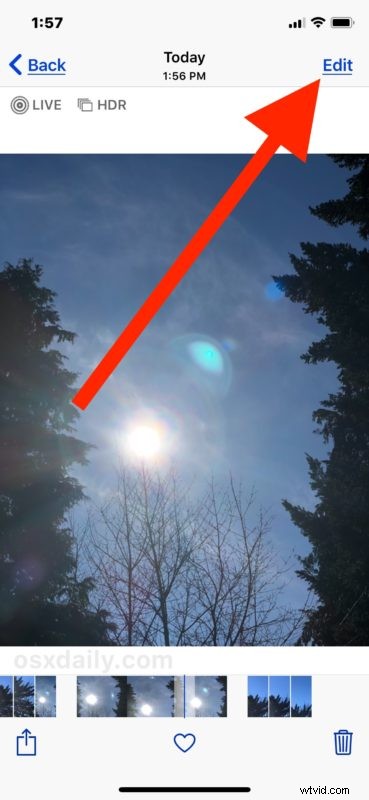
- Open the “Photos” app and choose any Live Photo
- Tap the “Edit” button in the corner
- Scrub on the timeline with your finger to find the key photo you want to set
- Tap and hold on the thumbnail then choose “Make Key Photo”
-

- Choose “Done” to set the changed key photo in iOS


Now anytime you’re browsing the thumbnail view of Live Photos in the Photos app, or if you share the Live Photos, the newly set Key Photo will be the default.

Live Photo is a neat feature with a lot of tricks up its sleeve. One of the more interesting capabilities recently added is the ability to use Live Photos to take long exposure images on iPhone or iPad. And don’t forget you can always convert a Live Photo to still image in iOS if you later decide the animated picture isn’t what you’re looking for after all.
If you liked this trick, you’ll probably appreciate checking out more Live Photo tips here too.