
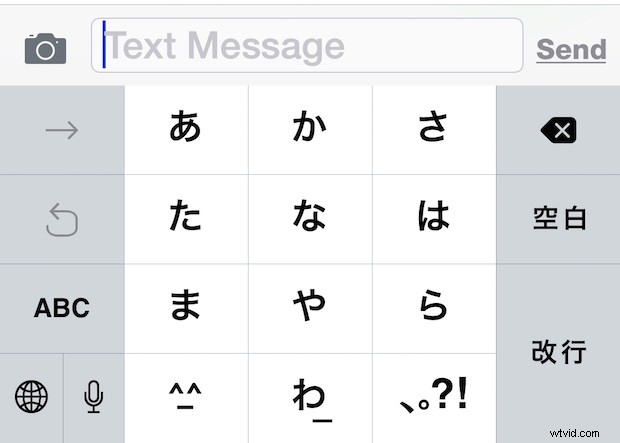
Whether you’re a multilingual iPhone or iPad user or just learning a foreign language, you almost certainly wish to change the language of the onscreen virtual keyboard from time to time. Switching the keyboard language in iOS is really quite simple once you have an alternate keyboard enabled, so let’s walk through the entire process.
How to Enable Alternate Language Keyboards in iOS
Before anything else, you’ll probably want to enable an alternate language keyboard if you haven’t done so yet. This allows you to type in another language using that languages keyboard without changing the language entirely in iOS.
You can add, adjust, or remove new language keyboards at any time in iOS by doing the following:
- Open the Settings app then go to “General” and “Keyboard”
- Choose “Keyboards” and select “Add New Keyboard” – tap on any alternate language keyboard to add that to the list of available keyboards in iOS which you’ll then be able to gain quick access to
We’ll assume you’ve already added at least one alternate language keyboard this way, but for the sake of trying out the keyboard switching you can even just enable and use the glyph and symbol keyboard or the Emoji keyboard.
Note that in modern versions of iOS, when you have more than one alternate keyboard language enabled, the familiar smiley face Emoji icon on the keyboard gets switched out with a Globe icon, which is actually the same with what the Emoji and language access looked like in prior versions of iOS.
How to Change the Keyboard Language on iPhone, iPad, iPod touch
Once you’ve enabled at least on other alternate language keyboard in iOS Settings, you can access and switch between keyboard languages quickly and easily by doing the following:
- Go anywhere in iOS where you can access the virtual keyboard on screen
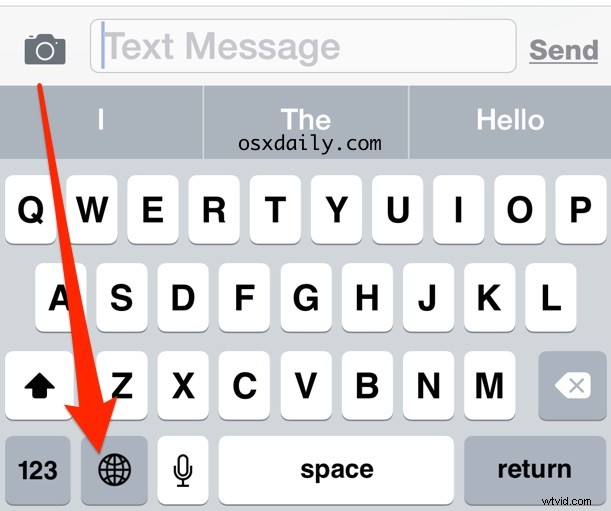
- Tap and hold on the globe icon to reveal the keyboard language menu
- Select the alternate language keyboard to switch to
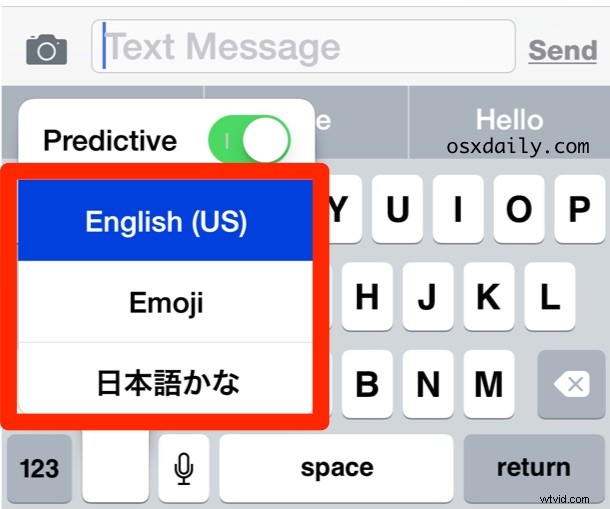
The chosen keyboard language immediately becomes active.
Note that you must tap and hold on the globe icon to reveal the alternate language keyboards. Simply tapping the smiley-face icon once typically just switches to the Emoji keys.
You can switch back or change the iOS onscreen keyboard at any time quickly by performing the same tap-and-hold trick on the globe icon at the keyboard, and you can do this anytime the keyboard is visible on the iPhone, iPad, or iPod touch.
Mac users have a similar way to switch the keyboard language in OS X with a quick shortcut, so if you’re a polyglot with a variety of different Apple hardware, you should be covered with whatever OS you’re using.