

Have you ever wanted to customize the font seen on a webpage? Maybe you have a preferred font that you want to see while you’re reading, or the font on a particular webpage is difficult to read? In that case, you’ll be excited to know that you can now do this on your iPhone or iPad, without having to use a third-party web browser.
There’s absolutely nothing wrong with the default font that’s used by Safari for displaying text, but we live in a time where users like to customize and make their devices stand out from others. Fortunately, the built-in Shortcuts app on iOS and iPadOS devices has allowed users to add some unique features to their iPhones in ways that weren’t possible before. And, this is exactly what we’ll be using to change the font of any Safari webpage.
Interested in learning what you need to do? We’re here to help. In this article, we’ll be discussing exactly how you can change the font of a webpage in Safari on both the iPhone and iPad.
How to Change the Font of a Webpage in Safari on iPhone & iPad
Shortcuts app is pre-installed on devices running iOS 13/iPadOS 13 or later. However, if you’re device is running iOS 12, you’ll need to download it from the App Store. Once you’re done, just follow these steps:
- Launch the Shortcuts app on your iPhone or iPad.

- Normally, you’d be taken to the My Shortcuts section upon opening the app. Tap on the “Gallery” option from the bottom menu.
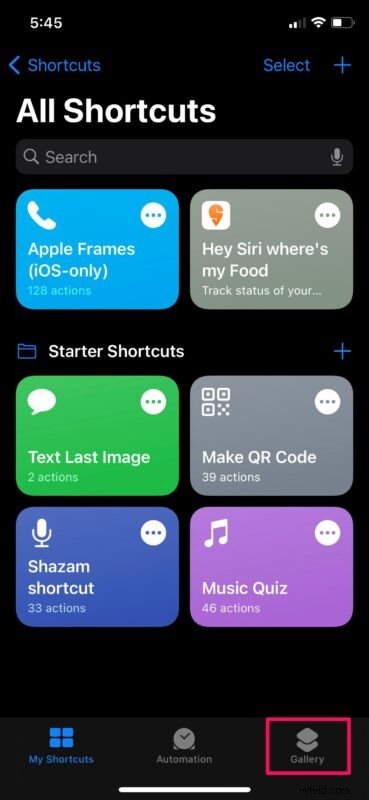
- Here, you’ll be able to browse for different shortcuts that you can install on your device. Swipe right on the cards that show up here and select “Share Sheet Shortcuts”. Alternatively, you can use the search bar and find the shortcut by typing in “Change font”.
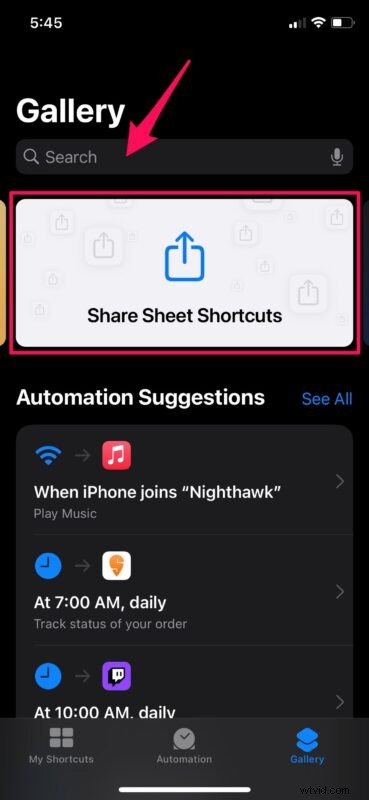
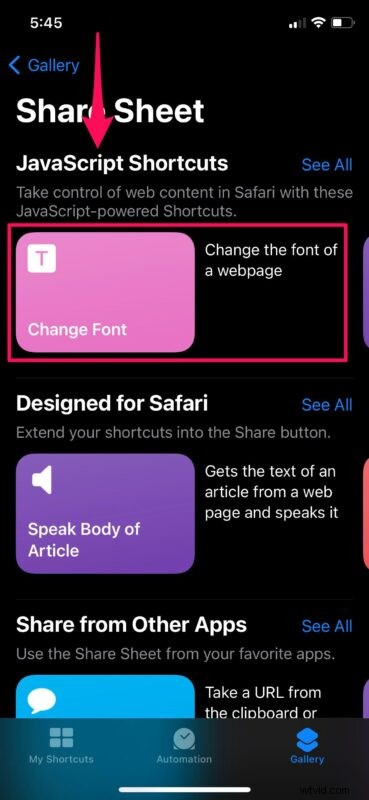
- Under the list of JavaScript shortcuts, you’ll be able to find the “Change Font” shortcut. Tap on it to continue.
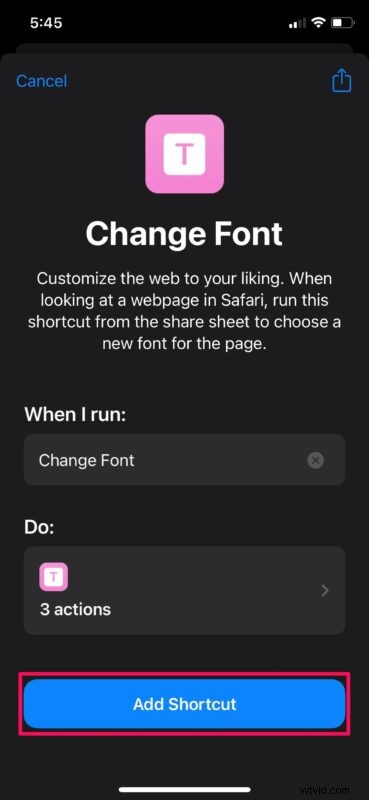
- Now, tap on “Add Shortcut” to install and add Change Font to the My Shortcuts section of the app.
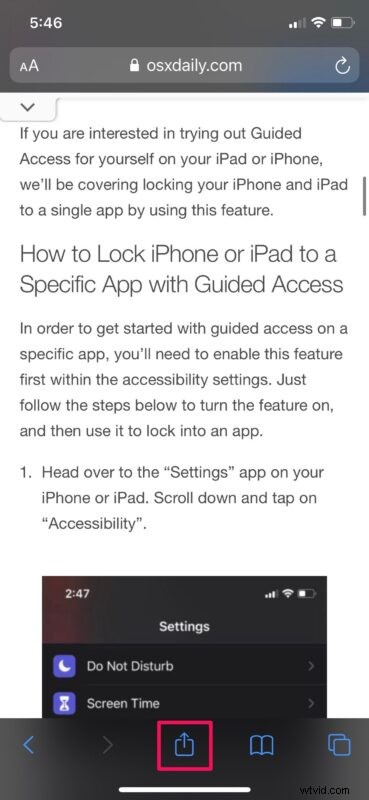
- Once installed, you’ll be able to access this particular shortcut from the iOS share sheet. Open Safari and head over to any webpage. Tap on the share icon from the Safari menu to bring up the iOS share sheet.
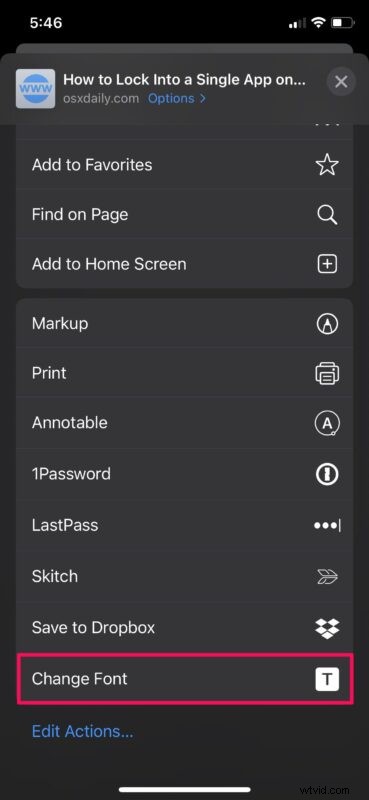
- Next, scroll down to the very bottom and tap on “Change Font” as shown below.
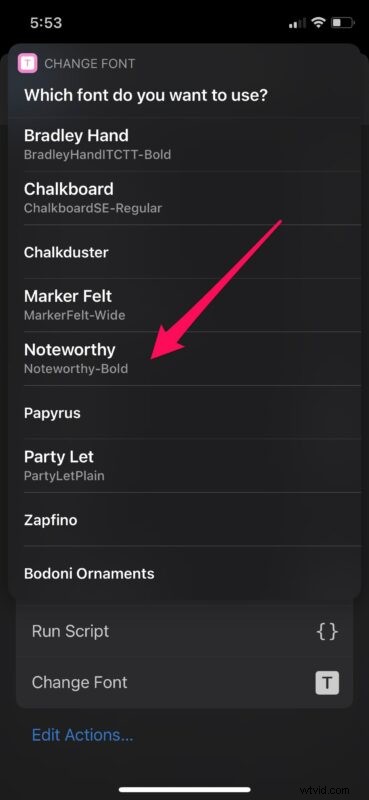
- You’ll get a pop-up at the top of your screen showing multiple fonts that you can choose from. Select the font that you like.
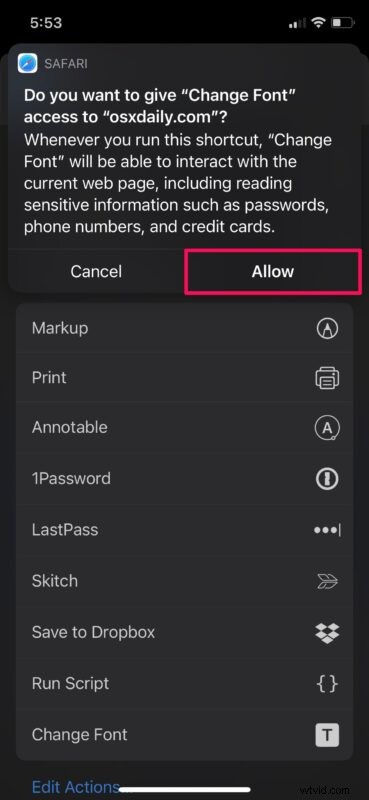
- Now, you’ll be prompted to give permission to Change Font for accessing the webpage you’re currently in. Choose “Allow” and exit the share sheet menu.
- You’ll now see that the font in the Safari webpage has changed.
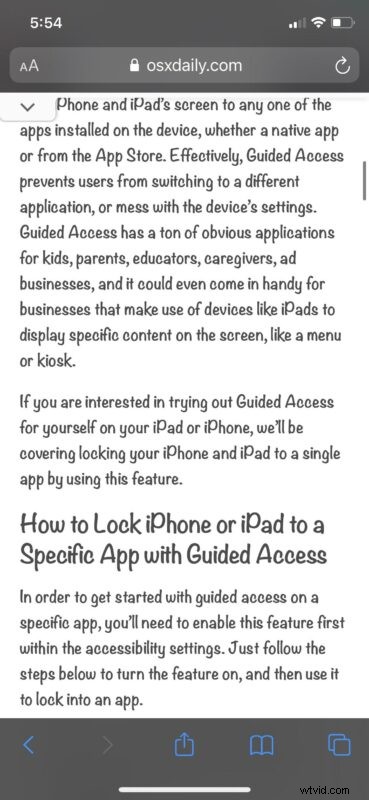
There you go. If the shortcut doesn’t work on your first attempt, reboot your iPhone or iPad and try using it again.
There are a total of nine different fonts that you can choose from. The best part about this shortcut is that it’s easily accessible from the share sheet. Hence, it feels like a feature that’s built into iOS rather than a third-party solution. Plus, since it’s available in Apple’s Shortcuts Gallery, you don’t have to install any untrusted shortcuts on your device.
Note that reloading or refreshing the webpage will load the page in its original font and not the font you selected. You’ll need to repeat the steps again if you want to view the content in your preferred font. Also, this shortcut only works with Safari, so if you’re using a third-party browser like Chrome on your iPhone or iPad, you’re out of luck.
Hopefully, you were able to get the shortcut to work properly and use it to change the text font for Safari webpages. How often do you utilize this shortcut while reading written content on the web? Do share your personal thoughts and opinions on this nifty shortcut. Also, make sure to leave your valuable feedback in the comments section down below.