
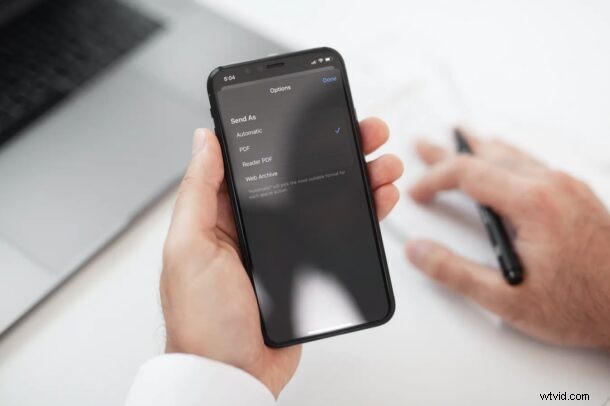
Are you looking to save a webpage or multiple webpages as PDF files to your iPhone or iPad? There are many reasons you might want to do this, perhaps you’re wishing to save a webpage receipt as a PDF for record keeping, to archive a page, or to access a web page offline. Fortunately, Safari makes it easy to convert webpages into PDF files.
The ability to create PDF from webpages in Safari was first introduced with the release of iOS 11. However, the steps needed to access the same has been slightly tweaked if you’re running a newer version of iOS like iOS 15, iOS 14, and iOS 13. The advantage of having PDF files of webpages is that they can be viewed even when you’re not connected to the internet and they can also be easily printed out. Plus, you can share it with your colleagues along with other files. So let’s check out creating a PDF from a webpage by using Safari on iPhone or iPad.
How to Save Webpage as PDF with Safari on iPhone & iPad
The following steps are applicable if your iPhone or iPad is running iOS 13/iPadOS 13 or later. On the other hand, if your device is running an older software version, you can follow this method instead.
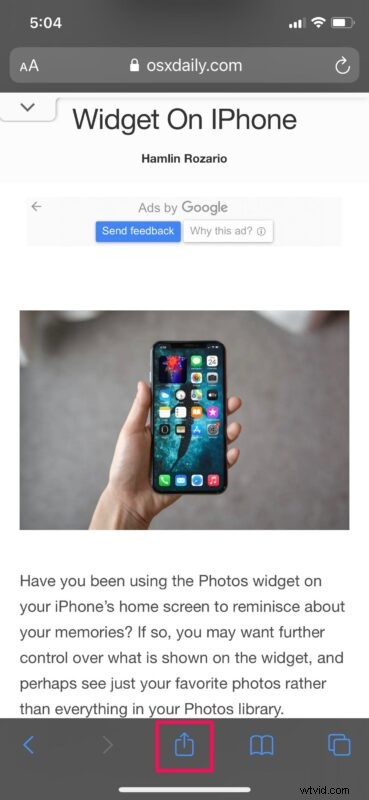
- Launch Safari on your iPhone or iPad and head over to the webpage that you want to save as a PDF file. Now, tap on the share icon from the bottom menu.
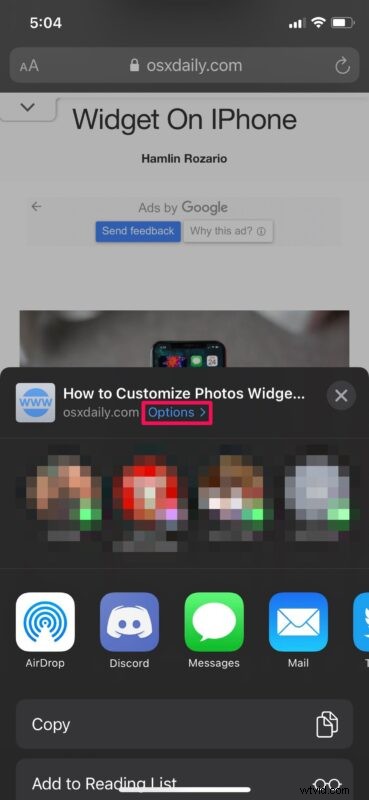
- This will bring up the iOS share sheet. The link to the webpage will show up at the top of the share sheet. Here, tap on “Options” located next to the link.
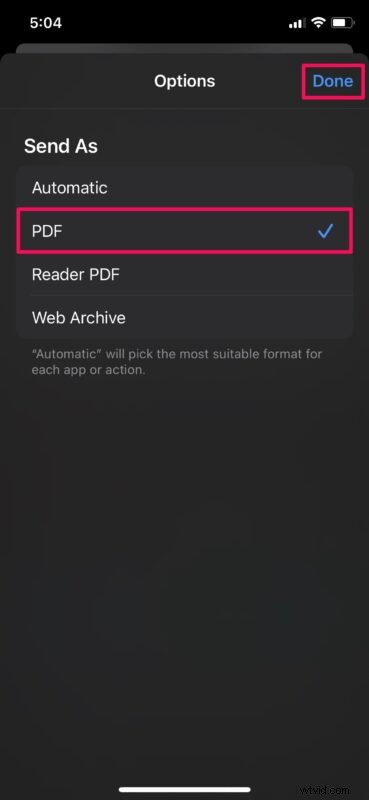
- Now, simply select “PDF” instead of Automatic and tap on “Done” to go back to the share sheet.
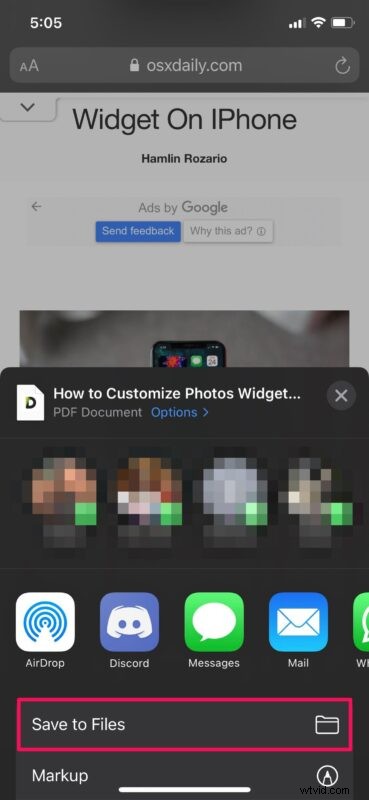
- Next, select the “Save to Files” option from the share sheet.
- Here, simply choose the directory where you want to store the downloaded PDF file and tap on “Save”.
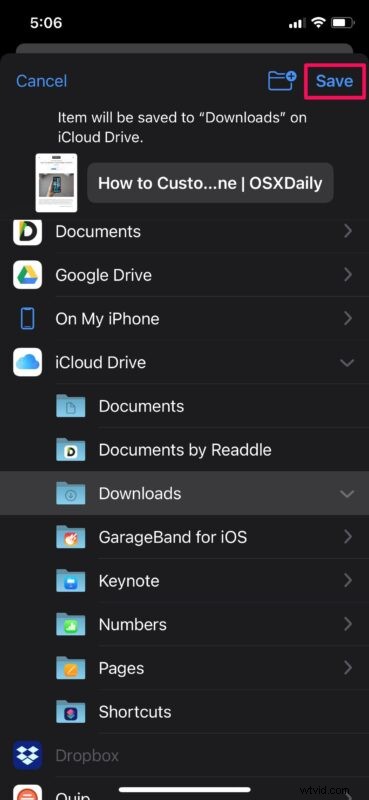
That’s all you needed to do. You’ve successfully saved the current webpage as a PDF file on your iOS/iPadOS device.
The “Save to Files” option will only show up in the share sheet if you’ve selected the PDF format from the Options menu. This setting will be reset once you exit the share sheet. So, if you’re looking to save multiple webpages, you’ll need to repeat the above steps for each one of them.
If you’ve saved the PDF file in an iCloud Drive directory, it’s worth pointing out that the file will be accessible from all your other Apple devices as well, provided you’re signed into them with the same Apple account.
The saved webpage can then be shared as a file from the Files app instead of a webpage, which can then be viewed even offline by the recipient. The PDF file will follow the format of “Safari – (Date of Creation) – (Time of Creation).pdf”, but you can easily rename it according to your preference within the Files app.
Keep in mind that if the webpage had ads or other page styling, the downloaded PDF files will also show those ads or page styling. However, if you don’t want that kind of stuff in your saved PDF, you can switch to reader view in Safari and then follow the same steps to save it without any ads, page clutter, or styling elements.
Did you convert any webpage to a PDF file, or save webpages as a PDF file to your iPhone or iPad? What is the purpose you use this feature for? Do you use another approach? Let us know your experiences and thoughts in the comments.