
You can save any photo as a PDF on an iPhone or iPad should the need arise. The photo saved as a PDF file is then stored locally, which can be used for whatever purpose is necessary, or shared via email.
The approach we’ll use here to save a photo as a PDF for local usage on an iOS device will rely on the free iBooks app from Apple.
How to Save a Photo as PDF on iPhone or iPad
If you want to save a photo as a PDF file and keep it locally on your iPhone or iPad, here’s the easiest way to do that:
- Get the iBooks app (free from Apple) from the App Store for iOS if you have not done so already
- Open the Photos app in iOS and choose the picture you want to save as a PDF, then tap the Sharing button (it looks like a little box with an arrow flying out the top)
- Choose “Save PDF to iBooks” from the sharing options

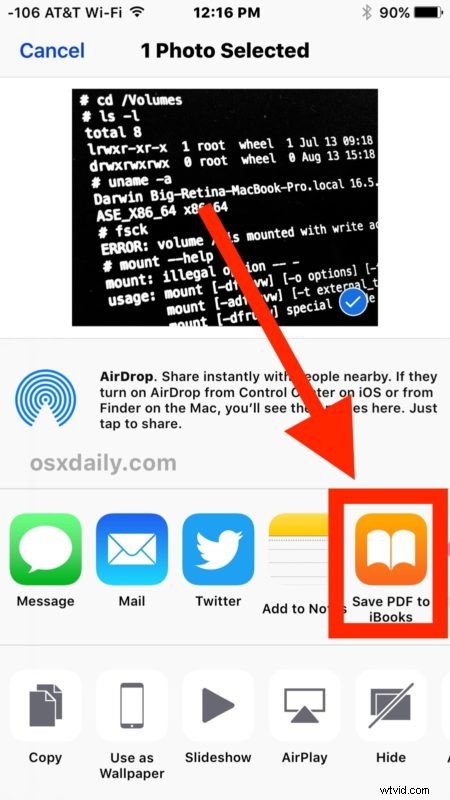
This will instantly save the photo as a PDF within the iBooks app for iOS.
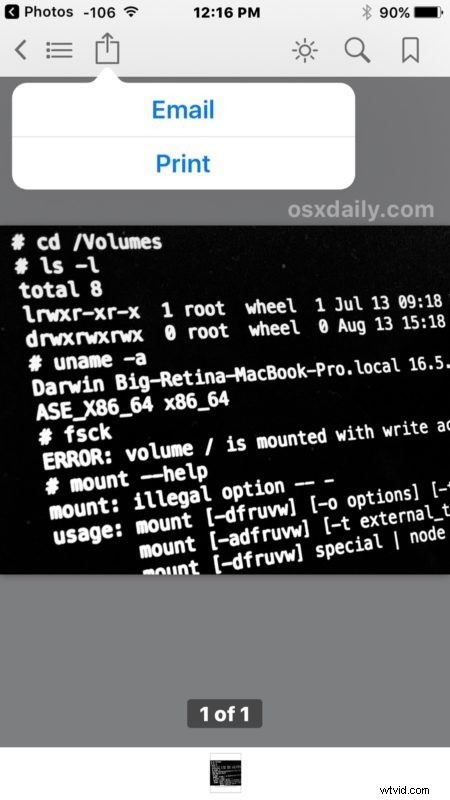
Once the photo converted to a PDF is saved within the iBooks app, it can be accessed any time through the iBooks app just like any other PDF file contained within iBooks.
You can also then share it via email as a PDF file if desired via the iBooks app too, or print it out.
This is obviously aimed at saving a picture from the Photos app as a PDF file, but you can use other iOS tricks to perform more diverse PDF options for other situations. For example, a hidden iOS gesture allows you to save anything as a PDF file, including web pages and documents, extending the capability beyond photos and images. You can actually use the Save As PDF trick directly for photos too, but they won’t be saved locally and instead the resulting PDF is shared via email, messages, or sent to iCloud. Thus, for local saving of a PDF file converted from a photo, we use the iBooks approach outlined above.
Know of any other interesting photo or PDF tricks for iPhone or iPad? Let us know in the comments!