

TOR is a relay network which aims to increase your online privacy by attempting to anonymize web browsing activity. This is achieved by distributing your traffic across a series of TOR servers, which obfuscates your IP behind those Tor servers. While TOR is typically used on the desktop – you can read about using TOR on Mac here if interested – you can also access and use a TOR browser on the iPhone and iPad too.
For this particular article on quick and easy TOR access from iOS, we’re going to focus on a third party TOR app for iPhone and iPad called Onion Browser. It’s free and does the job of connecting to TOR, even if Onion Browser is imperfect and a little bit clunky (a more refined version is currently in beta testing but due out soon). The Onion Browser app offers simple TOR usage from iOS should you wish to access onion URLs or have some degree of enhanced anonymity with your web browsing.
How to Use TOR on iPhone or iPad with Onion Browser
You will need a modern version of iOS and an existing internet connection, the Onion Browser app comes from the App Store so you will need to download that too. Here are the steps, it’s pretty straight forward:
- On the iPhone or iPad, download Onion Browser for iOS on the App Store, it’s free
- Launch the Onion Browser app in iOS and choose “Connect to TOR” on launch
- Tor will initialize and when completed you will see a browser screen indicating it has successfully connected to the TOR network (or unsuccessfully…in which case you would not be on TOR)
- Once the TOR connection has completed, browse the web as usual in the Onion Browser app
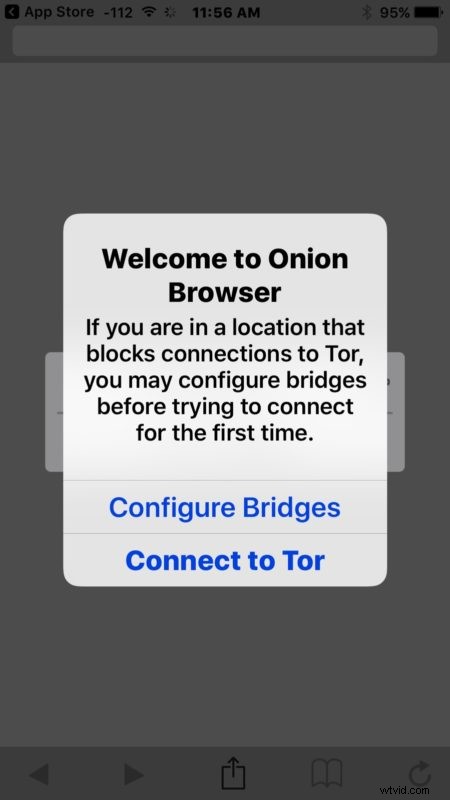
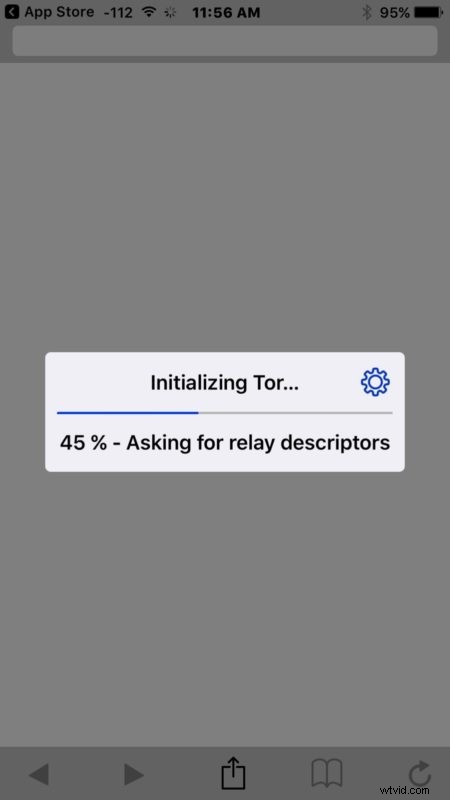

Like all TOR browsers, Onion Browser is missing some features and abilities, and not all websites will work as expected or render correctly within the app. That is done to try and mitigate data and IP leaking, and so turning off various abilities in whatever Tor browser is necessary.
Keep in mind that browsing the web with TOR is slow, this is because your network traffic is being distributed around the globe in an attempt to anonymize you and increase your privacy. That lagginess and speed reduction is experienced in any TOR browser, it’s not just Onion Browser.
You can renew and request a new IP at anytime in the TOR browser, but you may need to force quit the app and relaunch the Onion Browser for that to be successful.
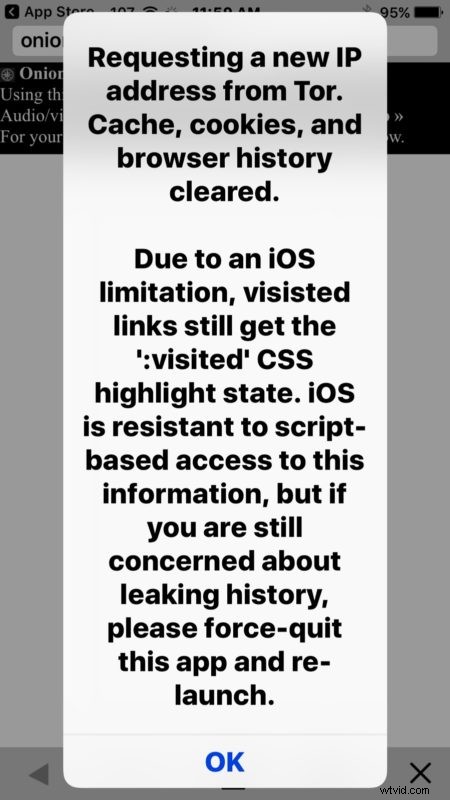
The Onion Browser application is a bit rough around the edges and faces some limitations due to iOS architecture, but if all you need is a randomized IP address or access to some onion domains, it should do the trick. As mentioned before, there’s a newer version that is currently in beta testing that is quite a bit more refined, and it should be due out soon.
Whether or not you trust TOR to keep you anonymous or increase your privacy in todays era of security breaches and privacy violations is entirely up to you, but it’s probably a good idea to read about TOR in general here, you might want to check the TorProject blogpost on Onion Browser, and you may find it useful to know that Onion Browser for iOS is open source so you can look through the source code on Github if that interests you too.
Do you know of any other tips, tricks, or helpful apps for accessing TOR on the iPhone or iPad? Let us know in the comments below.