
iOS Photos has an excellent search feature that allows users to search for identifiable objects, places, and attributes in your pictures. For example, you could search for “beach” or “rock” or “dog” and all images in Photos app that match those terms will show up in predefined sorted albums on the iPhone or iPad.
The searched images includes any photo in your album or camera roll, meaning any picture taken with your iPhone or iPad as well as those saved to your devices will be indexed and searchable using this great trick.
How to Search iOS Photos by Identifying Attributes
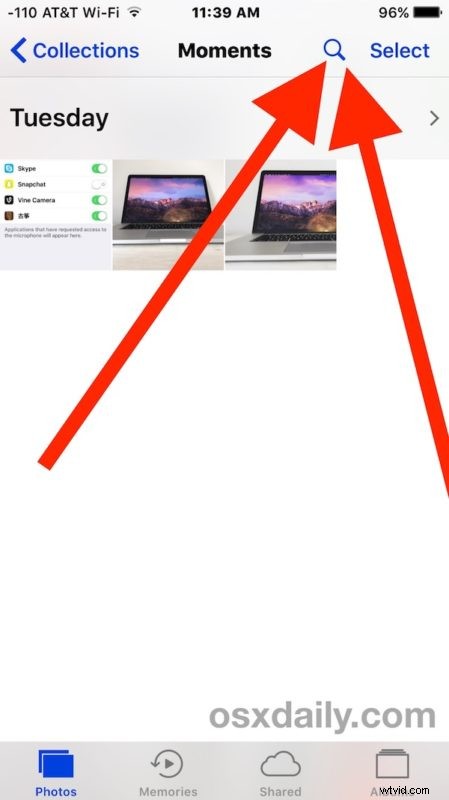
- Open the Photos app if you have not done so already and go to either the Albums view or your Photos view
- Tap the magnifying glass “Search” icon in the upper corner
- Type in your search term to narrow down pictures by. For example: “house”, “cat”, “boat”, “face”, “water”, “animal”, etc
- Tap on the matched index photo album to see all pictures in the search category

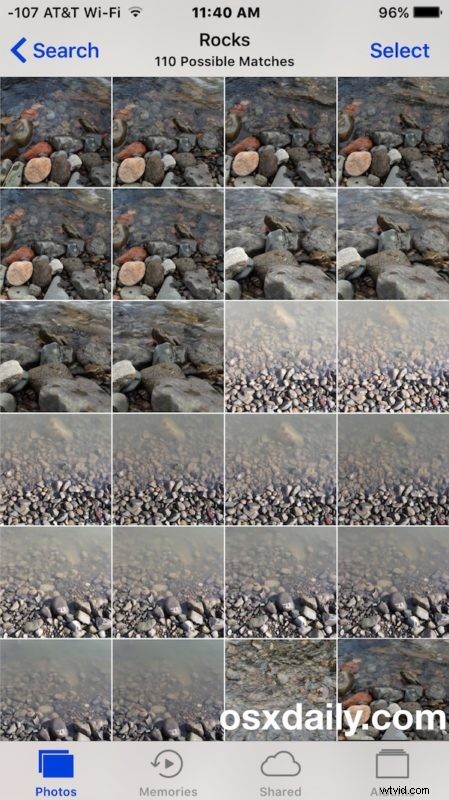
In the example above, I searched my photos for “rock” and it accurately found and created an album of river rocks, though it did mislabel a frog as rock too.
Try to aim for obvious search terms, though some more obscure ones will work as well. Things like “guitar”, “car”, “beach”, “rock”, “tree”, “lake”, “person”, “dog”, “rabbit”, “chair” and the like work very well, but feel free to get creative and use your own unique search terms, you’ll likely be impressed by what it turns up on your iPhone or iPad. This feature works best with large image libraries, since there is more material to work with.
This iOS Photos search feature is particularly nice for trying to track down a particular image that you can’t quite recall the date of or where it would be in your library, but perhaps you can recall the place, an object, or a description of the image.
The Photos Search feature is powerful and fairly impressive, but it does have a few shortcomings. Somewhat curiously you can not search for modified attributes to photos however, so if you’re trying to find markup images, selfies, Live Photos, or screenshots through this feature you will not return results, though separately there are unrelated screenshot and selfie photo albums. Nonetheless it’d make sense for those type of things to be searchable as well, so perhaps a future iOS version will include that ability.
Much like the photos facial recognition feature in iOS you can not disable this image indexing and search functionality currently, so if you don’t want your images scanned for identifiable objects, places, landmarks, and attributes you would have to not use the photos app or iOS camera.
This same Photos search ability is available on the Mac Photos app as well, though using it is slightly different as the interface is obviously not the same as found on iPhone and iPad.