

If you have thousands of photos stored on your iPhone or iPad, then finding a specific photo could be a tedious process. If you use Photos captions, the search feature in the Photos app makes it a whole lot easier to filter out specific photos and find just the ones you need.
Apple allows users to add context to their photos with captions. This feature extends to photos search as well, as you can now search for specific photos by the captions you added. Photos captured by your iPhone, screenshots, and other images stored on your device will all be indexed by the Photos app and made searchable by typing in keywords from the captions. And of course this works on iPad as well as iPhone too.
Let’s check out the captions photos search feature on iOS and iPadOS.
How to Search Photos by Captions on iPhone
First and foremost, you’ll need a device that’s running iOS 14, iPadOS 14, or later to make use of this feature.
- Launch the stock Photos app from the home screen of your device.

- This will take you to the Library or Albums section of the app. Tap on the Search option located at the bottom-right corner of your screen.
- Now, type the caption in the search field. No, you don’t have to type in the entire caption, since keywords used in the caption will be good enough to narrow down the results.
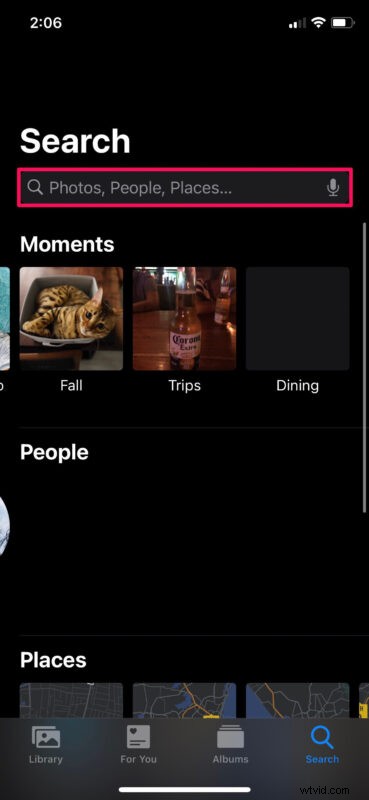
- Tap on the results under the Captions category and you’ll be able to view all the photos that share a similar caption.

Now you see just how easy it is to find photos by their captions on your iPhone or iPad.
As you can see, captions make it even easier to find one or more photos out of thousands of images stored in your library. For those who aren’t sure how to use captions, you can read this to learn how you can add a caption to a photo on your iOS device.
Although we were focusing primarily on the iPhone in this article, you can follow these exact steps to search photos by captions on an iPad too, provided it’s running iPadOS 14 or later.
In addition to being able to filter photos by captions, the built-in search feature in the Photos app can also find photos by places, people, dates, and even identifiable objects. For example, you can type “food” in the search field and you’ll get all the food pictures that are stored on your device. Or, you can type ‘September 2018’ to find all the images that were saved or captured during that month.
Are you using the search feature for finding photos you captioned on your iPhone and iPad? Try it out and let us know what you think.