

The iOS Messages app defaults to showing assigned contact photos alongside each message thread, but if you’d rather those pictures are not shown alongside your iMessage chats, you can now toggle the thumbnails off on iPhone, iPad, and iPod touch. This makes the Messages app chat screen a bit more simple looking, removing any picture from the messages list, which may be desirable for professionals and some other situations where you’d wish to add a bit of privacy to your iMessage chats and contact cards.
How to Hide or Show Contact Photos in Messages for iOS
This applies to all iOS devices, but is likely most useful to iPhone users. Being able to hide (or show) the contact photos in iMessages in iOS requires iOS 9 or later on the device:
- Leave Messages app in iOS if you haven’t done so yet
- Open the Settings app and go to “Messages”
- Locate the switch for “Show Contact Photos” and turn that to the OFF position
- Return to the Messages app, the messages list is now devoid of any contact photos
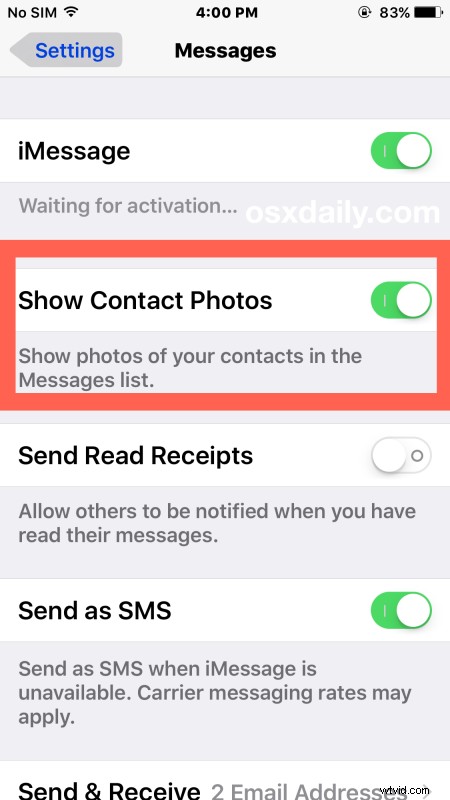
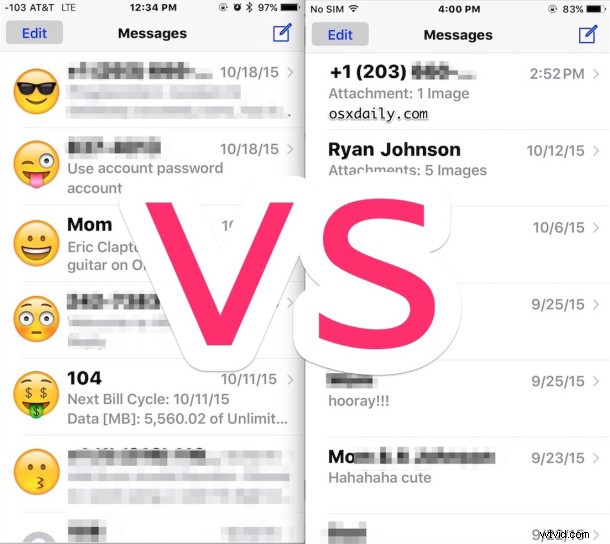
Of course if you want to enable and see the contact photos, simply reverse those instructions by going back to the settings screen and turning Show Contact Photos back to the ON position.
If you turned off the contact photos in Messages app, you may wish to also hide the contact photos from iPhone Favorites too, so when you’re calling numbers or browsing the phone app you don’t have a bunch of pictures or letters staring back at you.
This is really a matter of personal preference and doesn’t add or subtract any particular functionality, so if you like the contact photos and regularly assign them to people in your address book, keep them on. And if you don’t like them, turn them off.