
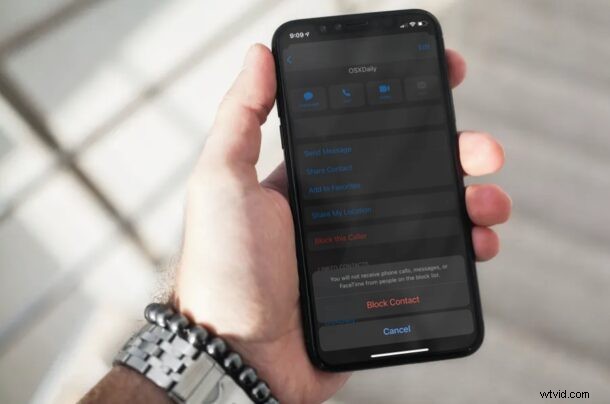
Are you getting unwanted messages or texts from a random phone number? Or perhaps, it’s just an annoying contact who’s overloading your inbox on iMessage? Either way, you can easily block text messages on the iPhone, preventing your Messages app from getting any contact or communication through the block.
The native Messages app on your iPhone is the home to both regular text messages as well as iMessage conversations. Although iMessage doesn’t offer a dedicated blocking feature unlike most other instant messaging services, you can still block the contact altogether. This will not only block their text messages, but also block them from making phone calls to your number. If you’re already familiar with the process of blocking a contact through the Phone app, you will find some of the process of blocking texts and messages from people to be pretty similar.
How to Block Messages & Texts on iPhone & iPad
Blocking a contact is a pretty simple and straightforward procedure on iPhone and iPad regardless of the iOS/iPadOS version running.
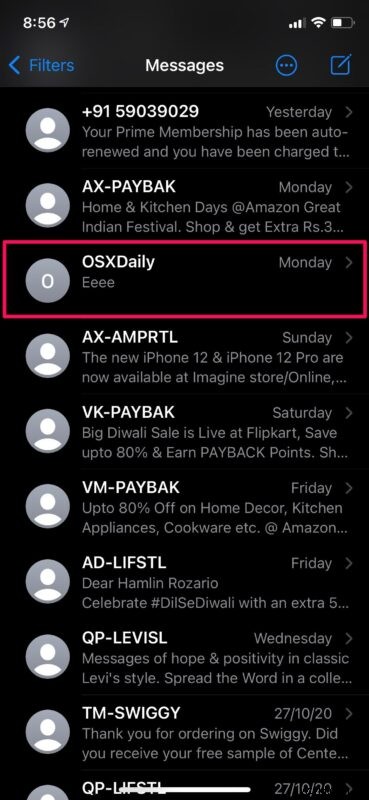
- Launch the “Messages” app from the home screen of your iPhone.

- Open the message thread or conversation with the contact you want to block.
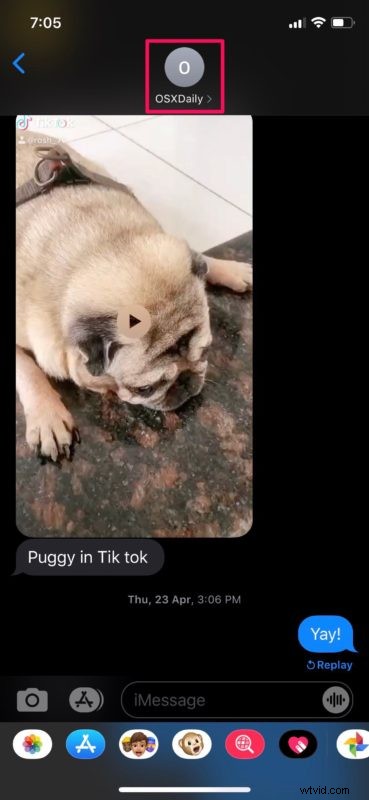
- Tap on the contact’s name located at the top, as shown in the screenshot below.
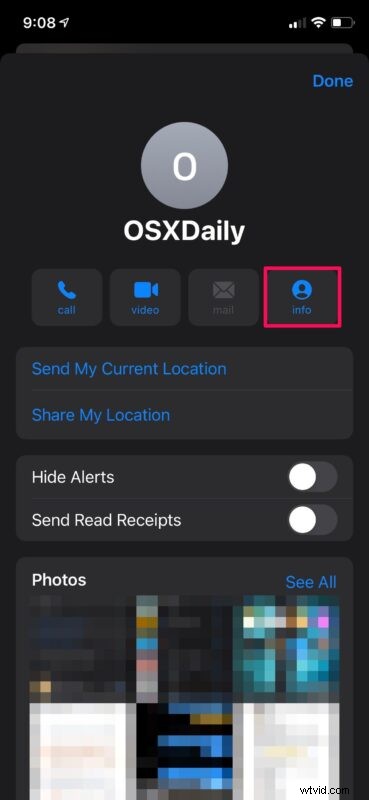
- This will give you access to more options. Tap on “Info” to proceed to the next step.
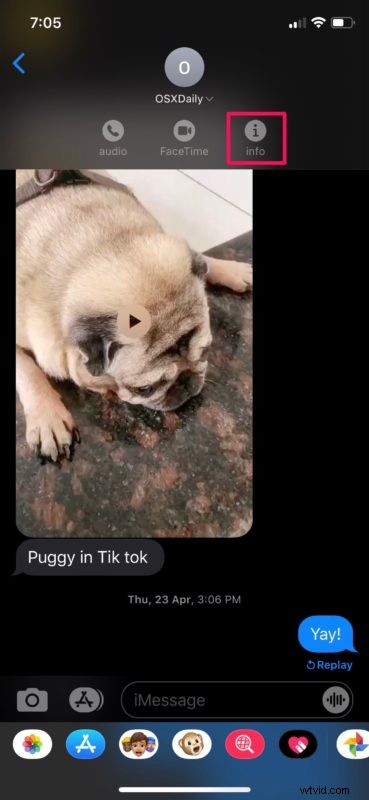
- Now, tap on “Info” to view the contact details.
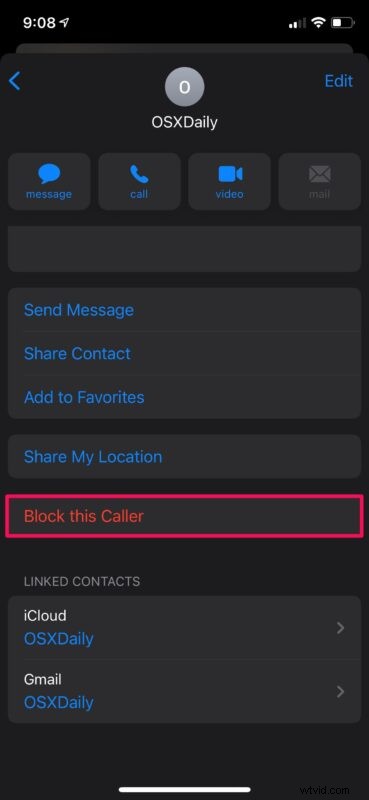
- Here, scroll down to the bottom and you’ll find the option to block the contact. Tap on “Block this Caller”.
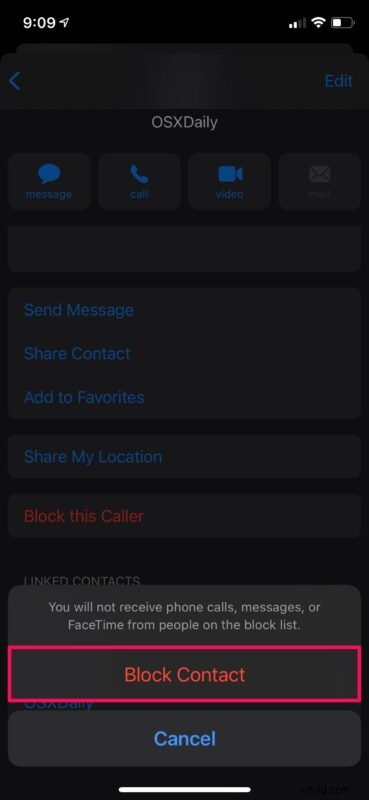
- When you’re prompted to confirm your action, tap on “Block Contact” and you’re good to go.
That’s pretty much all there is to it. You now know how to prevent messages and text messages from someone by blocking the person.
Don’t forget that blocking contact using the above steps will also block all their phone calls. All the calls they make to your number will automatically be sent to your voicemail, but this won’t show up with your regular messages since they’re hidden under the Blocked Messages section located at the bottom of the Voicemail menu.
If you’re only temporarily blocking the contact and if you want to unblock them later, you may want to learn how you can see and manage the list of all the blocked numbers. Simply go to Settings -> Messages -> Blocked Contacts on your iPhone and manually remove them from the list.
When a blocked iMessage contact tries to send you a text message, they won’t get a “Delivered” receipt. This way, they could figure out that they’ve been blocked by you. Sometimes, the text bubble will change from blue to green indicating that it’s a regular SMS message, but regardless, you won’t get these texts on your iPhone.
Alternatively, you can mute conversations and prevent notifications when you feel like you’re getting too many unwanted texts from someone instead of blocking them. This is the only solution if you want to avoid text messages from a contact without affecting their ability to make phone calls to your number. Filtering text messages from unknown senders can also help if you’re getting a lot of messages from strangers.
This is obviously geared towards iMessages on iPhone and iPad, but you can also block iMessages on Mac too if you need to.
Did you block any annoying contacts, random phone numbers, or other nonsense from sending you unwanted texts and messages? What do you think of the blocking feature and accessing it from Messages? Let us know your thoughts in the comments.