
Is one of your iMessage friends annoying you by sending constant text messages? Maybe you’ve got someone spamming you with message nonsense? Don’t worry, you can easily mute them and prevent all notifications every time they send a text or iMessage to your iPhone.
Although you can always block a contact, that may be a bit extreme since it cuts off all inbound communication from that person, especially if you’re just looking for a temporary reprieve and don’t want to completely end communication with someone. Fortunately you have another option, and that is to hide alerts from them, which also will silence any notification sounds from that persons messages too. You can even mute your “favorites” if you just temporarily need a break from distractions or communications.
So, do you want to prevent notifications from certain conversations in the Messages app on your iPhone or iPad? Then read on!
How to Mute iMessages on iPhone
You can take advantage of this procedure to not just mute iMessage conversations, but regular SMS threads as well. Simply follow the steps below to get started.
- Open the stock Messages app on your iPhone.

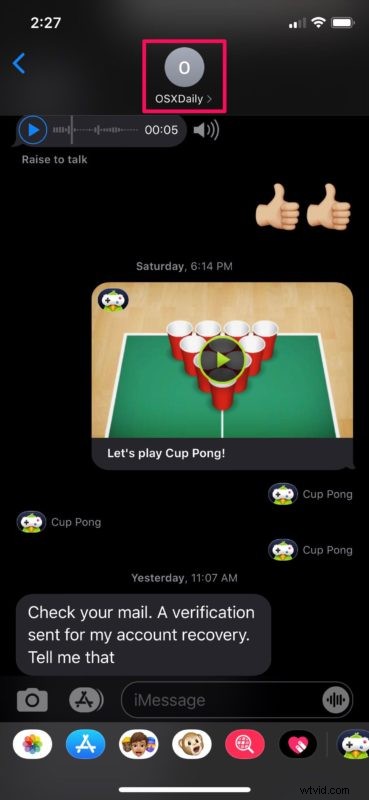
- Open any Messages thread and tap on the contact’s name located at the top to access more options.
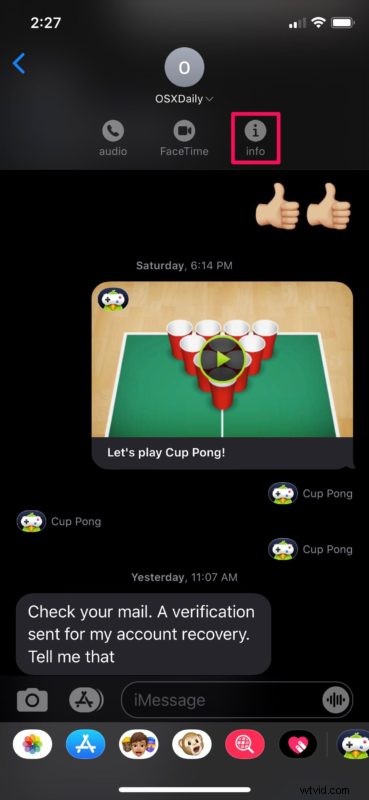
- Now, tap on “Info” to access settings for this particular thread.
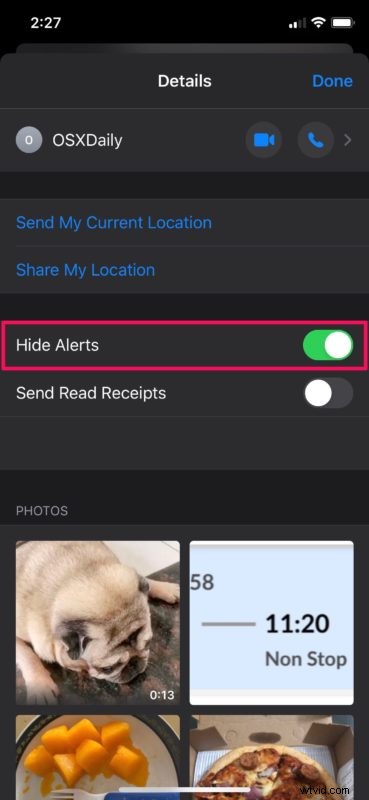
- Here, you’ll see the option to “Hide Alerts”. Simply use the toggle to disable notifications from this sender.
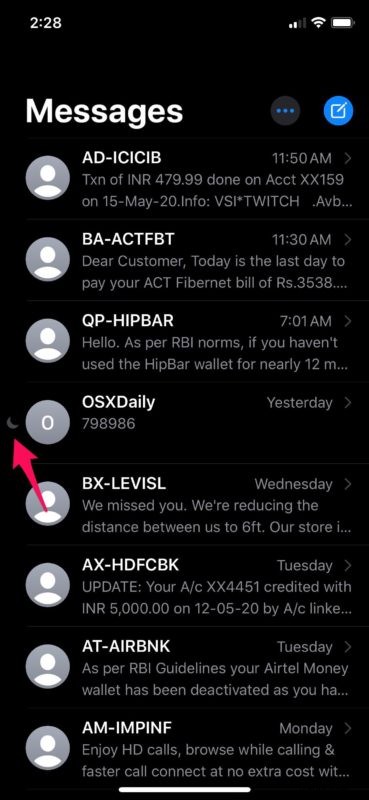
- Now, if you go back to your list of conversations in the Messages app, the muted thread or conversation will be indicated by a “crescent” icon, as shown in the screenshot below. This helps you easily distinguish the muted threads if you have many.
- If you want to unmute the conversation, simply swipe left on the thread and tap on “Show Alerts”.
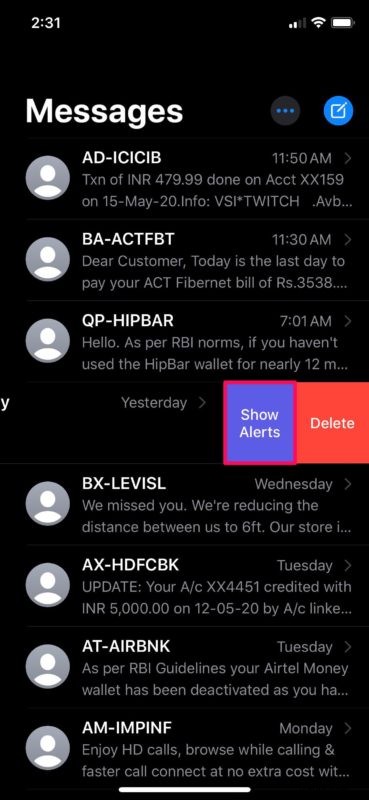
There you go, that’s how easy it is to mute and unmute iMessage conversations on your iPhone.
Although we were focusing solely on the iPhone, you could follow the same steps to hide and unhide alerts for iMessages on your iPad too.
After you mute someone, they won’t be informed regarding the mute once they send you a text again, so the muted contact has no idea they’ve been silenced on your end.
In older versions of iOS, this “Hide Alerts” is referred to as “Do Not Disturb”. So, regardless of what device you’re using, you can find this setting by heading over to the “Details” section within a conversation. Likewise, you can mute group conversations on your iPhone and iPad as well using this feature.
If you’re receiving unwanted messages from random people, you can filter unknown senders for iMessages. This turns off notifications from people who’re not in your contacts and sort them into a separate list.
Do you use a Mac? If you send and receive iMessages on your Apple computer, you might be interested in learning how you can mute conversations from your Mac too. The procedure is fairly similar and straightforward.
Hopefully you were successful in muting iMessages and SMS text messages from anyone you found to be annoying or disruptive in your contacts list. If that’s not far enough, you can always block them completely too.
Do you have any thoughts on this feature? If so, share them in the comments section down below.