
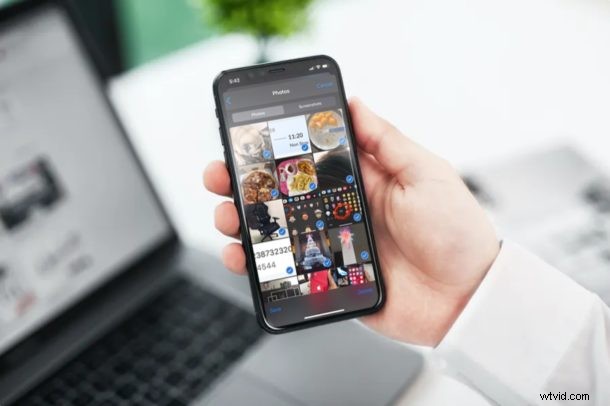
If you send a lot of photos back and forth in messages, you may be wondering how you can save them all to your iPhone or iPad for later use, backups, sharing along, or whatever else.
It turns out that all the photos and videos that are shared over iMessage are not saved to your iOS or iPadOS photo library. Therefore, in order to make sure you don’t lose the photos you’ve received (especially if you plan on deleting a messages thread), you’ll need to save these photos to your iPhone or iPad library.
Scrolling through days or weeks of conversations to find that one photo you want to save is such a tedious process. However, there’s a neat trick to view all the attachments shared in a messages thread and then easily save just the photos you want. Once these photos are saved to your photo library on the iPhone or iPad, you won’t lose them even if you delete your iMessage conversations.
Let’s check out this neat tricks to view and save all your iMessage media, and you’ll be saving photos and videos from Messages to your device in no time.
How to Save All Photos from Messages on iPhone & iPad
Finding a bunch of photos to save out of all the media you’ve sent and received through the Messages app is easier than you think:
- Open the default “Messages” app on your iPhone or iPad.

- Open the Messages thread from where you’re trying to save pictures.
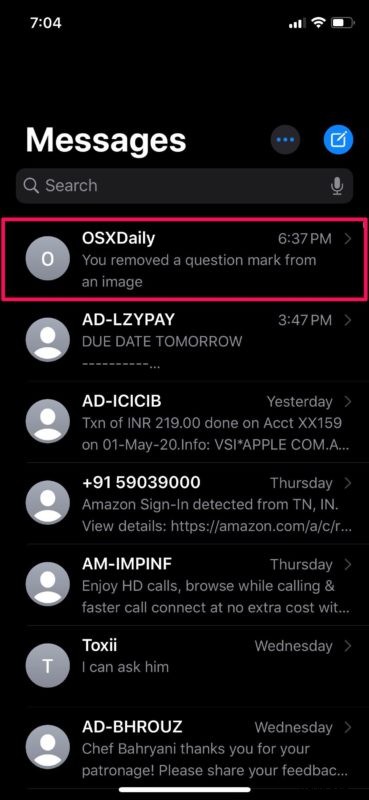
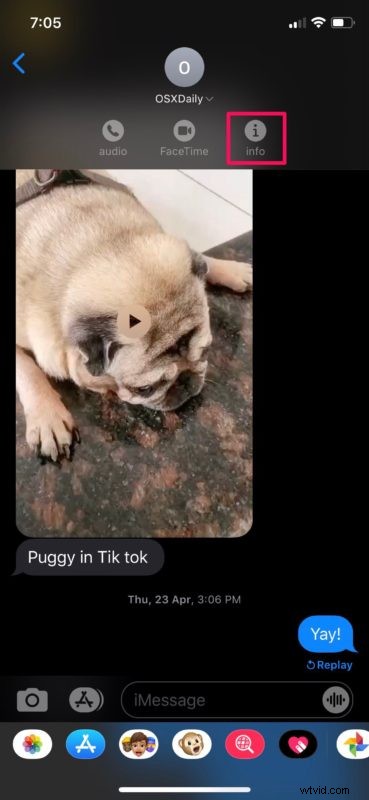
- Next, tap on the contact’s name as shown in the screenshot below.

- Next, tap on the contact’s name as shown in the screenshot below.
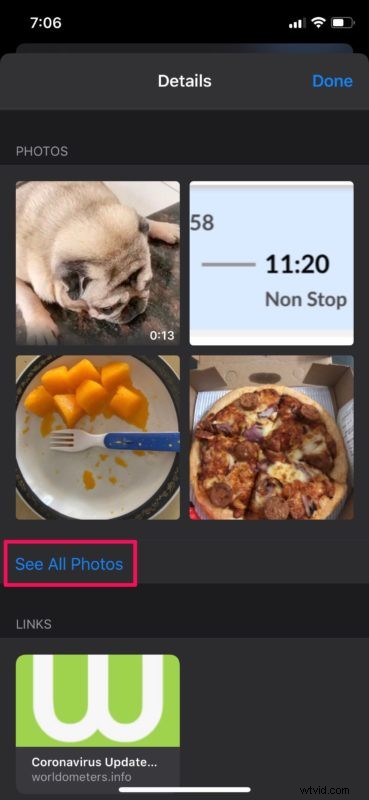
- Here, scroll down and tap on “See All Photos”. This option is located right below the thumbnails.
- Now, you’ll be able to browse through all the photos you’ve sent and received in that particular thread. Screenshots are filtered out and included as a separate category, making it a lot easier to find the photos you want to save. Tap on “Select” to enter the selection menu.
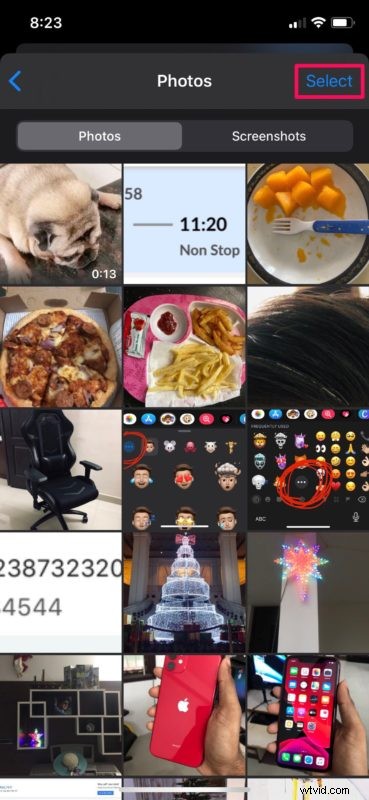
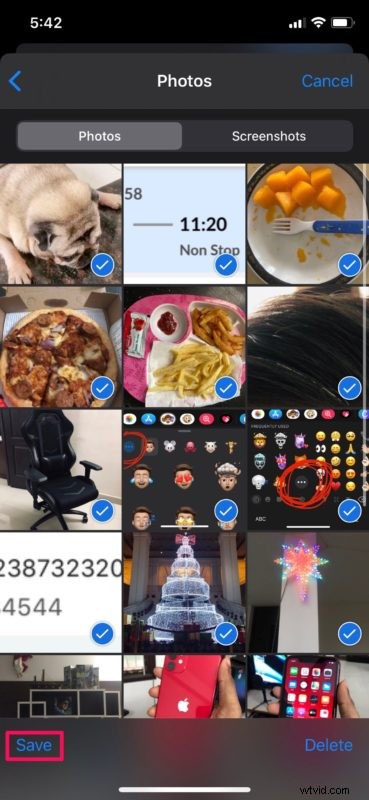
- Now, simply tap on all the photos that you want to save to your photo library. Once you’re done with the selection, tap on “Save” located at the bottom.
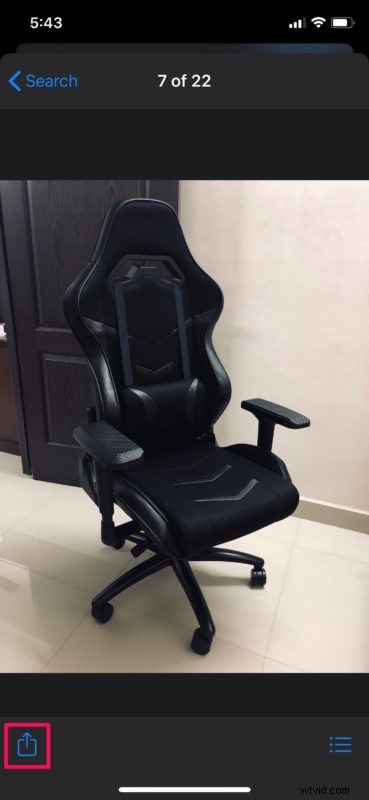
- If you just want to save one photo, open it and then tap on the “share”icon at the bottom-left corner.
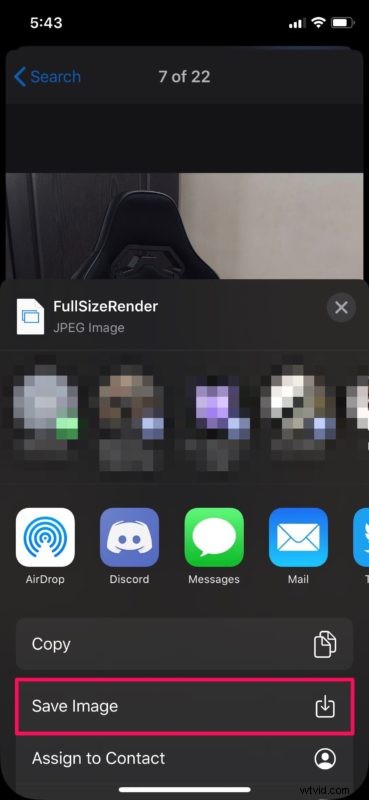
- This will bring up the iOS share sheet. Choose “Save Image” to save it to your photo library.
That’s pretty much all there is to it.
You’ll now be able to view all the photos you’ve saved in the Photos app.
Repeat the procedure to save photos from other iMessage threads too.
This is particularly important if you plan on deleting the photos from the messages threads or deleting the entire messages threads to save space on your phone, or for privacy purposes, or for any other reason.
If you send and receive a lot of pictures over iMessage, you could follow similar steps to delete all the media in a Messages thread and potentially free up a chunk of storage space too.
In the selection menu, you won’t be able to use the swipe gesture for quick selection like you’d normally do within the Photos app. Instead, you will have to tap on each and every photo individually, which can be a chore if you have lots of photos to save.
If you use iMessage on a Mac, you’ll be able to access all your attachments in Messages app by using the macOS Finder at the file system level and move them to a different location, if necessary.
We hope you were able to conveniently save all the attachments shared via iMessage using the method we discussed here. Do you think it’d be useful to just automatically save iMessage video and photos to a separate album in the Photos app? Perhaps that will come in the future, but for now you can manually save your photos and videos from iMessage this way instead.
If you have any helpful tricks, alternate approaches, interesting thoughts, opinions, or experiences with saving pictures from your Messages, let us know in the comments!