

Scrolling through days or weeks of Messages conversations on iPhone or iPad to find that one photo you’re looking for is such a tedious process. However, if you use iMessage for texting your friends, family, and colleagues, there’s a neat trick to quickly access all your media and browse through all photos that have been exchanged.
Whether you’re using an iPhone or iPad, all the images and videos that are sent and received through the Messages app are stored on your device. These can be viewed at any time, shared with others, and saved to your photo library, according to your preference.
If you’re having trouble finding the pictures you received from friends, colleagues, or family over iMessage, don’t fret. In this article, we’ll be discussing exactly how you can view all the photos in Messages threads on both the iPhone and iPad.
How to View All Photos in Messages Threads on iPhone & iPad
Finding a specific photo out of all the media you’ve sent and received through the Messages app is a fairly simple and straightforward procedure. Simply follow the steps below to get started.
- Open the default “Messages” app on your iPhone or iPad.

- Open the Messages thread from where you’re trying to browse pictures.

- Next, tap on the contact’s name as shown in the screenshot below.

- Now, tap on “Info” to access more options.

- Here, scroll down and tap on “See All Photos”. This option is located right below the thumbnails.

- Now, you’ll be able to browse through all the photos you’ve sent and received in that particular thread. Screenshots are filtered out and included as a separate category, making it a lot easier to find the photo you’re looking for.

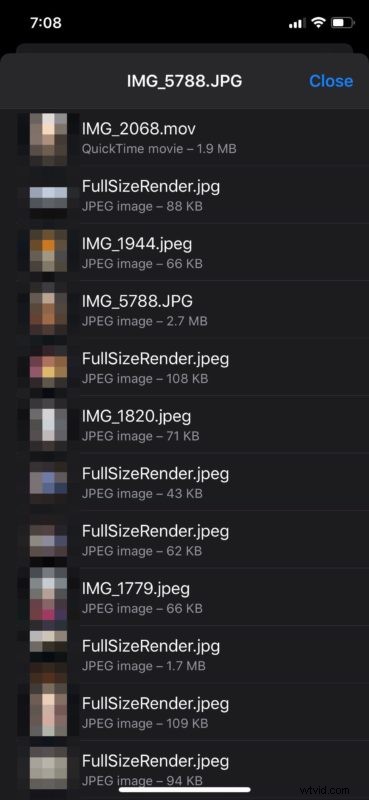
- if you open any of the photos, you’ll have the option to share or save the picture to your iPhone or iPad photo library. This can be done by tapping on the “share” icon located at the bottom-left corner. Additionally, if you want a list view of all the image files you’ve sent and received, tap on the “list” icon located at the bottom-right corner as shown below.

- As you can see here, you get access to the file size and file names by choosing list view.
And there you have it, you now know how to view all photos in any Messages thread on an iPhone or iPad.
From now on, you don’t have to scroll through your ancient messages and texts for hours to find that one picture you want to save or share. If you send and receive a lot of pictures over iMessage, you could delete all the media in a thread to free up a chunk of storage space. Keep in mind that all the videos and audio files that you may have shared will be mixed along with the photos too.
Remember, when you delete a Messages thread, you will lose access to all the media that are stored in it too.
If you use iMessage on a Mac, you’ll be able to access all your attachments in Messages app by using the macOS finder.
We hope you were able to find the photos you were looking for by viewing all media in Messages threads. What do you think of this feature? Let us know your experiences and opinions in the comments.