

Data, photos, and videos within the Messages app could take a chunk of your iPhone or iPad storage space, especially if you send and receive a lot of media over iMessage. One solution to this is to delete all photos from Messages threads when your device is running low on storage.
The media that are shared over iMessage are not saved in your iOS or ipadOS photo library as a separate album, so you can’t find them directly in the Photos app, but you can use a trick to view all photos in a Messages thread. Scrolling through your iMessage conversations and individually deleting the photos that you’ve sent and received is also a pretty tedious process that can take a long of time. However, you can choose to view all photos in an iMessage thread, and then quickly delete them in a matter of minutes from there. And that’s exactly what we’re going to show you how to do, so read on to learn how to delete all photos from iMessage threads on both the iPhone & iPad.
How to Delete All Photos from iMessage Threads on iPhone & iPad
In order to do this, you’ll need to first view all the media that you’ve sent and received in a particular conversation. This is a fairly straightforward procedure. So, simply follow the steps below.
- Open the default “Messages” app on your iPhone or iPad.

- Open the iMessage conversation from where you’re trying to browse and delete media.
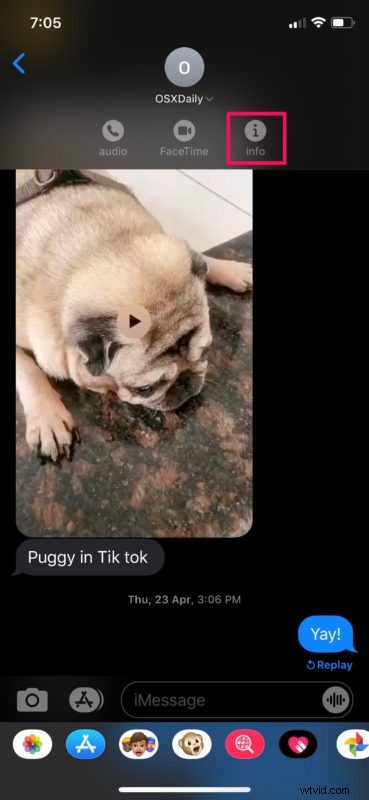
- Next, tap on the contact’s name as shown in the screenshot below.

- Now, tap on “Info” to access more options.
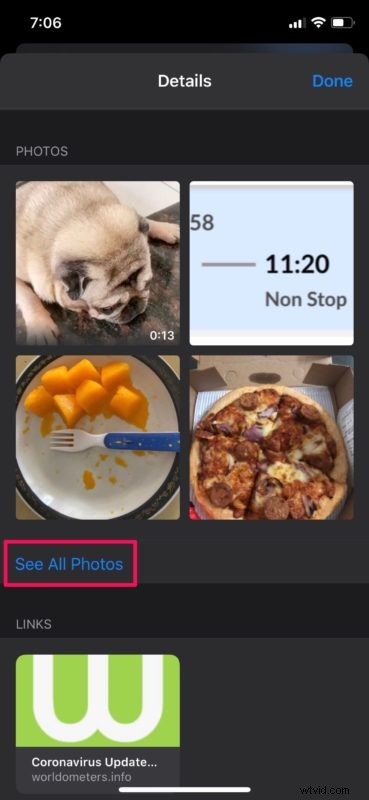
- Here, scroll down and tap on “See All Photos”. This option is located right below the thumbnails.
- Now, tap on “Select” at the top-right corner of the menu to start selecting the pictures you want to delete.
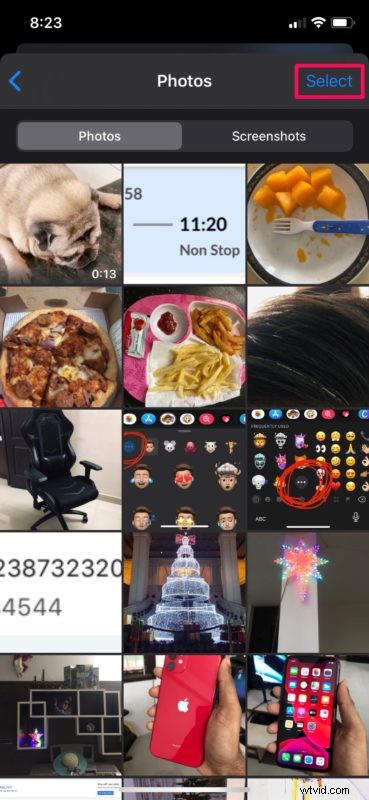
- Simply tap on all the photos that you want to remove from your device. No, you can’t use the swipe gesture for quick selection like you’d normally do within the Photos app. Once you’re done with the selection, tap on “Delete” located at the bottom-right corner.
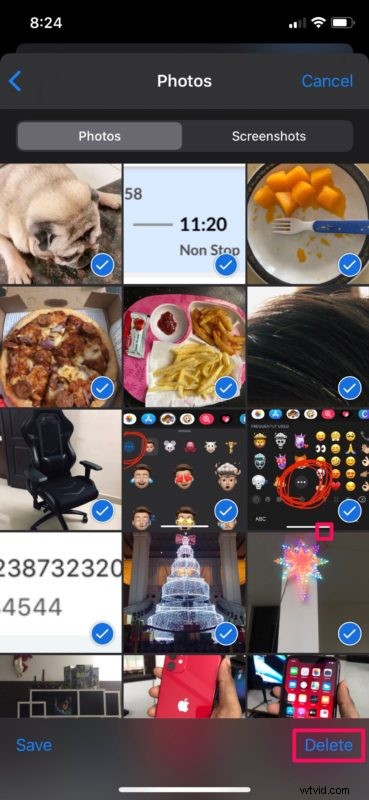
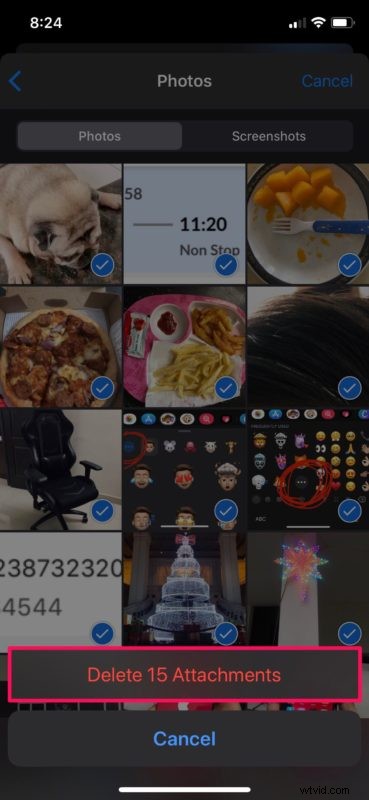
- You’ll be prompted to confirm your action for permanently deleting your photos. Tap on “Delete Attachments”.
There you go. Now you know how to delete all photos from iMessage threads easily.
Repeat the same steps for other iMessage conversations too, if you want to free up even more space.
It’s worth noting that screenshots are separated from regular pictures and videos when you view all the media. These screenshots can take up a lot of space too if you have tons of them, so make sure you switch to the Screenshots section and follow the same steps to remove them from your iPhone or iPad.
You can also delete all the media in an iMessage thread by simply deleting the thread itself. Although this is an easier method, you’ll permanently lose all data from that Messages thread, including your other messages, text messages, audio messages, videos, and anything else, unless you’re able to somehow recover the deleted thread from a previous iCloud or iTunes backup.
If you use iMessage on a Mac, you’ll be able to access all your attachments in Messages app by using the macOS finder and delete them within seconds to free up storage space.
Were you able to delete all the media shared via iMessage using the method we discussed here? Did you find another solution? Remember you can always delete the entire Messages thread as well, but that deletes all conversations too. Let us know your experiences and thoughts in the comments.