
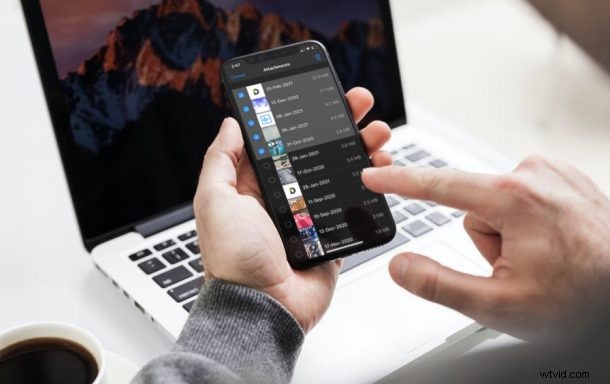
If you use iMessage to keep in touch with your friends, colleagues, and family, it’s pretty likely that you send and receive a lot of images, videos, and other attachments on the platform. Managing all this data used to be a headache, but fortunately in modern iOS and iPadOS versions, Apple allows its users to bulk delete all the Messages attachments from one place.
The attachments that you receive on iMessage could be anything ranging from simple images to documents that you may need for work. Regardless of what they are, these attachments consume the precious storage space on your iPhone and iPad. Over time, as you text more and more people, the attachments could pile up and potentially become a reason why your device is low on storage. Deleting all the attachments that you no longer need can go a long way in freeing up space on your device.
Let’s take a look at how you can go about bulk deleting iMessage attachments, right from your iPhone and iPad.
How to Delete All Large iMessage Attachments at Once from iPhone & iPad
The option that we’re about to discuss here seems to show up only on devices running iOS 14/iPadOS 14 or later. So, make sure your device is updated before going ahead with these steps:
- Head over to “Settings” from the home screen of your iPhone or iPad.

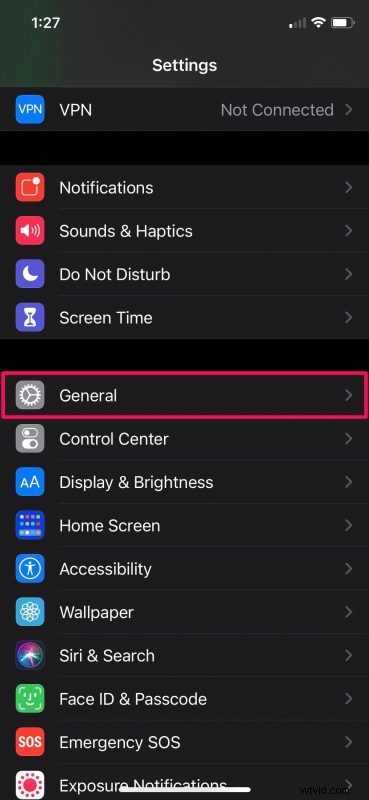
- In the settings menu, scroll down and tap on “General” as shown in the screenshot below.
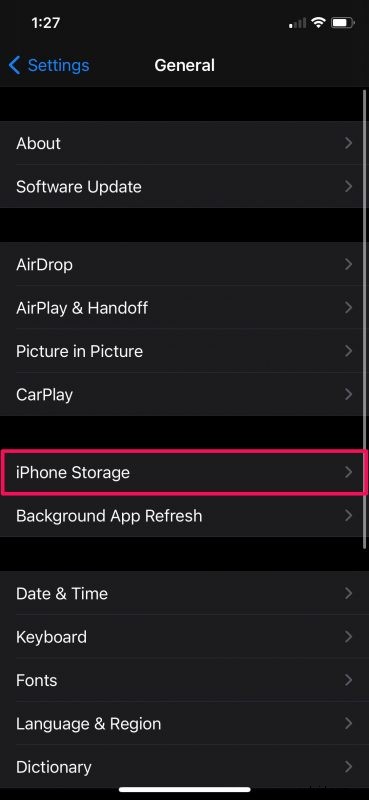
- Here, scroll down and tap on the “iPhone Storage” (or iPad Storage) option located just below the CarPlay settings to continue.
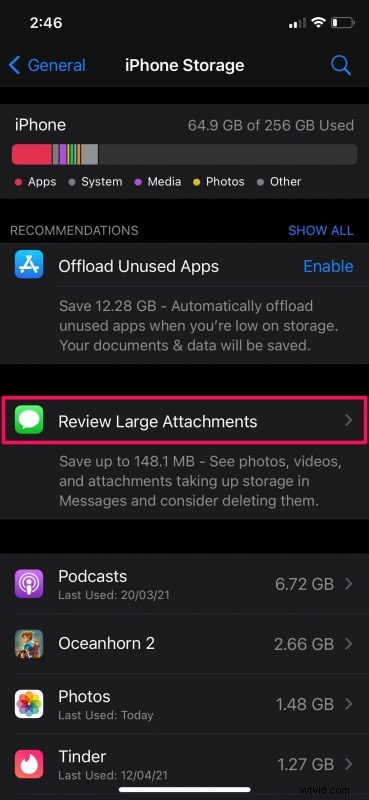
- In this menu, you’ll be able to see your storage details and figure out how much free space you have. Under Recommendations, you’ll see an option to “Review Large Attachments”. Tap on it.
- Now, you’ll be able to see a list of all the images, videos, documents, and other files that were shared in the Messages app. Tap on “Edit” at the top-right corner of the menu.
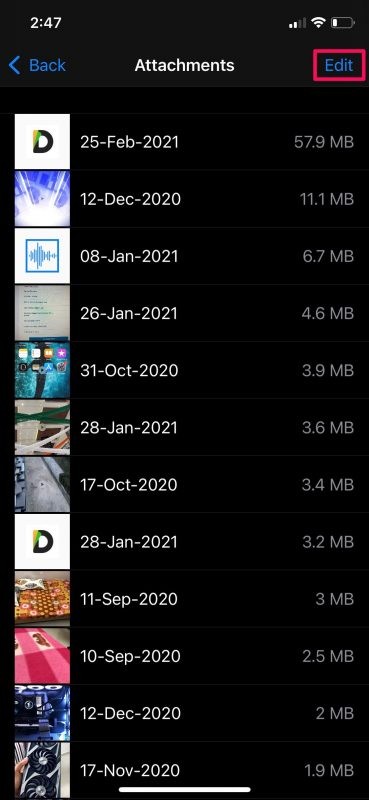
- This will bring up the selection menu where you can simply tap on the items to select them. Once you’re done, tap on the trash can icon at the top-right corner to bulk delete them.
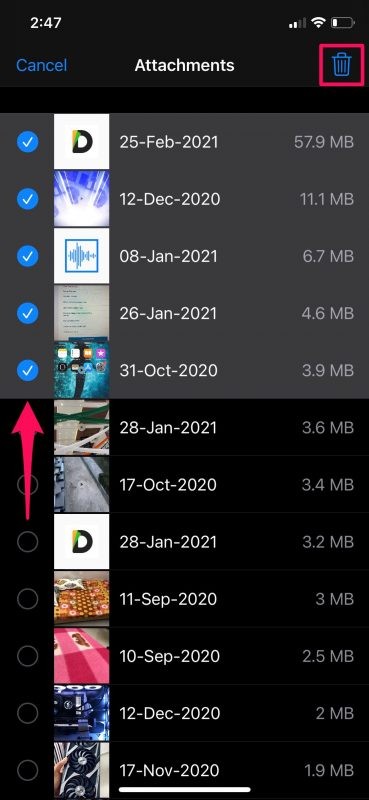
You’re pretty much done. You won’t get any additional prompts to confirm your action, unlike several other actions in iOS/iPadOS.
Some users may be unable to find this particular option under recommendations. If that’s the case, it’s likely due to the fact that the iMessage attachments are insignificant enough to make any difference to your iPhone or iPad’s storage space even if you delete them. However, you can try completing your other recommendations to see if this one shows up.
It’s worth pointing out that you won’t find any details regarding the message thread a particular attachment is from. Therefore, if you’d like to be cautious about the media that you’re removing, you can follow these steps to view and delete all attachments from a specific thread within the Messages app.
Having said all that, iMessage attachments shouldn’t really be a concern if you’ve enabled iCloud for the Messages app. By doing this, you’re basically making sure all the media that you share on Messages are stored on the cloud rather than your device’s storage.
Were you successful in removing all of the unwanted iMessage attachments from your iPhone or iPad? How much storage space did you clear up by bulk deleting all the attachments? Share your thoughts and experiences in the comments!