

Significant Locations is a feature that allows your iPhone or iPad to keep a record of all the locations you’ve frequently visited, and that the device considers to be significant – typically this is directly relational to the frequency of going to that destination. This information is then used to provide you tailored suggestions and alerts in Apple Maps, Calendar and Photos app.
Consider this feature to be Apple’s version of Google Maps Location History. Now, before you start worrying about your privacy, keep in mind that Apple doesn’t see or read this information, since all the data related to Significant Locations is encrypted. Plus, you have the option to remove these locations from your device and also turn this feature off, if you still have security concerns or you simply don’t want to share such information.
Significant Locations are enabled by default on iOS devices, but if you are reading this, you mighty want to turn it off and clear out that data. In this article, we’ll be discussing exactly how you can delete Significant Locations on both the iPhone and iPad.
How to Delete Significant Locations on iPhone & iPad
The option to turn Significant Locations on or off and clear all of its history is somewhat buried in the iOS and iPadOS settings. You can either remove specific locations or just delete all of it based on your preference. Simply follow the steps below to get started.
- Open “Settings” on your iPhone or iPad.

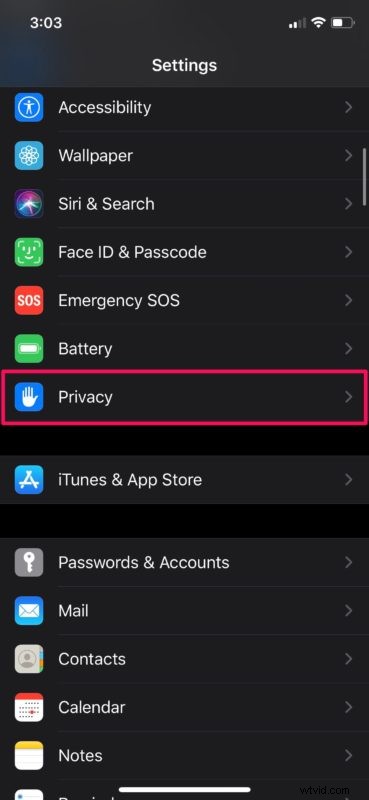
- In the Settings menu, scroll down and tap on “Privacy”.
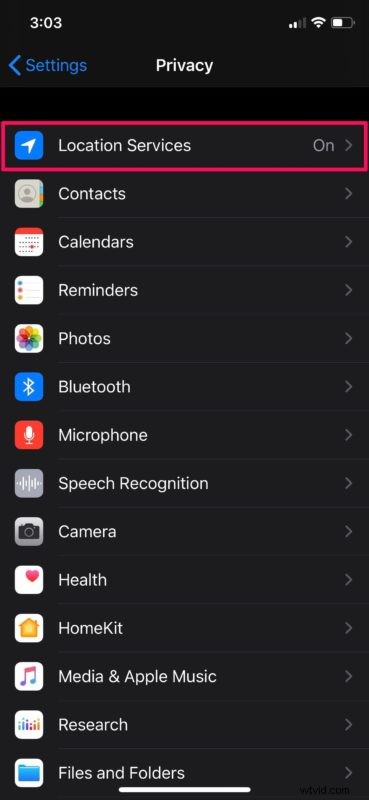
- Here, choose “Location Services” which is the first option in the menu.
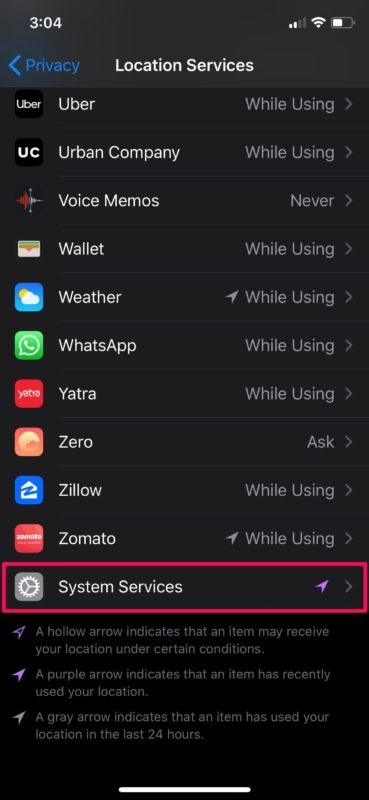
- Next, scroll all the way to the bottom and tap on “System Services”.
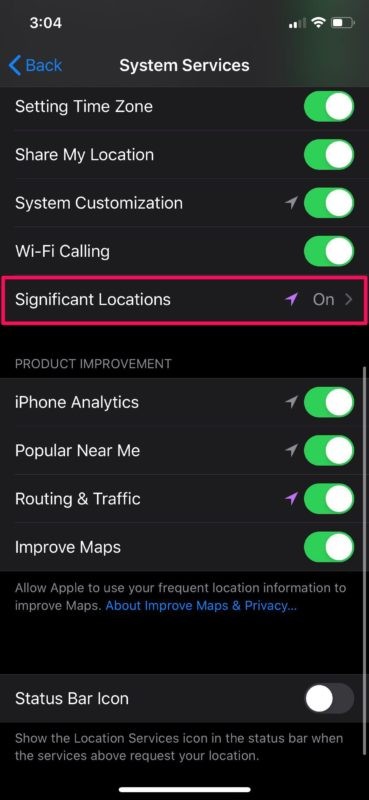
- In this menu, scroll down and tap on “Significant Locations”. You’ll need to authorize with Face ID or Touch ID authentication, in order to proceed to the next step.
- Here, you can simply toggle Significant Locations off, if that’s what you want. However, if you want to clear all your Significant Locations history, tap on “Clear History”. Or, if you want to remove a specific location, choose any of the places under History, as shown below.
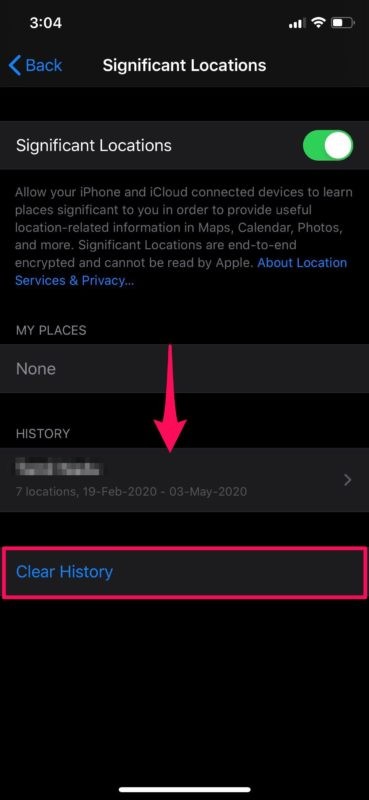
- Now, swipe left on any of the locations that are listed here and tap on “Delete”.

There you have it. You’ve successfully cleared all the location history data that were recorded by your iPhone or iPad.
Significant Locations plays a big role in managing Photo Memories based on your frequently visited locations and other personalized services such as predictive traffic routing. So if you turn off this feature, you will lose some of those conveniences.
This feature stores locations to your device on a street-level basis. It also collects data on how long it took you to reach or leave a location and the mode of transportation used. Apple claims that the data is encrypted and stored only on your device, and it will not be shared without your consent.
While this article obviously covers the iPhone, you can also access, disable, and clear the significant location data on Mac too.
Apple is not the only that keeps track of such data. Google does the same with Location History. So, if you use Google Maps on your iPhone, you might want to turn off and clear your Location History if you don’t want that information to be recorded. You also have the option to remove all your Google-related search activity in one place from a Google account, something which Apple doesn’t provide.
We hope you managed to clear all of your Significant Locations on your iPhone and iPad without any issues. Did you turn off the feature altogether too? What are your thoughts on Significant Locations? Do share your opinions in the comments section down below.