

If you use Spotify for streaming music, over time you may discover the Spotify app increases local cache storage, which can sometimes grow quite large. These audio cache files can make the Spotify app appear to take up a lot of storage space on an iPhone or iPad. But fortunately Spotify offers a simple functionality hidden within the app that allows you to easily delete all local cache from Spotify, which is a very helpful tool to free up some storage space.
You can also use this trick to simply see how much storage space the Spotify cache is taking up.
How to Delete Cache from Spotify on iPhone or iPad
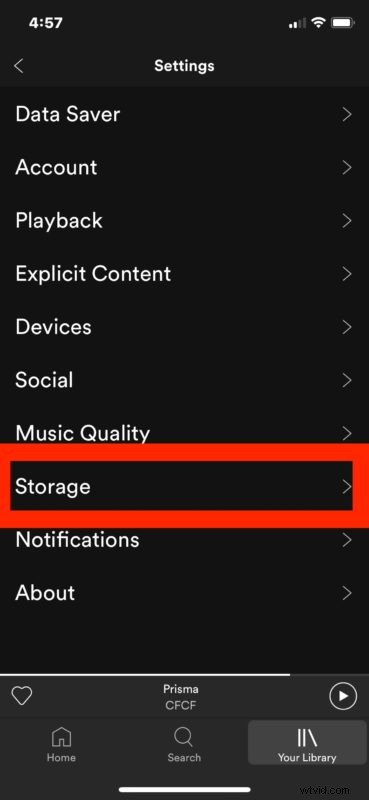
- Open the Spotify app then go to Spotify Settings by tapping the gear icon in the corner
- Choose “Storage”
- Select the “Delete Cache” button *
- Confirm that you want to delete and clear all cache from Spotify

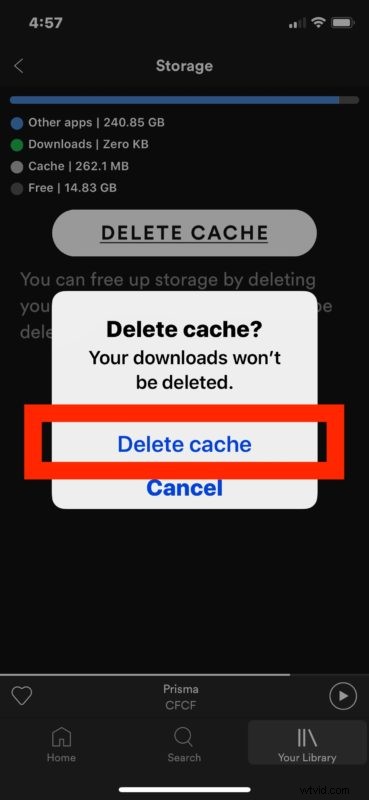
* Note that you can also see the total cache storage of Spotify at this Storage screen where you initiate the cache removal.
How much cache storage is taken up by Spotify depends on a variety of factors, including how often you use Spotify to stream music and audio, what audio quality settings for Spotify are in use by the app, and other factors.
While iOS does not have an empty cache functionality for either the iOS System, nor most apps (though you can clear cache in Safari for iOS), nor the “Other” storage stuff in iOS, thankfully some third party apps do have manual cache removal capabilities. Third party apps with cache clearance capabilities include the aforementioned Spotify, Google Maps, Twitter, and many more, though many others do not have that capability. You can, however, delete Documents & Data from iOS apps which can offer some relief from a storage burden if you’re running particularly tight, though that’s not an ideal mechanism.
For apps that do not have individual cache removal functionality (and most do not) you can use a silly workaround to dump cache from Instagram and other notorious storage munchers by what is effectively deleting the app and then reinstalling it again. Admittedly that is less than ideal, but until either the app developers offer built-in cache removal functionality, or until Apple adds a cache removal functionality into the System Settings of iOS, sometimes these quirky workarounds will be required.
Most users won’t really ever run into a situation where clearing cache is necessary from their devices, but if you discover storage capacity on iPhone or iPad is running tight or is full, then sometimes clearing out app caches can return a significant amount of free storage to the device, so it can be a worthwhile trick to know.
We’re obviosuly focusing on Spotify for iOS here, but it’s probably the same on Android too, though Android itself usually offers a separate built-in system cache removal functionality, something that iOS would benefit from as well.