
Need to convert a Numbers file to an Excel spreadsheet file from iPad or iPhone? This is a common task for many work and educational environments where Excel is commonly used, and fortunately this process is easy to accomplish thanks to the Numbers app Export features.
This article will show you how to convert a Numbers document to an Excel spreadsheet file using an iPad or iPhone, the end result will be an Excel file in XLS / XLSX file format.
Note this is specifically for iPhone and iPad, but if you’re on a desktop or laptop then you can learn how to convert a Numbers file to Excel spreadsheet on Mac too.
How to Convert a Numbers File to Excel File on iPhone & iPad
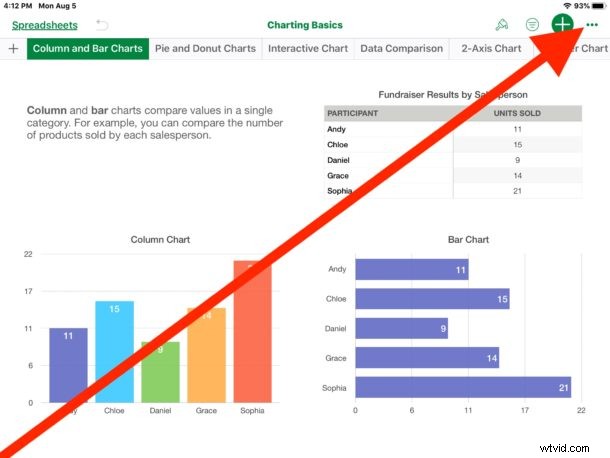
- Open the Numbers app on iPad or iPhone, then open the Numbers file or spreadsheet document you wish to convert
- Tap on the (…) three dots button in the top right corner of the screen
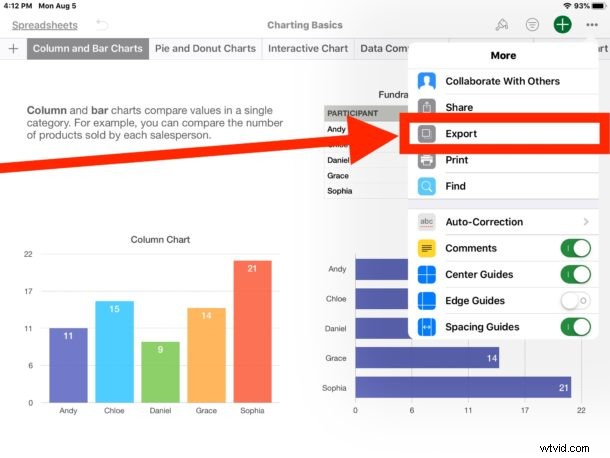
- Select on “Export” from the menu
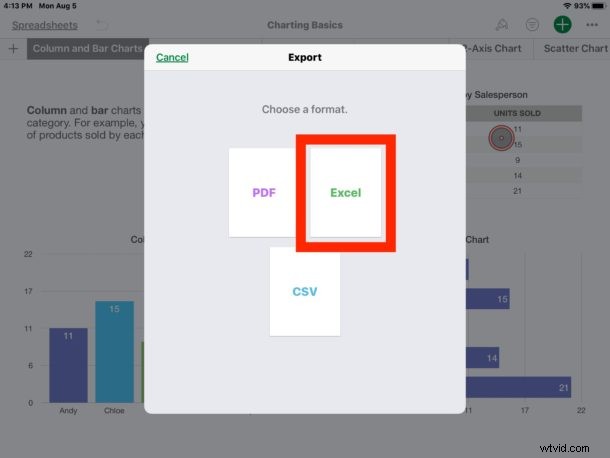
- Choose to export the file as “Excel” from the export options
- Select the method you wish to save or share the converted Excel file as: save to Files app, iCloud Drive, send with AirDrop, send with Email, share with Messages, etc
- Repeat this process with other Numbers files to convert them to Excel files as needed
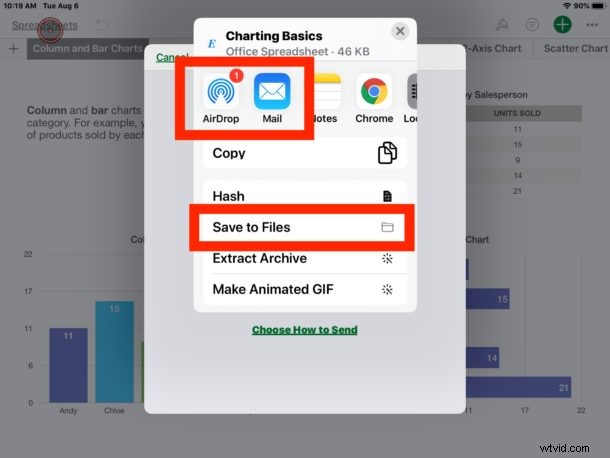
The resulting exported Excel file can be opened by any app that opens Excel documents, whether that’s Microsoft Excel, Google Docs, LibreOffice, StarOffice, or Numbers on iPad, iPhone, or Mac.
Note that if you share the file directly from the Numbers app, say by exporting it as an Excel document and emailing it to someone, the original file will stay in the Numbers app in the Numbers file format. If you want to have physical access to an Excel file on iPad or iPhone, you’ll need to save it locally to the Files app or to iCloud Drive.
As mentioned earlier, if you’re on a Macintosh then you can also convert Numbers files to Excel spreadsheets in Mac OS too using a similar export process. You can even use iCloud.com to convert these documents too, but that’s a topic for another article entirely.
Do you any recommendations or advice on converting Numbers documents to Excel documents? Maybe you have another approach or use another app that works great for this process on iPad and iPhone? Share them with us in the comments below!