
 Mail app in iOS allows users to easily add any type of file attachment to an email, as long as the attachment in question is coming from an associated iCloud Drive. This means you can add files from Pages, Microsoft Office documents, PDF, PSD, text and rtf files, or just about anything else, directly to an email on the iPhone, iPad, or iPod touch. The selected file(s) will behave just like a regular email attachment sent from a desktop email client too. Let’s walk through the steps for how to add attachments to emails in iOS.
This ability requires iCloud Drive in iOS to use as described, which means the files you can attach to the email must be stored on iCloud Drive, either through an app or if you have copied them there manually from a related Mac. You’ll also need to be running a modern version of iOS, anything after the 9.0 release will have this ability. Without iCloud Drive you won’t have access to the file attachment feature, but you can still attach photos and videos to emails as usual.
How to Add Email Attachments to Mail Messages in iOS
This works the same to add attachments to any emails within the Mail app on iPhone, iPad, or iPod touch:
- Open Mail app in iOS and compose a new email as usual (you can also reply to existing emails and attach a file to a reply, or add attachments to forwarded emails too)
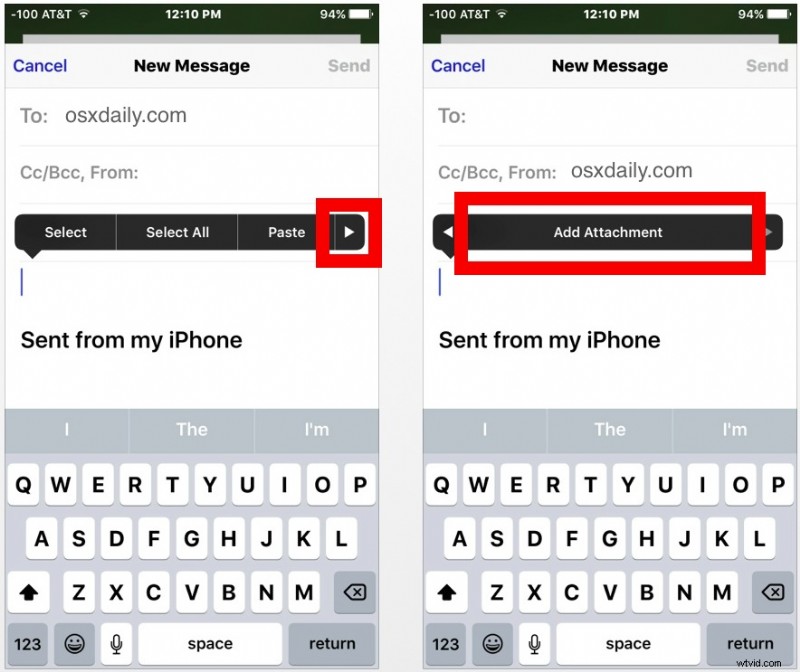
- Tap and hold in the body section of the email until you see the familiar black pop-up bar with various options for copying, pasting, etc, and tap on the arrow on the far right until you see “Add Attachment”
- This launches an iCloud Drive browser, so navigate to the file(s) you wish to attach to the email and touch the document or file to “Add” to the email
- Fill out the email as usual and send it

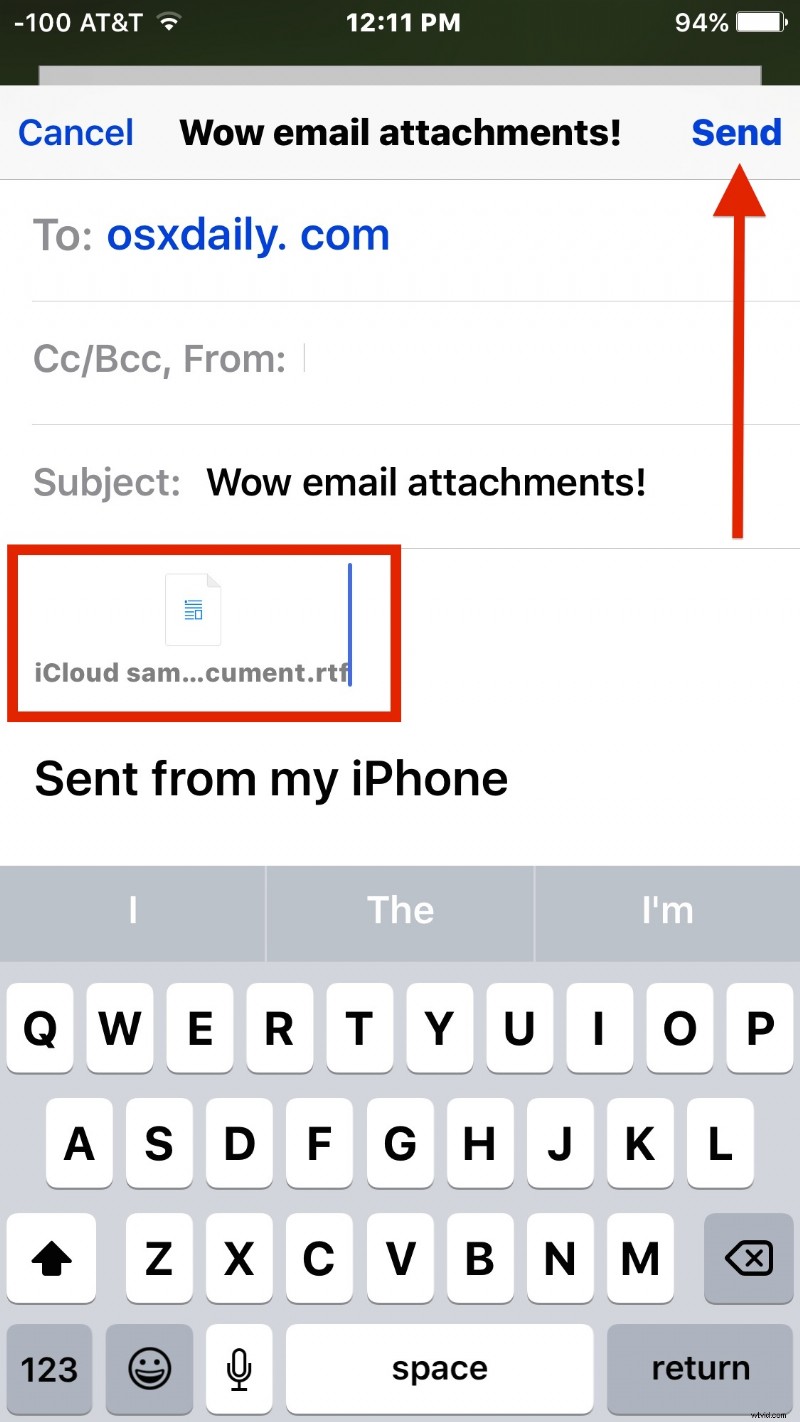
The chosen file actually attaches to the email, just like it would from a desktop email client. This assumes the attachment is an appropriate size, as a large file sent through Mail will offer an iCloud Mail Drop link when sent from iOS instead.
If you’re on the receiving end of an email attachment in iOS, you can choose to save the attachment to iCloud Drive, or in some cases you can save the attachment to iBooks if it’s a file that can be ready by the program, like a DOC or DOCX file, PDF, or text document.
If you send and receive many email attachments from an iPhone or iPad, you may want to enable an Attachments inbox in Mail for iOS which makes it easy to view only emails with attached files.
This is a pretty easy way to attach files to emails in iOS, though it’s not quite as quick as the drag and drop method for Mail on Mac, where you can simply drag a file onto the Mail icon to compose a message with said file attached to a new email.