
 An optional inbox sorting option is available to Mail users on iPhone and iPad which allows for quickly viewing only emails that have an included attachment. This offers an easy way of finding specific types of emails with attachments of any kind, without having to use the Search function or browsing through the regular inboxes, and should be helpful to many iPhone, iPad, and iPod touch users.
Before you can access and view only emails with attachments, you’ll need to enable the optional sorting mailbox in Mail app on the iPhone or iPad first.
How to Enable an Attachments Inbox in Mail for iOS to View Only Emails with Attachments
Here’s how you can enable this optional inbox for sorting emails on iOS and iPadOS:
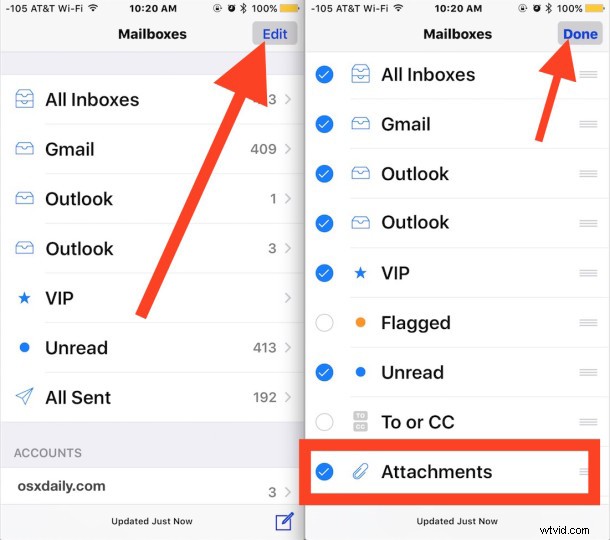
- Open the Mail app in iOS as usual, this should open to your regular “All Inboxes” view, then tap the “Mailboxes” back button
- Tap on “Edit” and scroll down to find and tap on “Attachments” so that a blue check mark appears next to it, then tap on “Done”
- Back in the Mailboxes screen, tap on “Attachments” to view only emails that have included attachments in the iOS Mail app
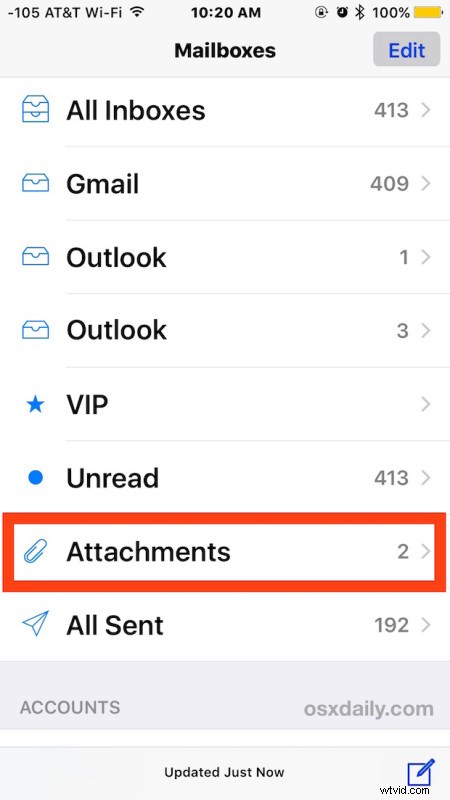
Now you’ll see only emails with attachments included with them.
For those of us who work with many attachments in iOS Mail, this is a really great feature, and it also makes it quite easy to save attachments to iCloud quickly as you don’t need to wade through a larger inbox with other emails. It’s also handy to sort through documents to markup or sign and return through Mail.
If you find yourself using the Attachments inbox often, you may want to rearrange it so that it appears higher in the Mailboxes list of Mail app on the iPhone or iPad.
As usual when switching inboxes and mailboxes, you’ll probably want to tap back and return to the “All Inboxes” section when finished, otherwise you’ll only see new emails that include attachments if it remains the active mailbox on screen.
This sorting function is similar to viewing only emails from VIP contacts and archived messages, which are also optional inbox sorting options available in the Mailboxes screen.
Do you use email inbox sorting options like this with your iPhone or iPad? Do you have any other tips or tricks for email sorting in iOS and iPadOS? Let us know your own tricks, thoughts, and experiences in the comments below.