
The iOS Mail app allows users to save various types of attachments directly to the iPhone, iPad, or iPod touch. This is a great feature that is available in the latest versions of iOS, and for most file attachment, you’ll be able to save whatever the file is directly to iCloud Drive in iOS.
Be sure you have iCloud Drive enabled and visible on the Home Screen icon of iOS if you want to save email attachments there, obviously if the feature is not enabled you would not be able to save anything there, and without iCloud you wouldn’t have access to the saved files and documents anyway.
How to Save eMail Attachments from Mail to iCloud Drive in iOS
This approach will save any email attachment from Mail in iOS directly to iCloud Drive, where it will be accessible from iPhone, iPad, or iPod touch in the associated app, or with an app that can open files from iCloud:
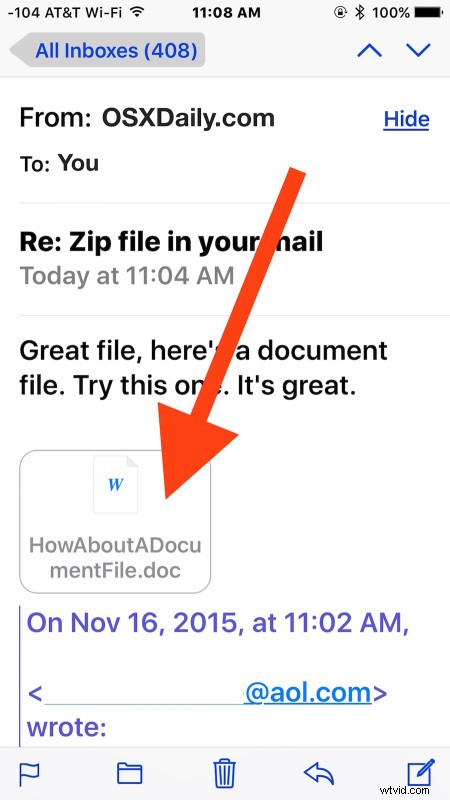
- Open Mail app and then open an email with any type of attachment (zip file, doc file, Pages file, Numbers file, txt, rtf, etc)
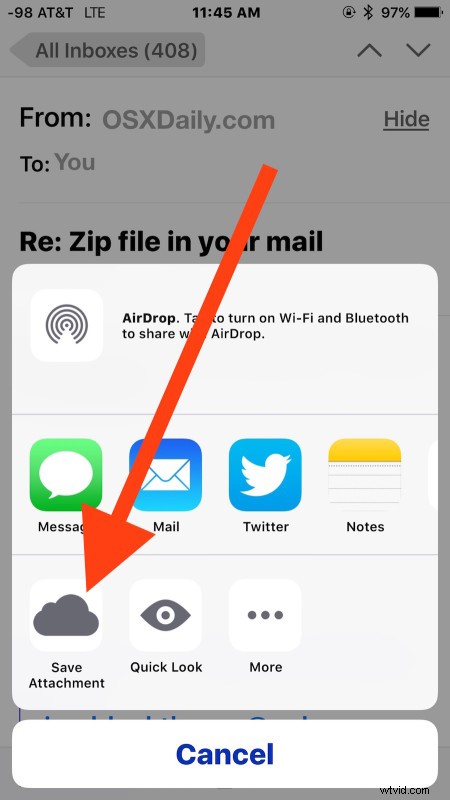
- Tap and hold on the attachment icon that appears in the email body, it’s typically the name of the attachment file and shows a small icon of the attachments file type*
- Choose “Save Attachment” with the iCloud icon, this saves the email attachment to iCloud
- Choose the iCloud Drive folder destination to save the email attachment to

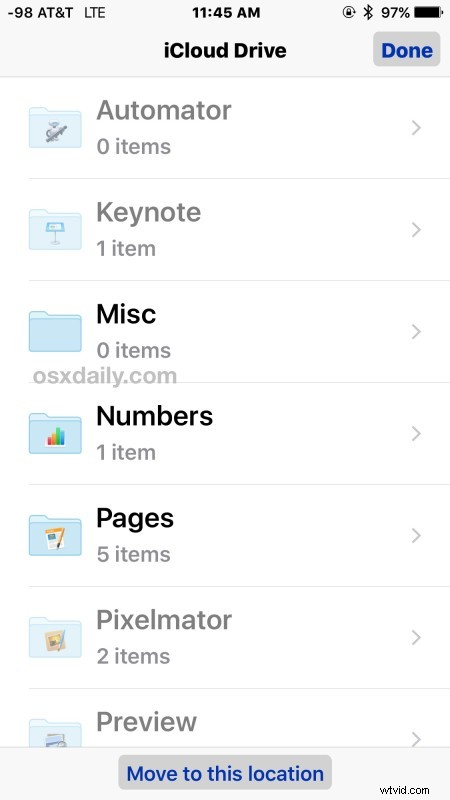
Now the file has been saved from the email directly to iCloud Drive, which is accessible anytime from the iPhone, iPad, and iPod touch home screen using the accompanying iOS app.
This has been confirmed to work with just about every file type that has been attached to an email, from zip archives, jpeg and png images, psd files, pdf files, doc files, Pages and Numbers documents, you name it and you can likely save it to iCloud from Mail app in iOS.
As we’ve discussed before, using iCloud Drive in iOS kind of works like a file system for the mobile devices, and as long as the iDevice is connected to the internet you’ll be able to open, view, and edit the files stored in iCloud, whether they’re saved email attachments or whatever else you’ve kept or copied to there.
* Note if you do not tap and hold on the icon, you’ll wind up in the Preview / Quick Look screen for the attachment instead. You can also save email attachments from this screen, but curiously the iCloud option is missing when you attempt to save an attachment from the iOS Quick Look screen, and instead you’d need to save to an application like iBooks.
The tap and hold the attachment trick is pretty similar to saving images from Mail, except that being able to save pictures has long been supported in iOS, whereas being able to save other attachments is relatively new. Additionally, being able to save the attachment, whatever the file type, images included, directly to iCloud Drive is only available in the latest versions of iOS, so if you do not see the “Save Attachment” option with the Cloud icon it’s likely because the iPhone or iPad is not running iOS 9.0 or later.