
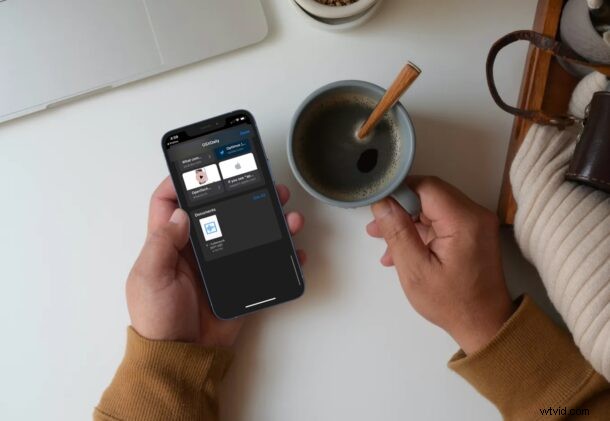
Have you received audio files or audio messages from any of your contacts on iMessage? If so, you may sometimes want to store them permanently on your iPhone or iPad so that you can listen to them later at your convenience, and save the audio attachment as a file directly. Fortunately, you can do this pretty easily, and we’ll show you how you can manually view and save audio attachments from iPhone and iPad.
We’re already covered in the past how to automatically keep and save audio messages on iPhone and iPad, but sometimes users want the actual file itself, and sometimes you may be sent an audio file directly too. Nobody would want to scroll through hundreds of messages to find and listen to that one audio file you received during a conversation. Apple has thought this through as they give users the option to view all the audio attachments they’ve received in a thread from one place. Make no mistake, we’re not only talking about audio messages that you record and send on iMessage. Instead, we’re also talking about audio attachments that could be m4a audio files, mp3 files, podcast clips, ringtones, or anything else really.
How to Save Audio Attachments from Messages on iPhone & iPad
The following steps remain the same regardless of what iOS/iPadOS version your device is currently running. Now, without further ado, let’s check out how this works:
- Launch the stock Messages app on your iPhone or iPad and select the message thread where you want to save the audio attachment from.

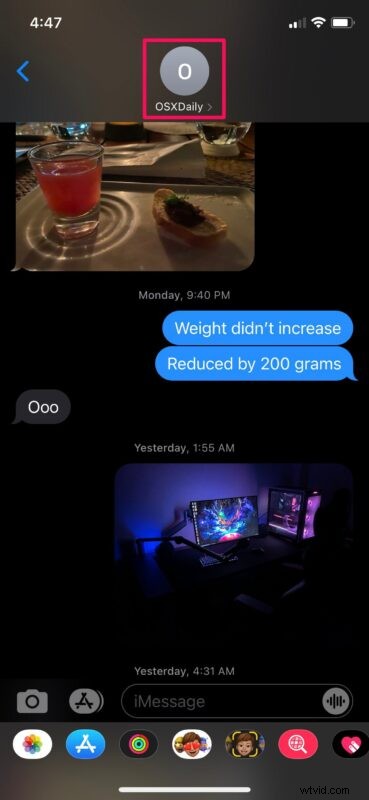
- Once you open a conversation, tap on the contact’s name located at the top to expand the menu.
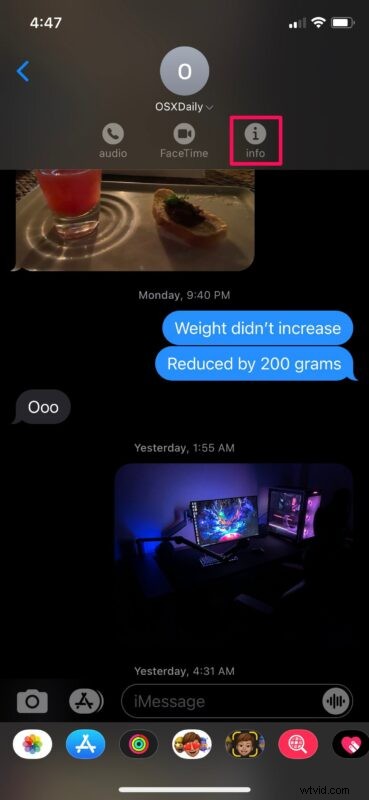
- Now, tap on the “Info” option to view more information regarding the contact and see all the attachments that have been shared so far.
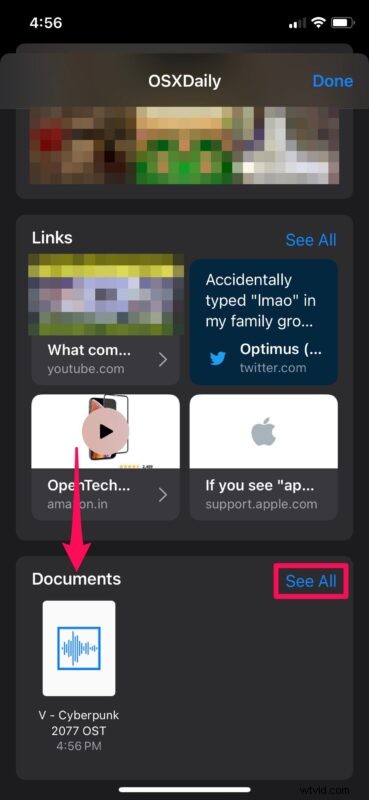
- Here, you’ll see all the photos, links, and documents that were shared in the thread. Scroll down to the bottom and tap on “See All” under Documents.
- Next, tap on the audio attachment that you want to save. This will allow you to preview the audio file.
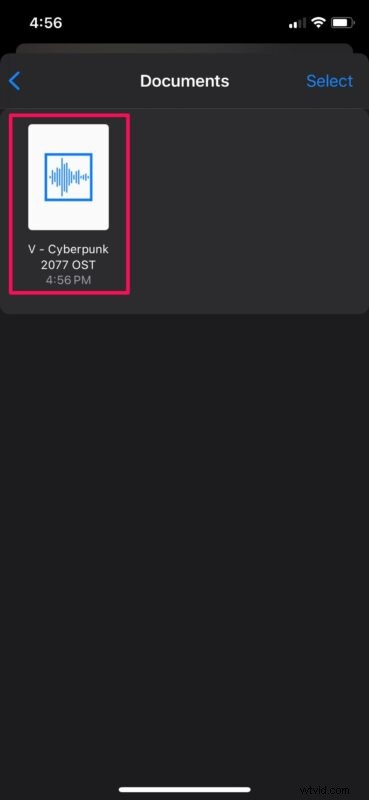
- In the preview menu, tap on the share option located at the bottom-left corner of your screen.

- This will bring up the iOS share sheet. Here, scroll down and tap on “Save to Files” to download the audio attachment to your device.
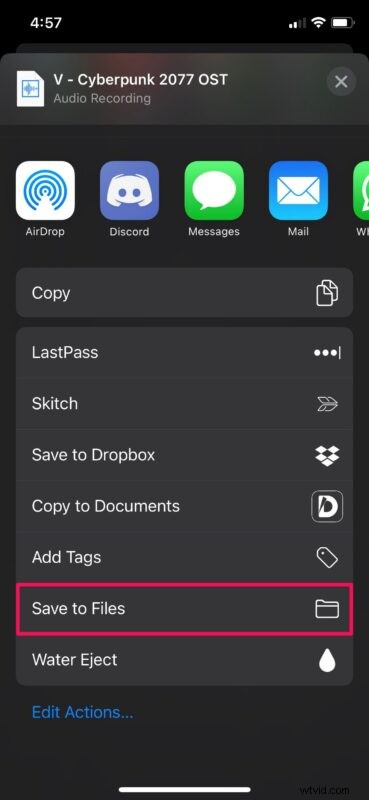
That’s it, you’ve done it. The audio attachment is now safely stored on your iPhone or iPad’s physical storage.
When you select “Save to Files”, you’ll be prompted to select the directory and folder where you want to store the audio attachment. Once done, you can easily access the file at any time from the built-in Files app.
You can repeat the above steps if you want to save other audio attachments that have been shared. Unfortunately, there’s no option that allows you to download all the attachments at once.
If you’re looking to save audio messages or voice messages that are set to automatically delete 2 minutes after you see them, you can simply tap on the “Keep” option right next to it to permanently store it in the thread. If you’re tired of having to do this individually for every audio message, there’s a setting that allows you to permanently save all audio messages.
Likewise, you can also use this procedure to easily view all the images and links that were shared in a particular thread and even save them, if necessary. However, you cannot do the same for audio messages for some reason at the moment, but we hope Apple addresses this flaw in a future software update.
We’re glad that you could finally learn how to save all the audio attachments that you wanted to store and access. How many audio files have you saved to the Files app so far? Should Apple make it easy to view all audio messages too? Share your personal experiences, handy tips or tricks, advice, and make sure to sound off in the comments section down below.