

REC

Recommended: Video Production, Editing & Gear Maintenance Guide

 WTVID >> WTVID >  >> Filming equipment >> Cell phones

How to Easily Save Images from Chrome to iPhone or iPad Photos

How to Easily Save Images from Chrome to iPhone or iPad Photos

If you use the Chrome web browser on iPhone or iPad, you may come to a situation where you want to save an image from the web to your device.

This is super easy, and if you’re familiar with saving images from Safari to your iPhone or iPad you’ll find the procedure is already second nature to you.

Saving Photos, Pictures, & Images from Chrome to iPhone or iPad

Ready to save an image from Chrome to iOS or iPadOS? It’s easy:

  1. Open Chrome to where the image you want to save is
  2. Locate the image, photo, or picture that you want to save to your iPhone or iPad
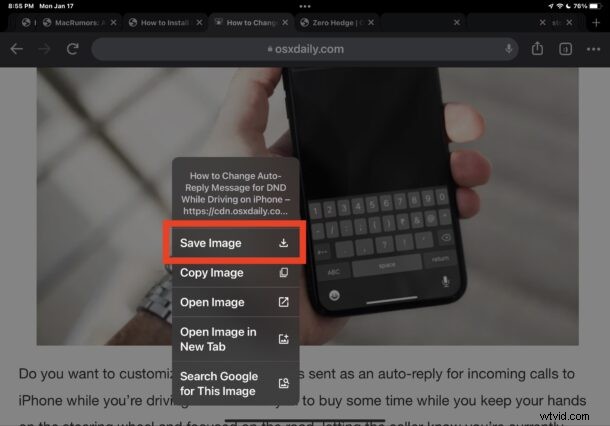
  3. Tap and hold on the image, then choose “Save Image” from the pop-up menu that appears
  4. How to Easily Save Images from Chrome to iPhone or iPad Photos

  5. Go to the Photos app on iPhone or iPad to locate the image you saved from Chrome
The saved image will be at the very bottom of your camera roll, where the newest photos are stored.

This is basically the same as saving images from Safari to an iPhone or iPad, which is convenient since it prevents having to learn any new tricks or procedures.


  1. How to Save Webpages and Files as PDF on iPhone or iPad Using a Simple Gesture

  2. How to AirDrop Files from Mac to iPhone or iPad: Easy Step-by-Step Guide

  3. How to Easily Save ZIP Files to iPhone or iPad Using the Files App

  4. Step-by-Step Guide: How to Remove a VPN from iPhone or iPad

  5. How to Print Wirelessly from iPhone or iPad to Any Printer Using AirPrint

Cell phones
  1. How to Easily Delete Movies from the TV App on iPhone or iPad

  2. How to Share Calendars from iPhone and iPad: Easy iCloud Guide

  3. How to Easily Remove Unwanted Keyboard Languages from iPhone or iPad

  4. How to Downgrade iOS 12 to iOS 11.4.1 on iPhone or iPad – Limited Time Guide

  5. How to Rename AirPods on iPhone or iPad: Quick Step-by-Step Guide

  6. How to Easily Forget and Remove Bluetooth Devices from iPhone or iPad

  7. How to Permanently Save Audio Messages on iPhone and iPad

  8. How to AirPlay to Mac from iPhone, iPad, or Another Mac: Step-by-Step Guide