
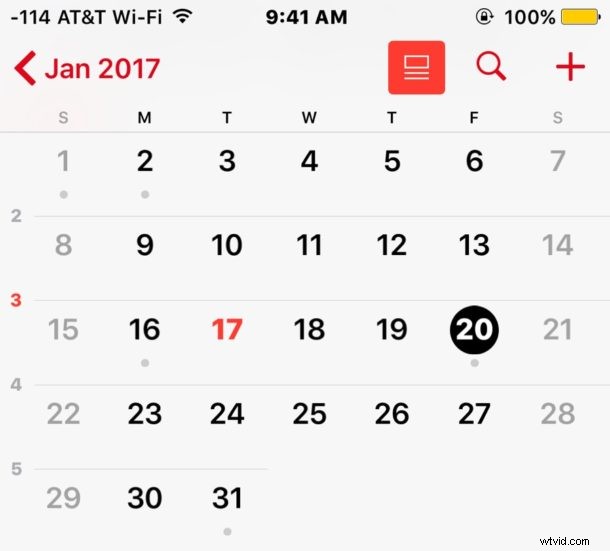
Sharing Calendars offers an easy way for family members, coworkers, or partners to see what’s on each others schedule. The shared calendars will even update automatically as events are added or changed, thanks to the calendar syncing through iCloud.
We’ll show you how to easily share an entire calendar from iOS with any other iPhone, iPad, or Mac user.
Aside from having an iPhone or iPad, and the recipient also having an iOS device or Mac, you will need iCloud setup and configured to have the ability to share a calendar properly. That’s about it in terms of requirements, the rest is easy.
How to Share a Calendar with Other People from iPhone or iPad
You can share any calendar that is on iCloud directly from the Calendars app, and you can share it with multiple people if desired. Here’s how to do this from iOS:
- Open the “Calendar” app on the iPhone or iPad
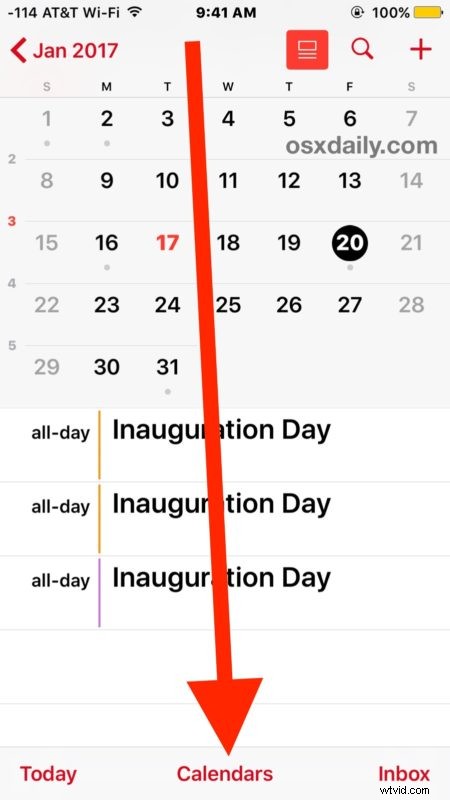
- Tap on the “Calendars” button at the bottom of the screen
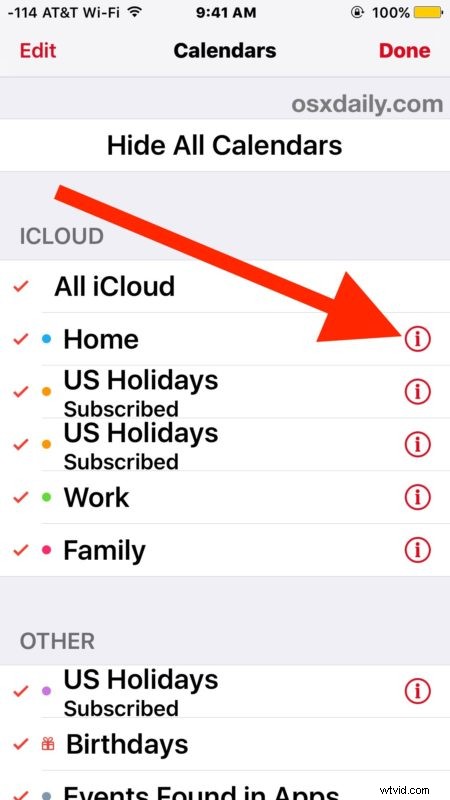
- Locate the calendar you’d like to share and then tap the “(i)” Info button next to that calendar
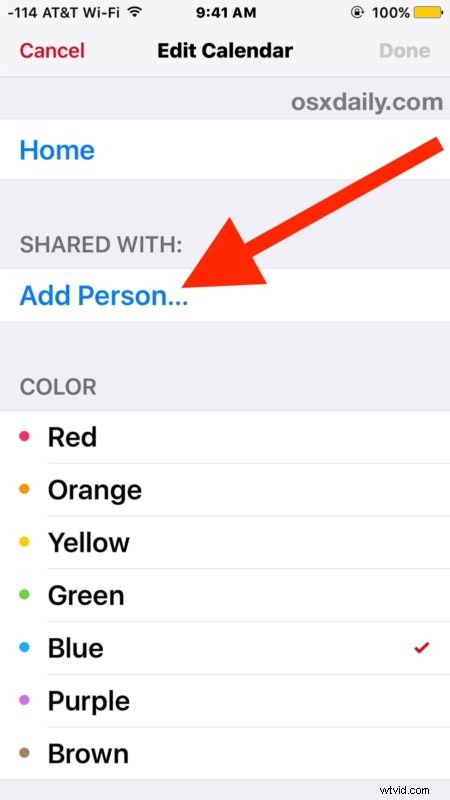
- Choose “Add Person”
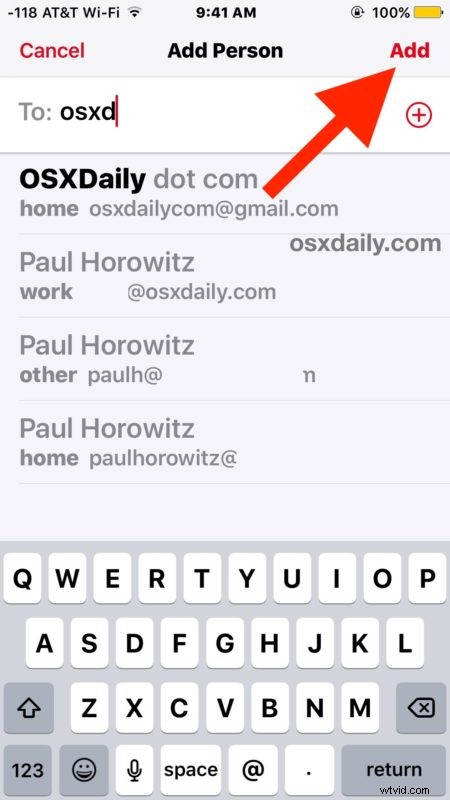
- Type the name(s) of contacts you’d like to share the calendar with and then tap the “Add” button to invite those people to the calendar
- Tap on “Done” when finished adding people to share the calendar with

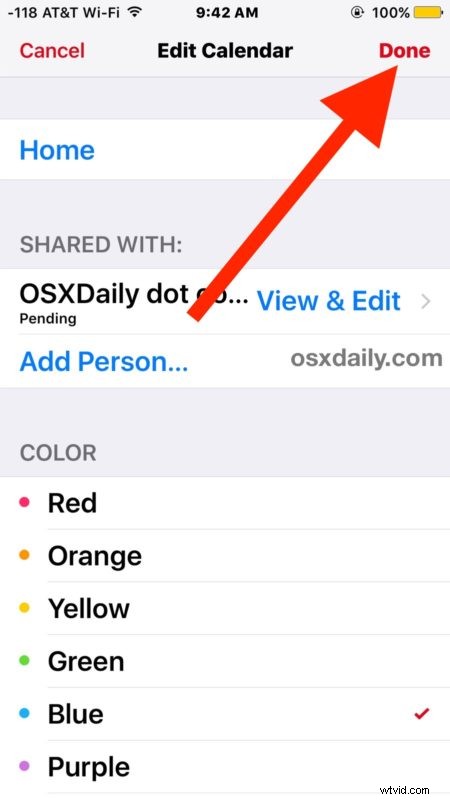
The recipient will receive an invitation to accept (or decline) the shared calendar. Assuming they accept it, your shared calendar will be added to their calendar through iCloud and they will now be able to see and modify all events on your calendar.
A shared calendar can be viewed, updated, adjusted, and modified from either end. For example, if you add an appointment to a shared calendar with your partner, they will see the appointment and be able to adjust, edit, add, and delete events to that calendar that both of you would see. Any shared calendars are available in all views of Calendar app, including the popular list view in iOS.
If you’re going to share a calendar with another person and plan on making a lot of edits and changes to it, you might want to consider creating a new calendar specifically for that purpose to prevent any confusion or inadvertent adjustments to a personal calendar.
Note this is different from just sharing an individual event through the calendar app, as this shares the entire calendar and all events added to that calendar, whereas sharing only an event is limited to a specific date or specific event.
You can share any calendar, note that if you have set yours to show holidays on the Calendar in iOS and you share that calendar, the recipient may end up with duplicate holiday events on their calendar.
For those wondering, you can also share calendars from the Mac OS Calendars app and from iCloud.com version of Calendars.