
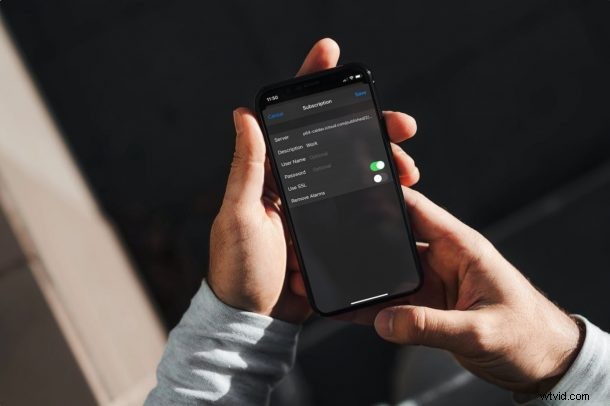
Are you trying to add a public calendar to the Calendar app on your iPhone and iPad? Subscribing to public calendars is not as straightforward as you might expect, and you’ll have to fiddle around with the Calendar settings on your device to be able to do this. This article will review how this process works.
Public calendars can be accessed by anyone with the help of a calendar URL. Users who subscribe to a public calendar can just view the read-only version of the calendar. Public Calendars are typically used to send out promotional information or public event details in a calendar format. Any changes that have been made to the public calendar by the creator will be immediately updated and viewable within your Calendar app.
How to Subscribe to Public Calendars on iPhone & iPad
Before you proceed with the following procedure, you’ll need the calendar URL to the public calendar that you want to the Calendar app. Once you have that ready, here’s what you need to do:
- Head over to “Settings” from the home screen of your iPhone or iPad.

- In the settings menu, scroll down and tap on the Calendar app to configure settings for the Calendar app.
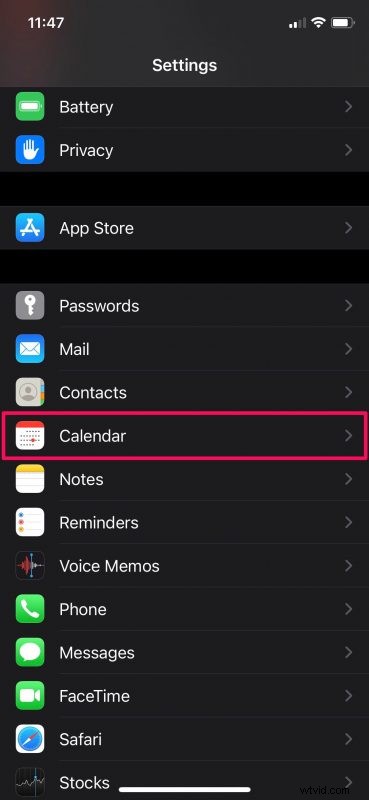
- Here, tap on “Accounts” to manage your Calendar accounts.
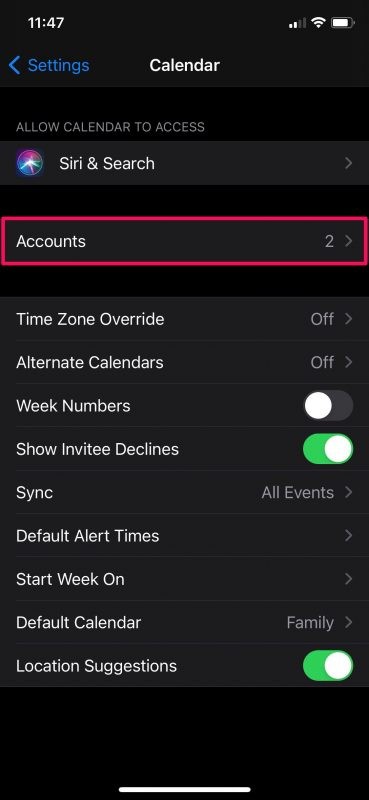
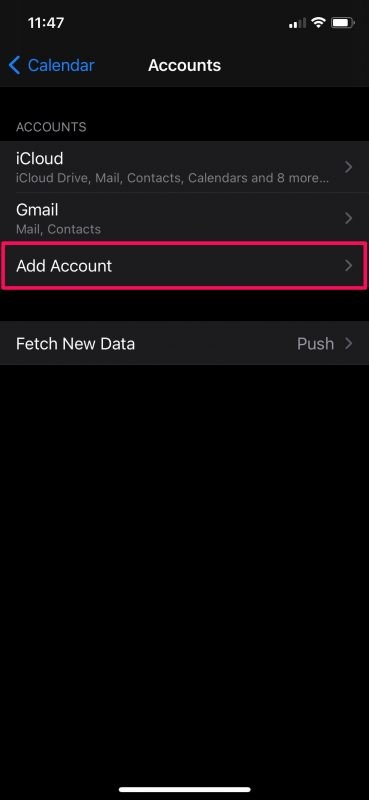
- Now, you’ll need to tap on “Add Account” to add a new public calendar.
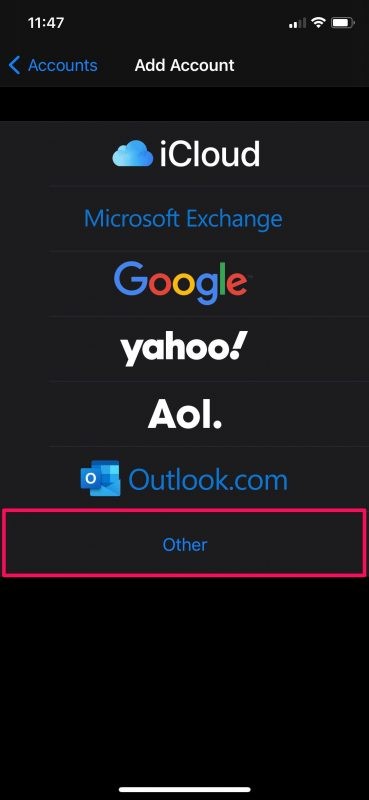
- You’ll see a bunch of different email service providers in this step. Select the “Other” option to proceed.
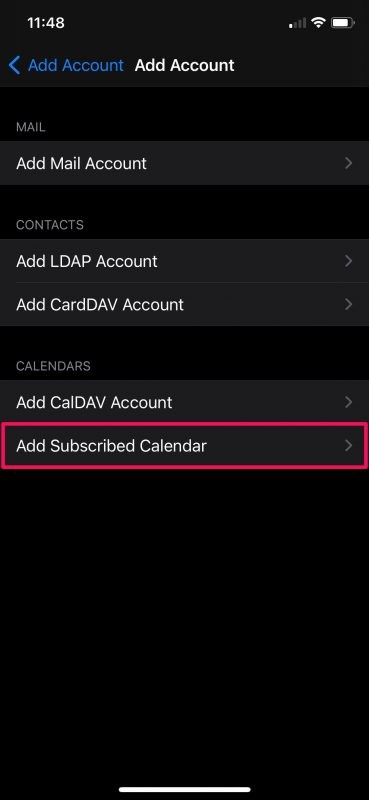
- Next, tap on “Add Subscribed Calendar” which is the last option in the menu under Calendars.
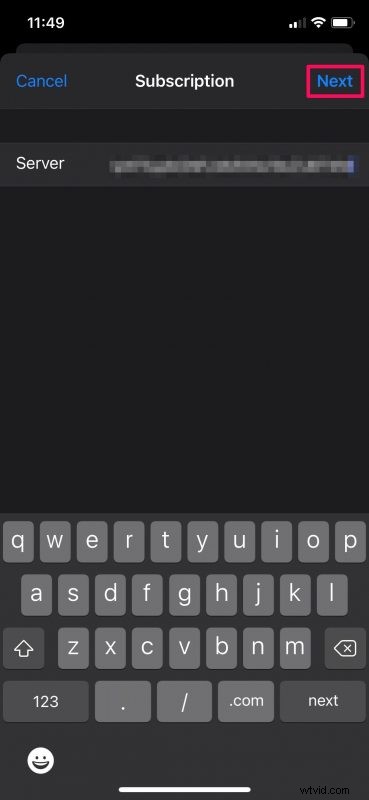
- Now, you’ll need to type or paste the Calendar URL in the Server field and tap on “Next” to continue to the last step.
- In this menu, you’ll be able to further configure your calendar subscription. For example, you can set a username/password, enable or disable SSL, and more. Once you’re done configuring, tap on “Save” to add the public calendar to your app.
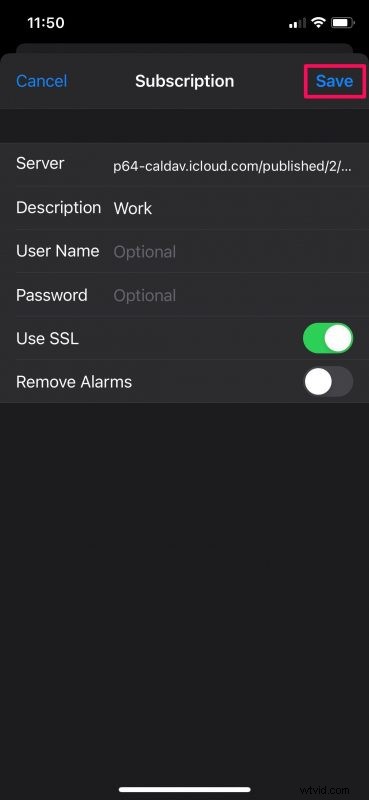
There you go, you’ve subscribed to a public calendar using your iPhone or iPad.
Once set up, you can open the Calendar app to view the Public Calendar under the list of calendars that you have. All the events in it will also now show up in the Calendar app.
Note that if you’re looking to add a private calendar that has been shared with you using an invite, you don’t need to follow these steps. Just check your email for the invite, click on the Join button, and log in with your Apple account to join the shared calendar from any device.
Although most people would use this feature to subscribe to iCloud Calendars, you can follow the same steps to add public calendars from Google, Outlook, or any other third-party services. All you need is the calendar URL to set this up on your device.
Now that you know how to subscribe to public calendars, you may also be keen on learning how to make a public calendar on your iPhone or iPad. The toggle to make a calendar public or private can be accessed from the Edit Calendar menu.
Did you subscribe to a public calendar using a URL and the approach discussed here? Have you shared any calendars from your iPhone or iPad before? Let us know your thoughts and opinions on the Calendar app’s sharing features.