
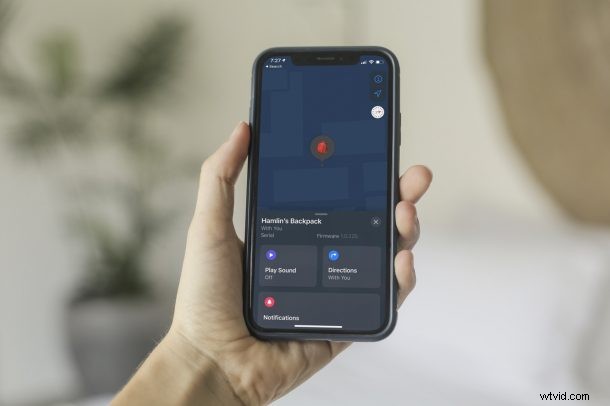
Are you having trouble setting up the AirTags the normal way? More specifically, is your AirTag not showing up on your iPhone when you bring it nearby? No worries, you still have another way to set it up by adding them manually to Find My.
AirTags mark the entry of Apple’s entry into yet another product segment. Since these are completely new products from Apple, a lot of users may be clueless when they run into issues like this. As usual, Apple does make it extremely easy to set up an AirTag for sure, but it isn’t 100% flawless. Several network-related issues could prevent your AirTag from being detected by your iPhone or iPad, but if you’re one of those unlucky users to come across this problem, we’re here to help. In this article, we’ll be walking you through the necessary steps on how to manually add an AirTag to the Find My app on your iPhone and iPad.
How to Manually Add AirTag to Find My on iPhone & iPad
Before you try out this alternate method, make sure you’ve pulled the tab from the AirTag to activate the battery and see if both Bluetooth and Wi-Fi (or cellular) are enabled on your iOS/iPadOS device. If they aren’t, turn them on and check if your AirTag is being detected by your iPhone now. Still no luck? Just follow these steps:
- Start off by launching the built-in Find My app on your iPhone and iPad.

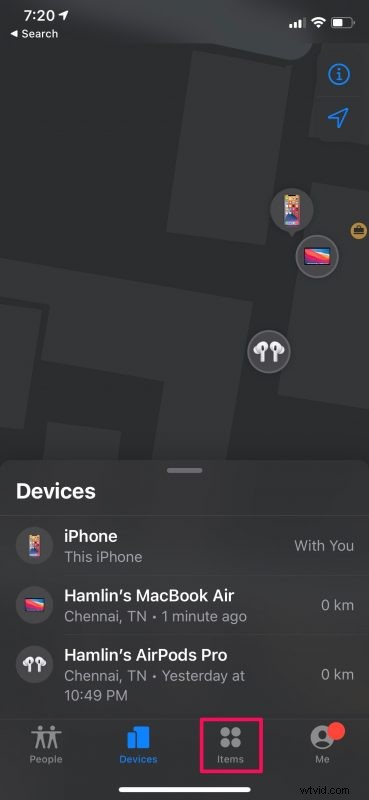
- Upon launching the app, you’ll see all your Find My devices like your iPhone, iPad, Mac, AirPods, and Apple Watch. Head over to the “Items” section from the bottom menu.
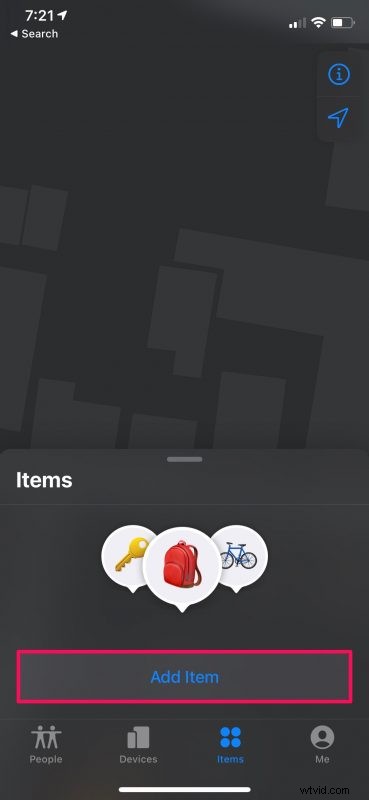
- Now, you’ll see the option to add a new accessory. Tap on “Add Item” to get started.
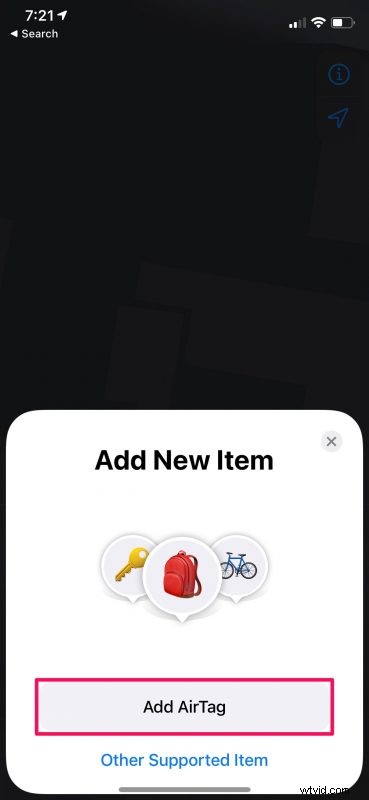
- Next, select the “Add AirTag” option and bring your AirTag nearby.
- Now, just wait a few seconds for your iPhone to search and find your AIrTag.
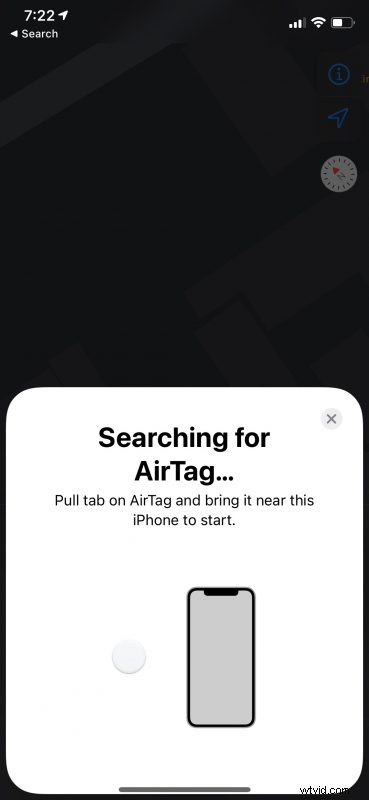
- You should see the following screen once the search is complete. Just tap on “Connect” to continue.

The rest of the steps remain identical to the regular setup method if you’re wondering what’s next. From this point, it should be pretty straightforward anyway.
Once you manage to set it up successfully, you should be able to see the details like the battery information in the Find My app. You’ll be able to play sounds, check directions, use lost mode and notifications in case anything happens.
Let’s talk about AirTags battery life now that you’re done configuring. AirTags are powered by a CR2032 battery that needs to be replaced once a year according to Apple, which is a regular 3-volt lithium coin cell battery that you should be able to find at just about any electronics store or online retailer.
Likewise, you can sort of use these steps to add compatible third-party accessories to the Find My network too. Instead of choosing “Add AirTag”, you just need to select “Other Supported Item” and proceed with the instructions. You can learn more about adding third-party accessories to Find My on iPhone and iPad if you’re interested.
We hope you finally managed to setup and configure your AirTag with your iPhone after initial hurdles. So, what are your overall thoughts on Apple’s new hardware? What all accessories do you use your AirTags with? Share with us your first impressions and drop your valuable feedback in the comments section down below.