
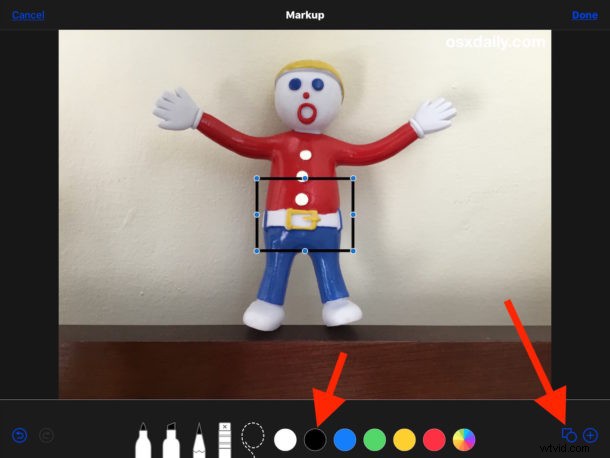
Want to add a simple border to a picture with an iPhone or iPad? We’ll show you a simple trick that allows you to place a colored border around a photo in iOS, without needing any additional downloads or apps. To accomplish this, we’ll be using two photo editing features native to iOS, thereby allowing any iPad or iPhone user to quickly use this trick to apply a border to any photo on their device.
How to Add Borders to Photos on iPad and iPhone
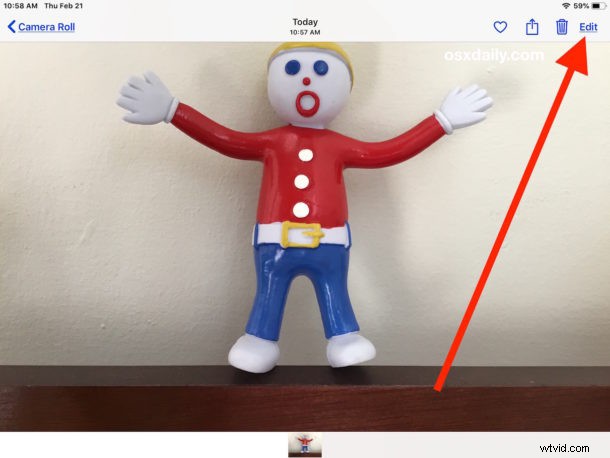
- Open the Photos app on the iPhone or iPad and choose the picture you want to add a border to so that it’s the primary image on the screen
- Tap the “Edit” button in the corner
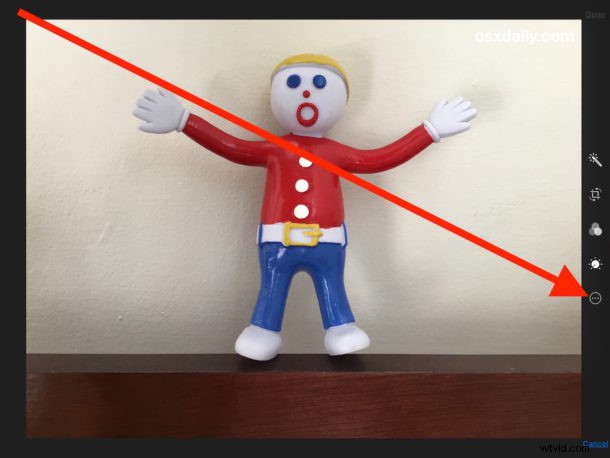
- Next, tap the (…) three periods button
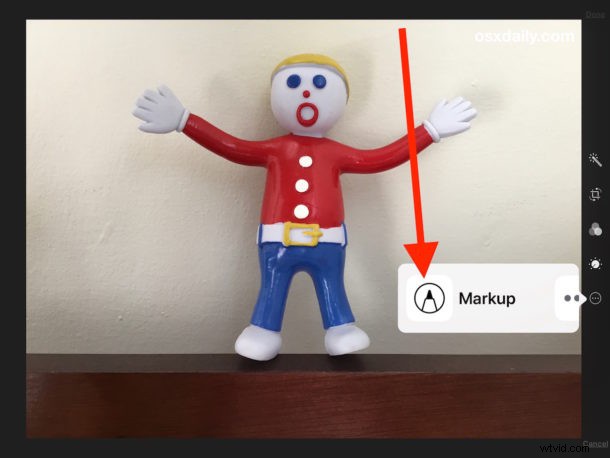
- Now tap on the “Markup” button
- Once in Markup, tap on the (+) plus button
- From the element options, tap on the square
- This places a black square on the image, while the square is selected you can tap the color options to change the border color, and you can tap the little square / circle button in the corner to change the thickness of the border matte if desired
- Now tap and drag on the blue dots on the square to adjust the box so that it’s at the edge of where you want the photo border to be
- Tap on “Done” when satisfied with the placement of the square border
- Now tap on the Crop button, it looks like a square with some arrows rotating around it
- Drag the crop selector handles so that they are aligned with the outside square border you just placed, then tap on “Done”
- That’s it, you’ve drawn a border onto the photo from iOS!
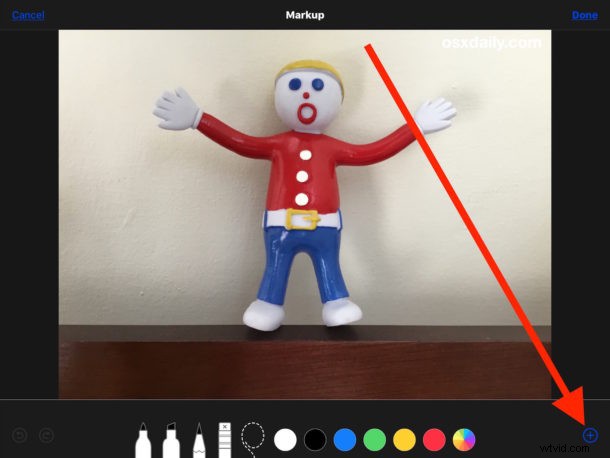
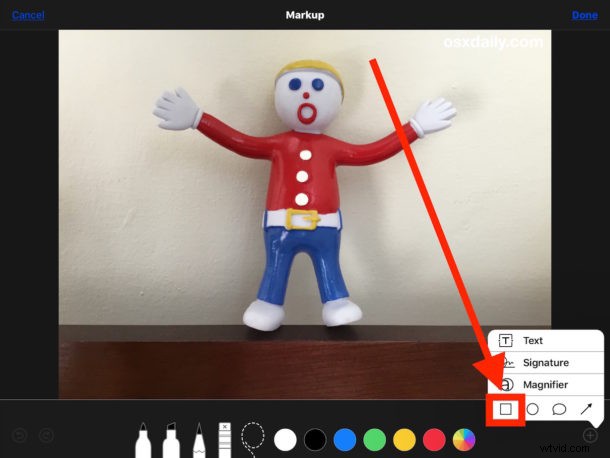
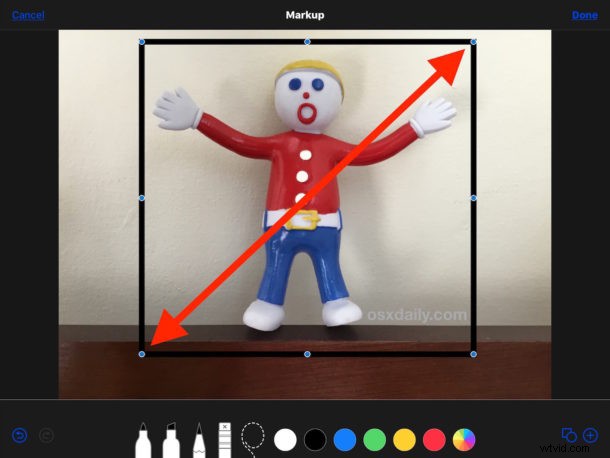
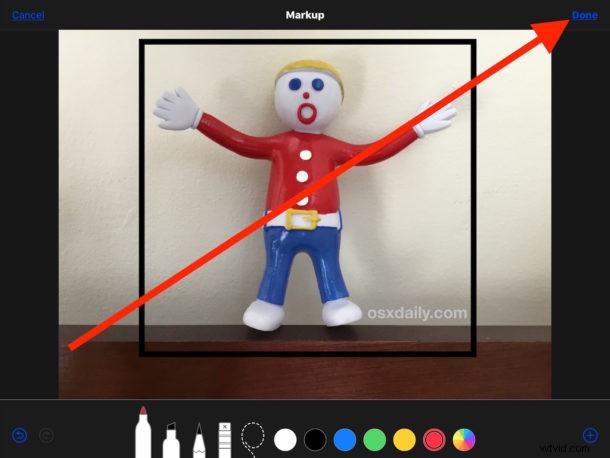
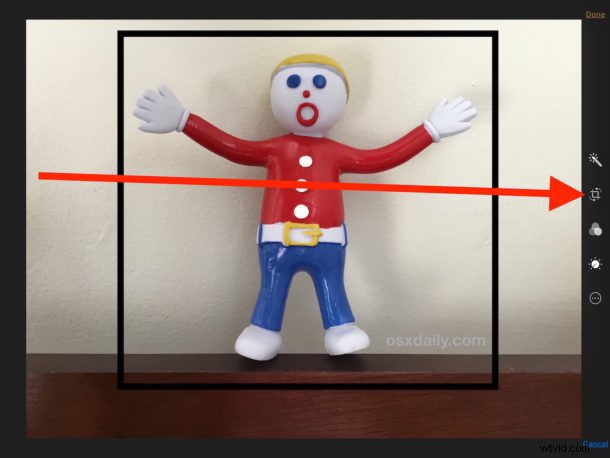
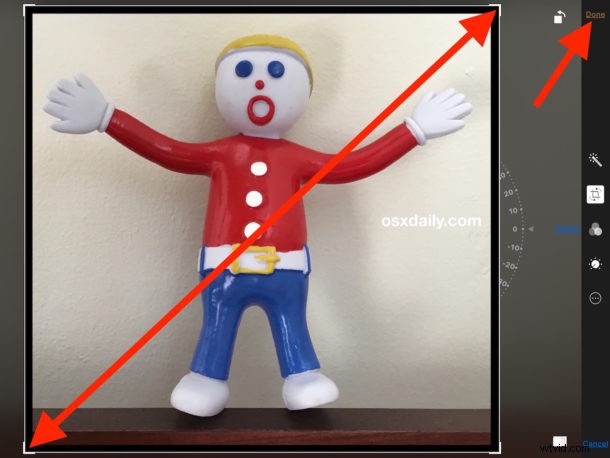

In the example images used in this tutorial, we used an iPad to place a black border around a photo, but you can use any other color for the border by using the color wheel selector or by tapping the other color options if you’d like to.
Two of the most common color borders to add to photos are black or white, which are commonly used in photography mattes. Adding white borders or black borders to a picture is often referred to as ‘matting’, and is usually aimed to bring out a particular color or add a particular feel to the image contained within the border matte.
In this particular case the relative thickness of the border may be inadequate for some users needs, as often a photo matte is much thicker. Of course you could just keep placing additional squares around the image each sized appropriately and with the same color, but if you’re going that route you might be better off just getting a dedicated app to add borders to images.
The video embedded below demonstrates this process of adding a border to a picture with this trick on an iPad, it works the same on iPhone too:
This is obviously just a creative use of the Markup drawing tools and Crop photo function, and it’s not an official matting or border method (currently there does not appear to be one, perhaps a future iOS release will include an ‘add border’ capability to the Photos app), but if you don’t mind thinner borders and matting and placing them on a picture yourself as instructed here, it does the job.
The Markup feature of Photos is really great, you can use it to draw and write on photos, fill out PDF forms, add signatures to documents, and much more. While this tip obviously focuses on using this Markup feature on iPad and iPhone, you can perform the same functions on a Mac too if it’s running a modern MacOS release with Markup support.
If you know of another easy method to add borders to photos on the iPhone or iPad using Markup or built-in tools, or perhaps you have a great app recommendation for iOS to accomplish something similar, feel free to share your suggestions and tips in the comments below!