
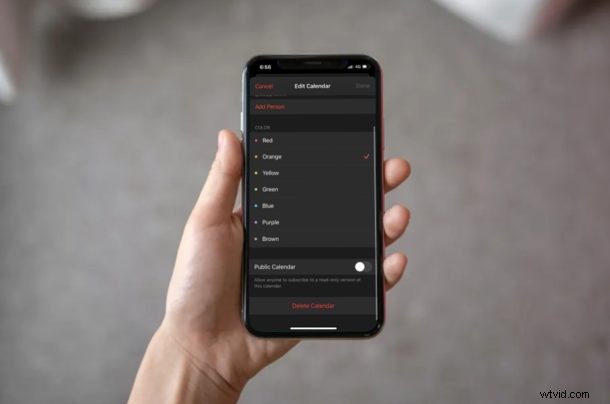
Do you use the stock Calendar app to keep track of your schedule, appointments, and other events? If so, you’ll be pleased to know that you can have more than just one calendar for various purposes within the same app.
With multiple calendars, you can keep your private and work schedules neatly organized and separated.
This article will discuss how you can add and delete calendars on iPhone and iPad.
Most people prefer to keep their personal and professional lives separate. If you’re that kind of person, you can use the Calendar app to make separate calendars for work meetings, family appointments, events, and more. This makes the Calendar app way less cluttered, especially if you add a lot of events on the regular. If adding and removing calendars from your device sounds compelling to you, read on to learn how you can accomplish exactly that.
How to Add & Delete Calendars on iPhone and iPad
Creating additional calendars within the Calendar app and managing them is a fairly easy and straightforward procedure. Simply follow the steps below to get started:
- Open the stock “Calendar” app from the home screen of your iPhone or iPad.

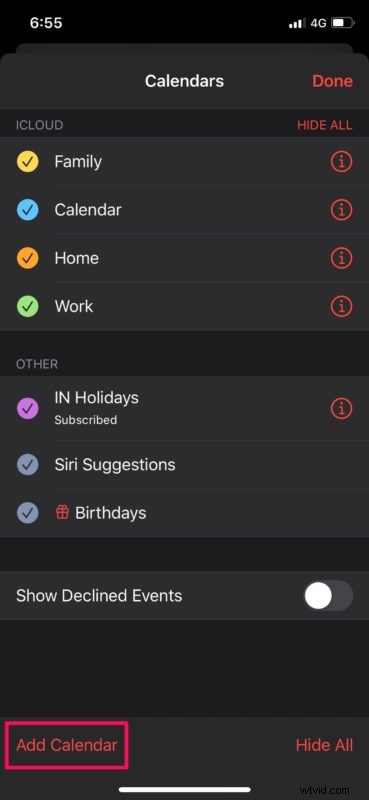
- Once you’re in, tap on “Calendars” at the bottom.

- Next, tap on the “Add Calendar” option which is located at the bottom.
- In this menu, you can give a preferred name for your new calendar and even give it a color code. Tap on “Done” to finish creating the calendar.
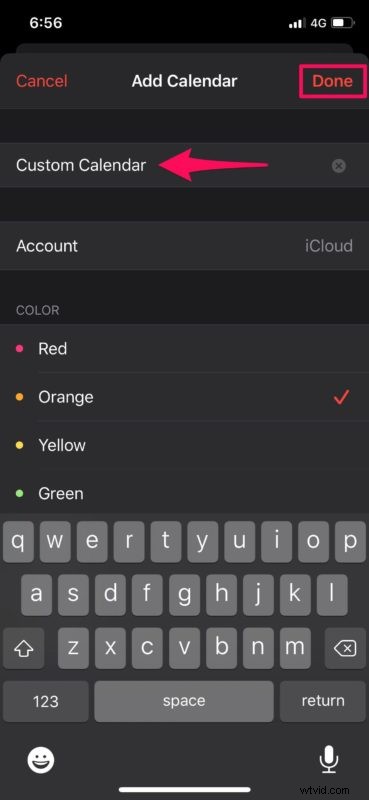
So that’s how you add a new calendar, easy enough right?
But what if you want to delete one instead? That’s just as easy too, as you’ll see next.
How to Delete Calendars from iPhone or iPad
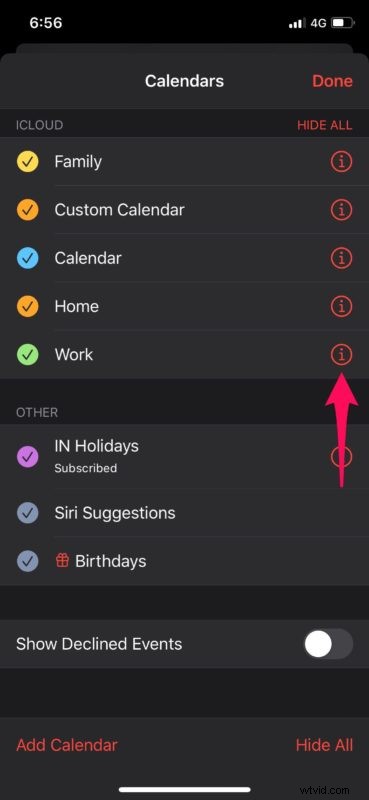
- In order to delete one of your calendars, head back to the Calendars menu and tap on the “i” icon located right next to the Calendar name, as shown in the screenshot below.
- Now, scroll to the bottom to see the delete option. Tap on “Delete Calendar” to remove it from your list of calendars.
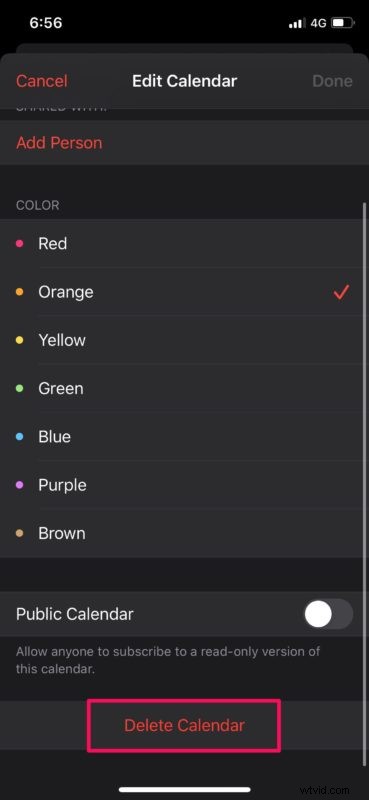
It’s that simple.
Now you know how you can create new calendars, manage multiple calendars, and remove calendars on your iPhone and iPad.
And yes, you can add and delete shared Calendars too, but of course if you delete a shared calendar and you’re the creator of it it will impact the other users it is shared with as well.
This feature could prove to be really useful, especially if you have a lot going on in your everyday life. When it’s hard to keep track of all the meetings, appointments, personal occasions, and events that are ahead of you, organizing them with the Calendar app could make a significant difference.
Any calendars that you’ve added or deleted will be synced across all your other Apple devices with the help of iCloud. Therefore, regardless of whether you’re using your iPhone, or iPad, or decide to switch to your MacBook for work, you can keep up with your schedule.
Likewise, the Calendar app allows users to add and delete events from any of their calendars with ease. Moving and duplicating calendar events is an option as well.
Did you create separate calendars for personal and professional use? Share your experiences, opinions, and thoughts in the comments.