
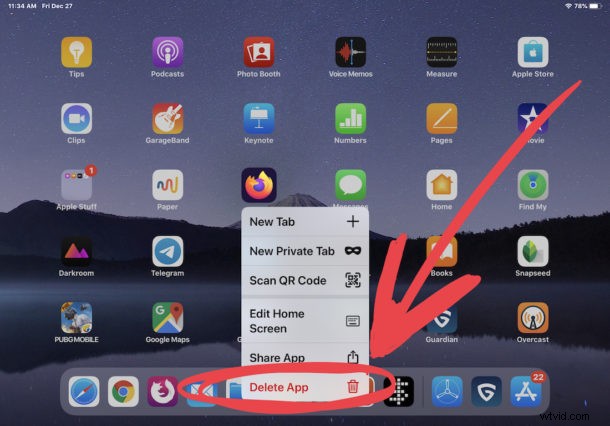
Want to quickly remove an app from your iPhone or iPad? There’s a faster way to delete apps from iPhone and iPad, and it’s available to any user who has a device running a modern version of system software.
You may already be familiar with the process or deleting apps in iOS 13 and iPadOS 13 and newer, which is basically a variation on the longstanding tap, hold, wait for the apps to wiggle, then Delete trick, but with the latest iOS and iPadOS releases you have an even faster way to delete apps from iPhone and iPad devices.
How to Delete Apps on iPad & iPhone Quickly Using Contextual Menus
Don’t want to tap and hold long enough for the icons to wiggle and tap the “X” to remove apps? No problem, the latest iOS and iPadOS versions have an even faster option available thanks to a contextual menu system, here’s how it works:
- On the iPhone or iPad, locate the app you want to delete from the device
- Tap on the app and continue holding the tap until a pop-up contextual menu option appears from that app
- Choose “Delete App” from the menu list options to instantly remove the app from the iPhone or iPad
- Confirm that you want to delete the app by tapping on “Delete”
- Repeat with other apps you want to remove and uninstall from the iPad or iPhone
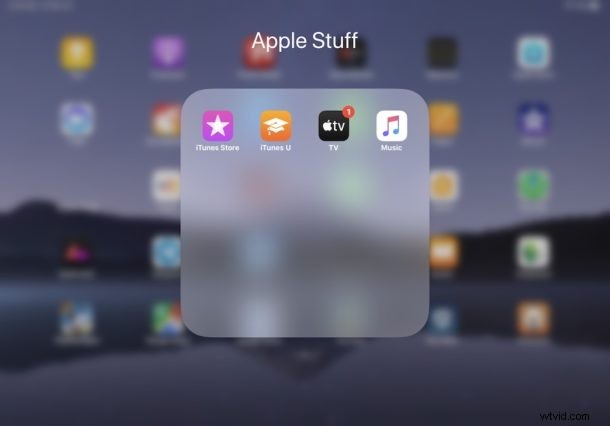
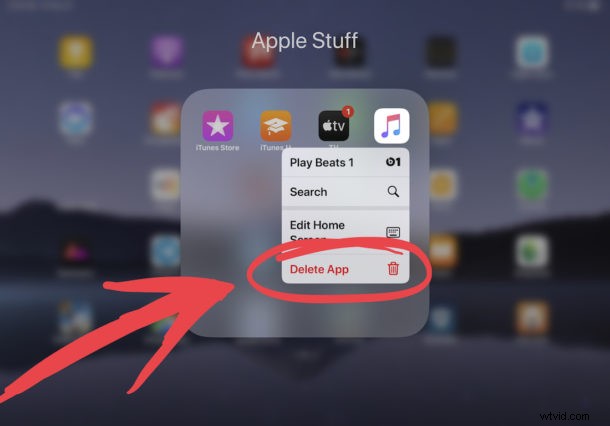

This contextual menu approach is quite fast, and was introduced in later iOS 13 and iPadOS 13 builds, so if you don’t find the “Delete App” option available on your device it’s likely it needs to be updated to a later system software version.
You can also use this same contextual menu to rearrange app icons on the Home Screen of iPhone and iPad without having to wait for the app icons to jiggle with the tap-and-hold approach.
The short video embedded below demonstrates the app removal process on an iPad:
You can think of this process sort of like uninstalling programs on a computer, except of course the apps are entirely self-contained and by deleting an app, all components of that app are also deleted and removed.
There are many reasons you might want to delete apps and remove them from an iPad or iPhone, whether you don’t use them, want to clean up your device, free up storage space, or any other reason.
Here’s the process again showing deleting an app on iPad home screen, in this case it’s aiming to delete a third party app called Firefox:
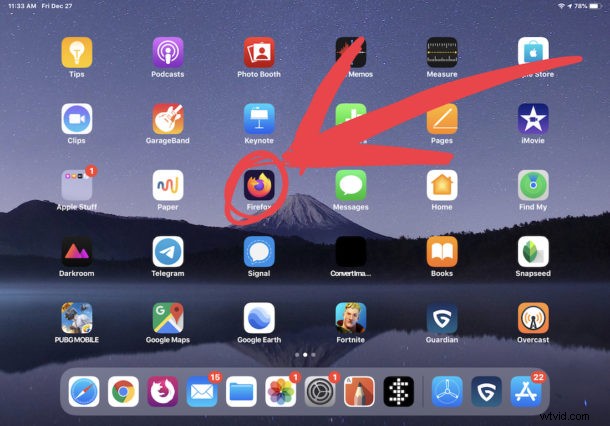
And then choosing the “Delete App” option again to remove the app instantly from the device:
Earlier versions of the same iOS and iPadOS had the contextual menu, but it lacked the “Delete App” contextual menu option. Of course you can still delete apps on iOS 13 and iPadOS 13 by tapping and holding past the contextual menu as well, so use which works best for you.
For many users this will be an even faster method than the old tried and true approach of tapping and holding on an app icon, waiting for the app icons to jiggle and wiggle around, then tapping the (X) on the app icon to delete that app. That tap-and-hold to uninstall apps method has been around for a very long time and still works of course, but if you want speed you may find this contextual menu method of deleting apps to be even faster and better.
Note that if you have an iPhone with 3D Touch you may find the process of deleting apps to feel different, because of the 3D Touch sensor. Nonetheless, the behavior is the same, it’s still a tap and hold, but don’t apply 3D Touch pressure otherwise you’d activate 3D Touch rather than what you might expect.
Do you have any other tips or tricks regarding removing, uninstalling, and deleting apps from an iPhone or iPad? Share with us in the comments below.